
In today’s digital-first world, reliable email communication is essential for maintaining professional relationships and ensuring smooth business operations. Companies and individuals alike often turn to web hosting providers like Bluehost to manage not just their websites, but also their custom domain email services. However, even the most trusted services can occasionally experience disruptions. One particularly frustrating problem users may face is the inability to send emails from their custom domain. Recently, we encountered a persistent issue involving email delivery failure on Bluehost-hosted email accounts—specifically, outgoing mails were not being sent from custom domain addresses. After exhaustive troubleshooting, it became clear that the root of the issue was a misconfigured SMTP setup, which was ultimately resolved by performing a complete SMTP configuration reset.
TL;DR (Too Long; Didn’t Read)
Users with custom domain emails hosted on Bluehost may suddenly find that outgoing emails fail to send. In many cases, the issue stems from an error in the SMTP (Simple Mail Transfer Protocol) configuration, often caused by updates or changes on Bluehost’s servers. A full SMTP reset—including verifying usernames, passwords, SSL settings, and ports—can restore functionality. Below, we detail the symptoms, root causes, and step-by-step resolution to this common but critical issue.
Identifying the Problem: Email Sending Suddenly Stops
The issue commonly begins without warning. You might be able to receive emails just fine, but any attempt to send an email results in an error or bounce-back message. The most frequent error messages observed include:
- “Authentication failed.”
- “Cannot connect to SMTP server.”
- “Message not sent—check SMTP settings.”
To many users, these may seem like client issues—a wrong password or incorrect port. However, further investigation revealed that many configurations had not been altered, yet sending had still ceased.
Initial Troubleshooting Steps
Attempting to fix the problem, users might logically go through a checklist of basic diagnostics, such as:
- Verifying the email password
- Confirming the outgoing (SMTP) server: mail.yourdomain.com or box###.bluehost.com
- Ensuring the SMTP port is set to 465 (SSL) or 587 (TLS)
- Checking if SSL is required and properly enabled
- Disabling any local firewall or antivirus that could block specific ports
Even after going through all these steps, many users found themselves back where they started: no outbound emails and very few answers.
Discovering the Root Cause: SMTP Misconfiguration
In our case, deeper investigation revealed that behind the scenes, Bluehost had rolled out internal server updates affecting mail routing and SMTP authentication. While these updates were generally seamless for many customers, others experienced mismatched credentials stored in email clients or outdated SMTP host names that no longer resolved properly.
The most common underlying issues found were:
- SMTP authentication mismatches: Passwords kept locally in email clients no longer matched the reconfigured backend systems.
- SSL-related port blocks or miscommunication: Some ISPs and local firewalls quietly updated rules blocking the new SSL ports.
- Deprecated SMTP settings: Older tutorials still listed mail.domainname.com as the SMTP host, which no longer resolved correctly for Bluehost’s updated setups.
The Solution: Resetting SMTP Configuration
Once it was clear the problem lay with the SMTP configuration itself, the most effective method was a complete reset. Here’s a clear, step-by-step guide that restored outbound email functionality:
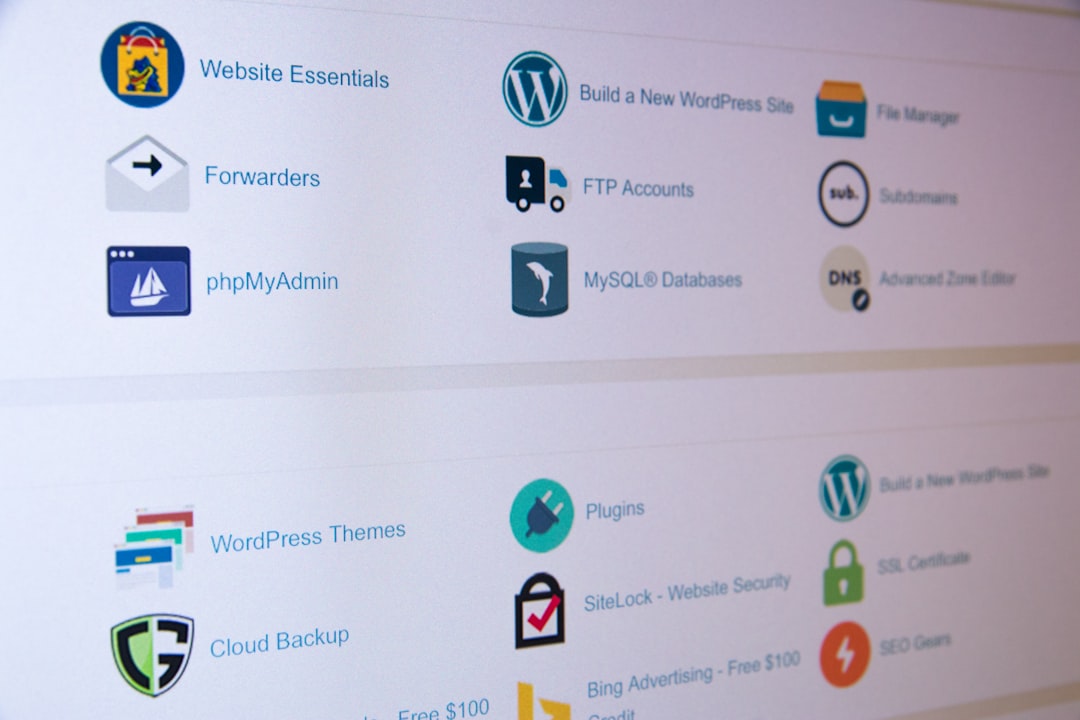
- Log in to Bluehost Webmail or Control Panel: Start by confirming that your account hasn’t been disabled or suspended. Ensure your email credentials still work in Webmail.
- Update Password (Optional but Recommended): Even if it still works, manually reset your custom domain email password to ensure synchronization.
- Identify Correct SMTP Server: Go to Email Configuration under your Control Panel and confirm your server name. Prefer using Bluehost’s secure servers like box123.bluehost.com instead of mail.yourdomain.com.
- Reconfigure Your Email Client: Remove the existing email account in your client (Outlook, Apple Mail, Thunderbird, etc.), then re-add it using the following updated details:
- SMTP Server: [box###].bluehost.com
- Port: 465 (SSL) or 587 (TLS)
- Require Authentication: Yes
- Username: Full email address (e.g., support@yourdomain.com)
- Password: The updated password
- Test Send Function: Send a test message to another address and verify receipt. Also check the Sent folder to make sure it logs the message.
How This Affects Deliverability and Professionalism
Failure to send email doesn’t just cause a technical hiccup—it can damage your business credibility. Imagine a prospective client emailing you during this SMTP outage and never receiving your response. That can be the difference between a closed deal and a lost opportunity.
This disruption also affects mailing lists, campaign deliveries, and automated systems that rely on reliable SMTP delivery. Especially for small businesses, this level of downtime—if not immediately addressed—can snowball into lost revenue and reputation.
Preventive Measures and Long-Term Maintenance
To avoid similar issues in the future, consider implementing the following best practices:
- Regularly Back Up Settings: Keep a snapshot of your working SMTP configuration. Include server names, ports, and credential formats.
- Enable Alerts: Use Bluehost’s notification settings to get alerts about email service changes and maintenance.
- Use Hosted Mail Alternatives: Consider using third-party providers like Google Workspace or Microsoft 365 for mission-critical communication. You can still keep your custom domain while benefiting from more robust infrastructure.
- Avoid Using ISP DNS Resolvers: Some local ISPs cache DNS information poorly. Switch to more reliable DNS providers like Google DNS or Cloudflare (8.8.8.8 or 1.1.1.1) to ensure accurate server resolution.
Conclusion
While Bluehost remains a reliable hosting and email service provider for many users, unexpected problems like the inability to send emails can arise—especially when relying on custom domain configurations. The key takeaway is that SMTP misconfigurations, whether due to outdated settings or silent backend updates, are often at the heart of such issues. A careful review and reset of your SMTP settings can restore normal functionality, ensuring that your communications stay uninterrupted.
Always remember: professional email delivery is non-negotiable. By staying proactive and knowledgeable about how your SMTP settings work, you can minimize downtime and maintain the kind of trust and efficiency your clients expect.