
Few things are more frustrating than purchasing a game, entering the Steam key, and seeing an error message pop up. If you’ve found yourself in this exact scenario, don’t worry — you’re not alone, and the solution might be easier than you think. This article is your complete troubleshooting guide on what to do when your Steam key isn’t working, why it might be happening, and how you can potentially fix it.
TLDR:
If your Steam key isn’t working, it could be due to an invalid code, region lock, already activated key, or activation server issues. First, double-check the code and where it was purchased. Make sure you’re using the correct platform and region. If those all check out, contact the game retailer or Steam Support for assistance.
1. Understanding Steam Keys
A Steam key is a unique alphanumeric code that activates a specific product on your Steam account. These codes are commonly distributed through online game retailers, giveaway platforms, or promotional bundles. Once redeemed, the game is tied permanently to your Steam account, ready to download and play at will.
There are three main sources where users obtain Steam keys:
- Purchased from third-party retailers (e.g., Humble Bundle, Green Man Gaming)
- Gifted by a friend or promotional giveaway
- Included with physical merchandise or collector’s editions
But what happens when your newly acquired key refuses to work? Let’s dive into the possible causes and what you can do.
2. Common Reasons Why a Steam Key Isn’t Working
2.1. Typo in the Key
This is the most basic mistake but also the most common. Steam keys usually consist of 15 or 25 alphanumeric characters split into segments. A single incorrect character can invalidate the key.
Fix: Double-check your key and carefully enter it again. Make sure you distinguish between 0 (zero) and O (letter O), 1 and I, and so on.
2.2. Already Activated
If you’ve tried redeeming the key in the past or someone else has already used it, you’ll encounter an error message stating that the key has already been activated.
Fix: Check your Steam Library for the game. If it’s already there, the key has been successfully activated. If not, reach out to the key provider.
2.3. Region Lock Restrictions
Many game publishers impose region locks, meaning a key purchased in one country may not be redeemable in another. This often affects discounted keys bought from international online sellers.
Fix: Review the listing on the retailer’s site before purchase. Some platforms display region compatibility. If you already bought the key, contact the retailer to see if a region-compatible version can be swapped in.
2.4. Wrong Platform
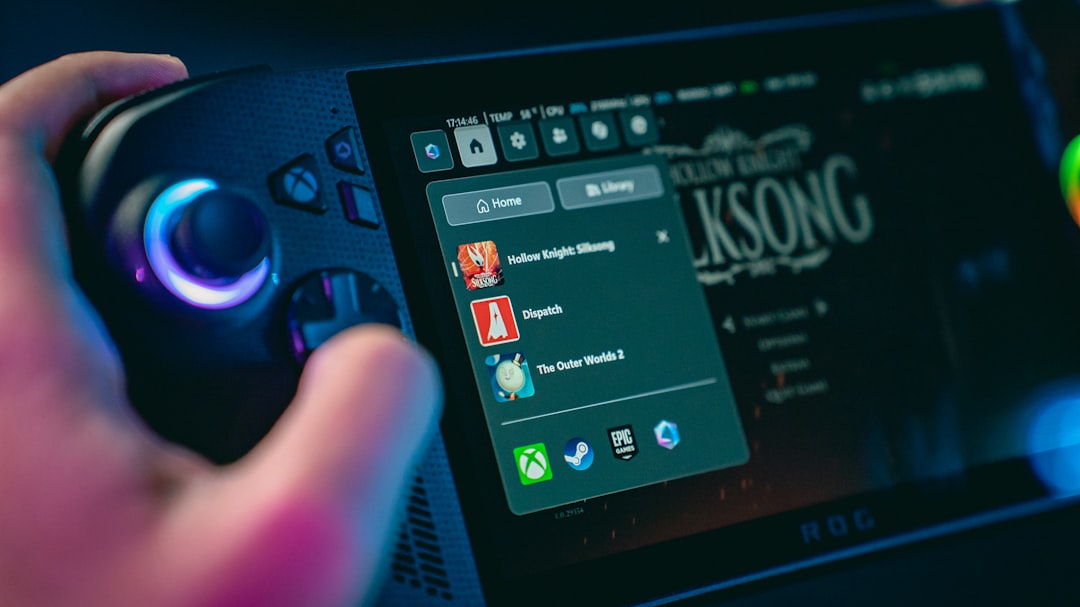
Just because a game comes with a ‘key’ doesn’t mean it works on Steam. Some keys are meant for Epic Games, Origin, Ubisoft Connect, or even a publisher-specific launcher.
Fix: Verify the platform before entering the key. Steam-only keys will clearly be labeled for use with Steam. If it’s not, download the proper launcher instead of using Steam.
2.5. Server or Platform Issues
Sometimes, Steam’s servers are down or undergoing maintenance, preventing key activation. During large sales or massive new game releases, this can cause temporary issues.
Fix: Visit Steam’s status page to check if there are any ongoing service disruptions. Wait a few hours and try again.
2.6. Invalid or Fake Key
Unfortunately, not every online deal is legitimate. Some unauthorised sellers may distribute fake, reused, or stolen keys.
Fix: Avoid unknown or suspicious websites, especially those offering heavily discounted games. If your key seems fake, contact the site where you purchased it — though the chances of a refund are slim if the seller isn’t official.
3. How to Properly Redeem a Steam Key
To make sure you’re entering the code correctly, follow these steps:
- Open the Steam client on your PC or Mac and log into your account.
- Click on Games in the top menu.
- Select Activate a Product on Steam…
- Follow the instructions and paste or type your Steam key into the text box.
- Click Next and wait for confirmation.
Once completed successfully, the game will be automatically added to your Steam Library and you can begin the installation whenever you like.
4. What to Do if None of the Fixes Work
If you’ve tried all the above and your key still isn’t working, it’s time to escalate the problem:
4.1. Contact the Retailer
The first step is reaching out to the platform where you bought the key. Provide them with the code, screenshots of any error messages, and your order confirmation. Legitimate sellers usually offer some form of customer support or refund policy.
4.2. Contact Steam Support
If the seller is unresponsive or if you received the key from a bundle or promotion, you can contact Steam Support directly:
- Go to Steam Support
- Select Games, Software, etc.
- Search for the game in question
- Choose I have a problem with this product
- Then select I have a question about this purchase and follow the prompts
Note: Steam will not offer assistance with keys purchased outside of the Steam store unless the issue is specifically related to their platform (such as an error message or account issue).
5. Best Practices to Avoid Broken Keys
To prevent these kinds of problems in the future, follow these helpful tips when purchasing or using Steam keys:
- Always buy from authorized retailers and partners
- Screenshot the key and transaction confirmation at time of purchase
- Avoid public giveaways that don’t come from verified sources
- Check user reviews of a site or seller if you’re unsure
- Ensure you’re logged into the correct Steam account before activating
Conclusion
Not all hope is lost when your Steam key doesn’t work. The important thing is to calmly troubleshoot the issue, rule out common causes, and take the necessary steps — whether that’s correcting a typo, checking for region compatibility, or contacting support. With the right approach, that game you were excited to play is only a few clicks away.
Happy gaming!