
When Clipchamp suddenly stops working on Chrome, it can derail editing projects and waste valuable time. Users may encounter a blank screen, constant loading, freezing timelines, or error messages that prevent videos from rendering. These issues are often rooted in browser settings, extensions, or outdated components rather than the platform itself. Fortunately, several quick browser fixes can restore Clipchamp’s functionality without complicated troubleshooting.
TLDR: If Clipchamp is not working on Chrome, the problem is usually caused by outdated browser versions, corrupted cache files, conflicting extensions, disabled hardware acceleration, or improper permissions. Updating Chrome, clearing browsing data, disabling extensions, enabling hardware acceleration, allowing media permissions, and resetting Chrome settings often resolve the issue quickly. Following these six targeted fixes can restore smooth video editing without switching browsers.
Why Clipchamp May Not Work Properly on Chrome
Clipchamp is a browser-based video editor that relies heavily on modern web technologies such as WebRTC, WebGL, and hardware acceleration. Chrome supports these features, but when certain settings are misconfigured, performance problems can arise. Since Clipchamp processes video locally within the browser, even small issues with memory allocation or graphics handling can disrupt functionality.
Common symptoms include:
- Clipchamp stuck on loading screen
- Black or blank editor window
- Audio not syncing with video
- Timeline lagging or freezing
- Export failures
Understanding the root cause is key, and most solutions involve optimizing Chrome itself rather than reinstalling Clipchamp.
1. Update Google Chrome to the Latest Version
Outdated browsers frequently cause compatibility issues with advanced web apps like Clipchamp. Each Chrome update includes bug fixes, security patches, and performance improvements that impact browser-based editing tools.
How to update Chrome:
- Click the three-dot menu in the top-right corner.
- Go to Help > About Google Chrome.
- Allow Chrome to check for updates automatically.
- Restart the browser after updating.
If Clipchamp was previously stuck or unresponsive, reopening it after updating Chrome often resolves rendering or playback issues immediately.
2. Clear Cache and Browsing Data
Cached files and corrupted cookies can interfere with how Clipchamp loads scripts and media assets. Over time, outdated cache data can conflict with new platform updates, resulting in errors.
Steps to clear cache in Chrome:
- Open the three-dot menu.
- Select Settings > Privacy and Security.
- Click Clear browsing data.
- Choose Cached images and files and Cookies and other site data.
- Select All time and confirm.
After clearing the cache, restart Chrome and reopen Clipchamp. This fix is especially effective if the editor appears broken or refuses to load certain media files.
Tip: Clearing cache signs users out of some websites, so login credentials should be readily available.
3. Disable Conflicting Chrome Extensions
Extensions enhance browser functionality but can sometimes interfere with resource-heavy web apps. Ad blockers, privacy tools, script managers, and antivirus extensions are common culprits.
Some extensions block essential scripts Clipchamp requires to function correctly. Others consume memory, limiting performance during video editing sessions.
How to test for extension conflicts:
- Type chrome://extensions in the address bar.
- Disable all extensions temporarily.
- Restart Chrome.
- Open Clipchamp again.
If Clipchamp works after disabling extensions, re-enable them one by one to identify the problematic add-on.
Pro Tip: For ongoing stability, users can create a separate Chrome profile dedicated solely to editing tasks with minimal extensions installed.
4. Enable Hardware Acceleration
Hardware acceleration allows Chrome to offload intensive graphics tasks to the computer’s GPU instead of relying solely on the CPU. Since Clipchamp handles video previews, effects, and exports, GPU support significantly improves stability and responsiveness.
To enable hardware acceleration:
- Open Chrome Settings.
- Scroll to System.
- Toggle on Use hardware acceleration when available.
- Restart Chrome.
If hardware acceleration was previously disabled, enabling it can dramatically reduce timeline lag and playback stuttering.
However, in rare cases, outdated graphics drivers may cause conflicts. If problems worsen after enabling hardware acceleration, updating GPU drivers through the device manufacturer’s website can help.
5. Check Camera, Microphone, and Media Permissions
Clipchamp requires camera and microphone permissions for recording features. If Chrome blocks these permissions, recording tools may fail to work or remain inaccessible.
How to verify permissions:
- Click the padlock icon beside the Clipchamp URL.
- Check Camera and Microphone settings.
- Ensure both are set to Allow.
- Refresh the page.
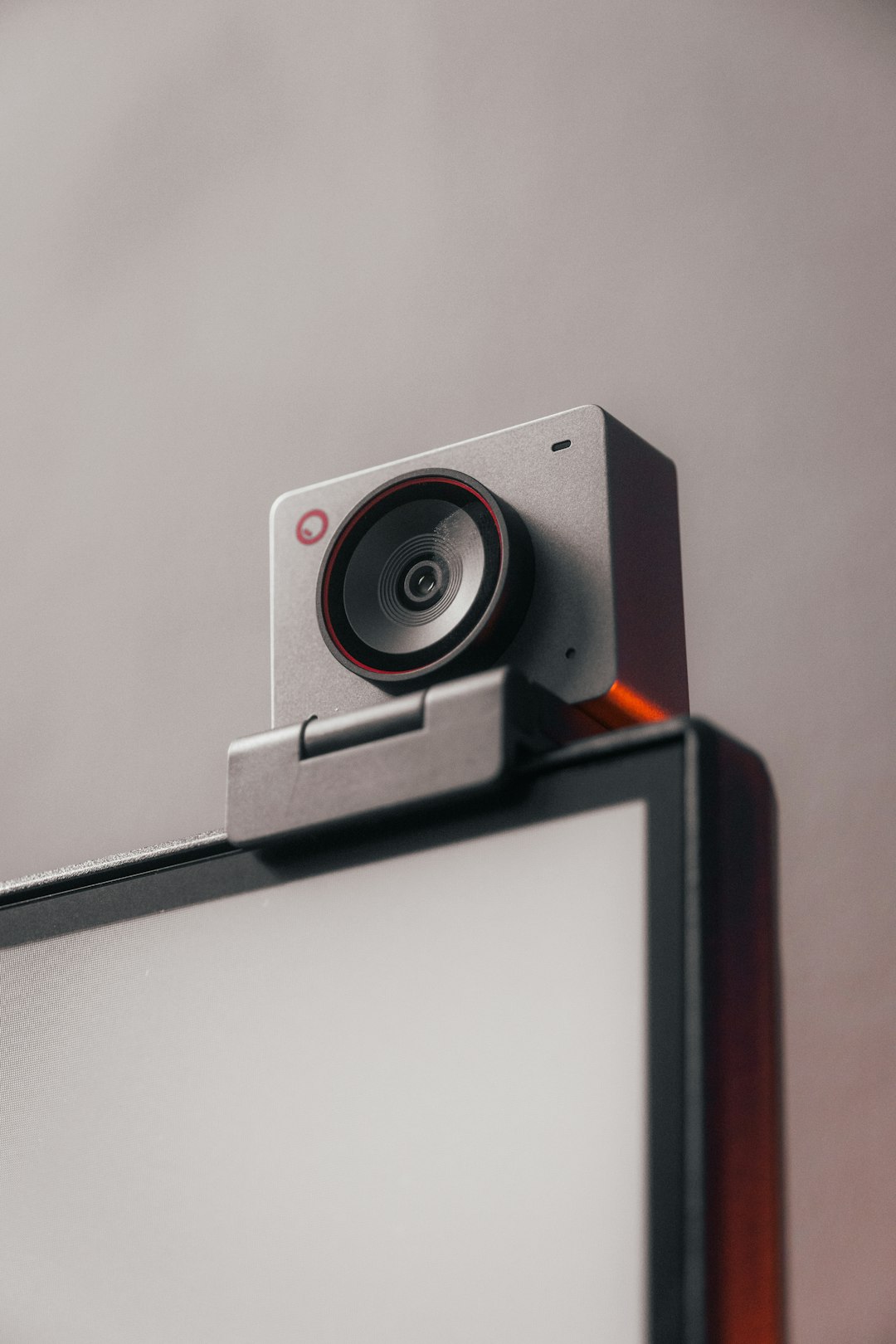
Additionally, users should verify that Chrome itself is granted camera and microphone access in their computer’s system privacy settings. Without system-level permissions, Clipchamp recording features will not function regardless of browser settings.
6. Reset Chrome Settings to Default
If all else fails, resetting Chrome can eliminate hidden configuration issues. Over time, experimental flags, modified settings, or corrupted preferences may interfere with browser performance.
To reset Chrome:
- Open Settings.
- Navigate to Reset and clean up.
- Select Restore settings to their original defaults.
- Confirm the reset.
This action does not delete bookmarks or saved passwords but will disable extensions and reset startup settings. After the reset, Clipchamp typically reloads without persistent errors.
Additional Quick Tips for Smooth Clipchamp Performance
Beyond Chrome-specific fixes, several broader best practices improve browser-based editing:
- Close unused tabs: Free up memory by closing resource-heavy websites.
- Restart your computer: Clears temporary system memory issues.
- Check internet stability: While Clipchamp processes locally, cloud syncing still requires stable connectivity.
- Use incognito mode: Quickly tests if cached data or extensions are interfering.
- Ensure sufficient RAM: Video editing inside a browser requires adequate system memory.
In many cases, a combination of updating Chrome and enabling hardware acceleration resolves most performance issues within minutes.
When to Consider Switching Browsers
If Clipchamp continues to malfunction despite applying all fixes, testing it in another Chromium-based browser such as Microsoft Edge can help determine whether the issue is Chrome-specific. Since Edge uses the same underlying engine, performance should be comparable. If it works elsewhere but not in Chrome, a deeper Chrome profile issue may be present.
However, most Chrome-related Clipchamp problems stem from settings conflicts rather than fundamental compatibility limitations.
Conclusion
When Clipchamp is not available or functioning properly on Chrome, the disruption can feel urgent—especially during time-sensitive video projects. Fortunately, most problems originate from browser-related factors such as outdated versions, conflicting extensions, disabled hardware acceleration, or corrupted cache files. Applying the six browser fixes outlined above can resolve the majority of issues quickly and efficiently.
By maintaining an updated browser, minimizing extension conflicts, and ensuring proper permissions are enabled, users can restore Clipchamp’s full functionality and enjoy smooth, uninterrupted editing sessions.
Frequently Asked Questions (FAQ)
-
Why is Clipchamp stuck on the loading screen in Chrome?
This usually occurs due to cached data conflicts, outdated Chrome versions, or extension interference. Clearing cache and updating the browser often resolves the issue. -
Does Clipchamp work better with hardware acceleration enabled?
Yes. Hardware acceleration allows the GPU to handle video rendering tasks, which improves playback smoothness and reduces freezing. -
Can extensions really stop Clipchamp from working?
Yes. Ad blockers, security tools, and script blockers can prevent essential Clipchamp scripts from loading properly. -
Will resetting Chrome delete bookmarks and passwords?
No. Resetting Chrome restores default settings but keeps bookmarks, history, and saved passwords intact. -
Is switching browsers a permanent solution?
Not necessarily. If Clipchamp works in another browser, the issue is likely profile-specific within Chrome and can often be fixed without permanently switching. -
How much RAM is recommended for Clipchamp on Chrome?
At least 8GB of RAM is recommended for smoother performance, especially when editing HD or 4K videos.