
Animation has become one of the most powerful tools for grabbing attention in today’s fast-moving digital world. Whether you’re creating YouTube shorts, product promos, educational reels, or social content, a simple bouncing image effect can instantly add energy and personality to your videos. The best part? You don’t need advanced animation software to do it. With Clipchamp’s 2026 feature updates, creating a smooth, professional bouncing image effect is easier than ever.
TLDR: You can create a professional bouncing image effect in Clipchamp in just five simple steps: import your image, add it to the timeline, apply motion or keyframes, adjust timing for realistic bounce physics, and refine with easing effects. Clipchamp’s 2026 updates make motion customization smoother and more intuitive. With careful timing and positioning, you can create engaging animations suitable for marketing, social media, or presentations — no advanced skills required.
In this step-by-step tutorial, you’ll learn exactly how to create a realistic and eye-catching bouncing image effect using Clipchamp. We’ll also cover pro tips to make your animation feel natural rather than robotic.
Why Use a Bouncing Image Effect?
A bouncing effect works because it mimics real-world physics. Our brains are wired to notice motion, especially dynamic movement like bouncing. You can use it to:
- Highlight an important image (product photo, logo, call to action)
- Add playful energy to social media posts
- Create dynamic intros for YouTube or TikTok
- Make educational videos more engaging
Done correctly, a bounce adds personality without overwhelming the viewer.
Step 1: Import Your Image and Set Up Your Timeline
Start by opening Clipchamp and creating a new project. Choose your aspect ratio based on your platform:
- 16:9 for YouTube
- 9:16 for TikTok and Reels
- 1:1 for Instagram feed posts
Next:
- Click Import media.
- Upload your image (PNG works best for transparent backgrounds).
- Drag the image onto your timeline.
If you’re working with a logo or product image, make sure the resolution is high quality to avoid pixelation during scaling.
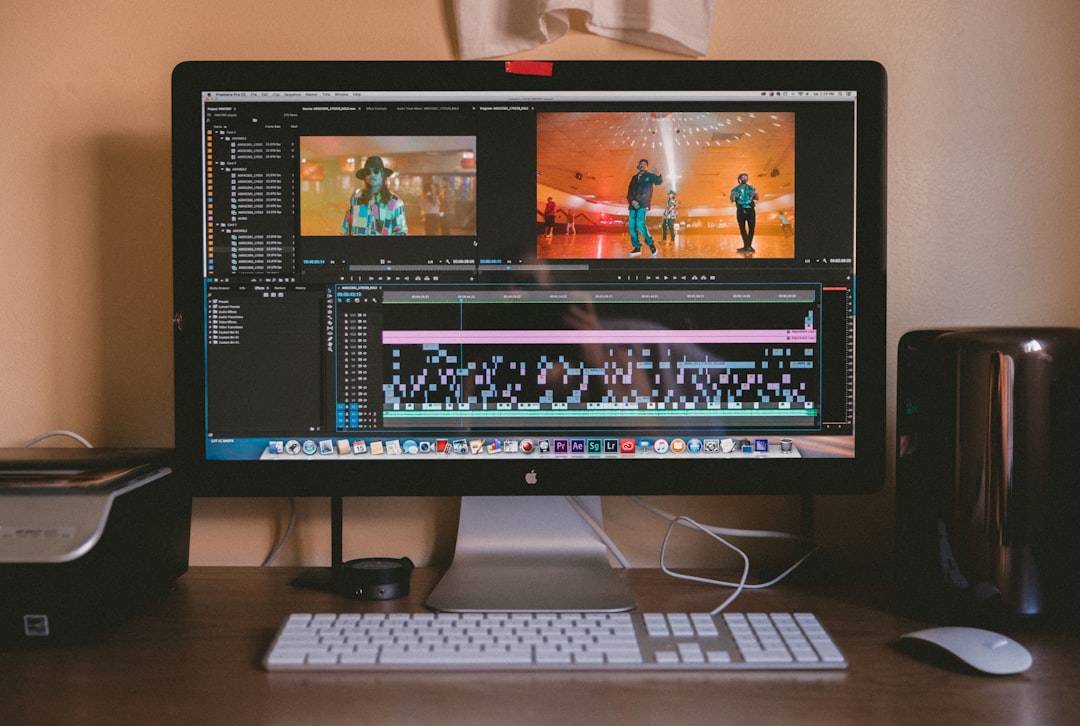
Once the image is on the timeline, adjust its starting position and duration. For a simple bounce effect, 3–5 seconds is typically enough.
Step 2: Position and Resize Your Image
Before animating, decide where the bounce will occur. Most bouncing animations fall vertically, so you’ll usually want to:
- Center the image horizontally
- Position it slightly above the middle of the screen (so it has room to “fall”)
Click on the image in the preview window:
Resize: Drag the corners while holding proportion to maintain aspect ratio.
Reposition: Drag the image to its starting location.
Think about gravity. If the image is bouncing from the top, position it near the upper third of the frame.
Tip: Leave extra space below the image so it has room to bounce realistically.
Step 3: Add Motion Using Keyframes
This is where the magic happens. Clipchamp’s updated 2026 motion tools allow you to apply keyframe-based movement for more precise animation control.
What Are Keyframes?
Keyframes mark specific points in time where an element changes position, scale, rotation, or opacity. By setting multiple keyframes, Clipchamp automatically creates smooth motion between them.
To create the bounce:
- Select your image in the timeline.
- Open the Transform or Motion panel.
- Enable Keyframes for Position.
Now set your animation points:
- Keyframe 1 (Start): Position image at the top.
- Keyframe 2 (Impact): Move image down to the “ground” level (usually near the bottom third).
- Keyframe 3 (Bounce Up): Move image slightly upward again.
- Keyframe 4 (Final Settle): Bring image slightly back down.
This creates the foundational bounce motion.
Step 4: Adjust Timing for Realistic Physics
Timing is everything when creating a convincing bounce. If the speed feels wrong, the animation will look artificial.
How Real Bouncing Works
In real life:
- The fall is fast.
- The rebound is quicker but smaller.
- Each bounce becomes shorter.
To mimic this:
- Make the drop (Keyframe 1 to 2) quick.
- Make the bounce up slightly slower.
- Reduce the height and duration of each additional bounce.
Pro Tip: Use easing controls if available. Set the “fall” to Ease In and the rebound to Ease Out. This adds natural acceleration and deceleration.
If your bounce looks too mechanical, shorten the time between keyframes and reduce the height of secondary bounces.
Step 5: Add Polish with Scale and Shadow Effects
To elevate your animation from basic to professional, add subtle deformation and shadow enhancements.
Add a Squash Effect
When objects hit the ground, they slightly squash before bouncing up. You can recreate this by:
- Adding a keyframe at the impact moment.
- Slightly increasing width.
- Slightly decreasing height.
Keep the change subtle — around 5–10% difference works best.
Add a Drop Shadow
Shadows ground your animation in space. In Clipchamp:
- Open the Effects panel.
- Select Drop Shadow.
- Adjust opacity and blur for realism.
To make it even more dynamic, animate the shadow:
- Increase shadow size at impact.
- Reduce shadow when the image moves upward.
This small change makes a huge difference in realism.
Bonus Tips for Advanced Bouncing Effects
Once you master the basics, experiment with:
1. Rotational Bounce
Add slight rotation mid-air for a playful look.
2. Background Interaction
Animate background elements reacting to the bounce (such as subtle shake effects).
3. Sound Design
Add a light “boing” or bounce sound effect at impact for enhanced engagement.
4. Multiple Image Bounce
Stagger multiple images so they bounce in sequence like dominoes.
Common Mistakes to Avoid
- Overbouncing: Too many bounces feel unnatural.
- Equal bounce height: Each bounce should progressively shrink.
- No easing: Linear movement looks robotic.
- Too slow: Bounce animations should feel snappy.
When in doubt, record yourself dropping a small object and observe the timing.
Exporting Your Final Animation
Once you’re satisfied:
- Click Export.
- Select resolution (1080p recommended).
- Choose frame rate (30fps works perfectly for most social media platforms).
Preview the video before final export to ensure timing feels right.
Creative Use Cases for Bouncing Animations
The bounce effect is versatile and works in multiple industries:
- E-commerce: Make product images pop.
- Education: Animate visual aids.
- Branding: Create animated logo intros.
- Social Media: Boost scroll-stopping engagement.
In 2026, short-form vertical content continues to dominate, and small motion touches like bouncing imagery help stop viewers mid-scroll.
Final Thoughts
Creating a bouncing image effect in Clipchamp doesn’t require professional animation skills — just a good understanding of timing and motion principles. By carefully placing keyframes, adjusting easing, and adding subtle squash and shadow effects, you can produce polished animations in minutes.
The key is realism: fast fall, smaller rebound, reduced bounce heights, and slight deformation on impact. Master this, and you’ll be able to transform static images into eye-catching motion graphics that feel lively and professional.
Now that you know the 5-step method, open Clipchamp and start experimenting. The more you practice timing and spacing, the more natural your animations will look — and once you get it right, that satisfying bounce might just become your favorite go-to effect.