
A sudden white screen on your Windows computer can be alarming. Unlike the more familiar Blue Screen of Death, the so-called White Screen of Death (WSOD) often appears without a clear error message, leaving users unsure of what went wrong. In many cases, your system may boot to a completely blank white display, freeze during login, or show a white overlay when launching certain applications.
TLDR: The White Screen of Death on Windows is typically caused by graphics driver issues, corrupted system files, faulty updates, or hardware problems. Start with simple fixes like restarting your PC and disconnecting external devices. If the issue persists, boot into Safe Mode, update or reinstall drivers, run system repair tools, and check for hardware failures. Addressing the root cause methodically is key to resolving the issue safely and effectively.
This guide explains why the White Screen of Death happens and provides step-by-step instructions to fix it in a structured and reliable way.
What Is the White Screen of Death?
The White Screen of Death is not an official Windows error code. It is an informal term used to describe a situation where your screen turns completely white and the system becomes unresponsive. It may occur:
- During startup or boot
- After logging into Windows
- When launching a specific application
- After a Windows update
Understanding when the problem occurs helps determine whether the issue is software-related, driver-related, or hardware-based.
Common Causes of the White Screen of Death
Several underlying issues can trigger a white screen on Windows:
- Corrupted or outdated graphics drivers
- Faulty Windows updates
- Corrupted system files
- Malware infections
- Failing hardware components such as GPU, RAM, or display cable
- Overheating causing graphics malfunction
Identifying the most likely cause allows you to apply the appropriate solution without risking further system damage.
Step 1: Perform a Basic Restart
Before attempting advanced troubleshooting, perform a simple restart.
- Hold down the Power button for 10–15 seconds until the machine shuts down.
- Wait 30 seconds.
- Turn the system back on.
This clears temporary glitches and resets system processes that may have caused the white screen.
If the problem disappears after restarting, the cause was likely a temporary software conflict.
Step 2: Disconnect External Devices
External hardware can sometimes trigger display conflicts.
- Unplug USB drives
- Disconnect printers and scanners
- Remove external monitors
- Detach docking stations
Restart your computer with only essential peripherals (keyboard and mouse) connected. If the white screen no longer appears, reconnect devices one at a time to identify the culprit.
Step 3: Boot into Safe Mode
If Windows cannot load normally, Safe Mode is the most reliable diagnostic environment.
- Force shutdown your PC three times during startup.
- Windows will enter Automatic Repair.
- Select Advanced Options > Startup Settings > Restart.
- Press 4 or F4 to enter Safe Mode.
In Safe Mode, Windows loads only essential drivers. If the screen works correctly here, the issue is likely related to drivers or startup programs.
Step 4: Update or Reinstall Graphics Drivers
Graphics drivers are the most common cause of a white screen.
To Update Drivers:
- Press Win + X and select Device Manager.
- Expand Display Adapters.
- Right-click your graphics card and select Update Driver.
- Choose Search automatically for drivers.
To Reinstall Drivers:
- In Device Manager, right-click your GPU.
- Select Uninstall device.
- Restart your computer.
Windows will automatically reinstall default drivers. If the problem persists, download the latest drivers directly from your GPU manufacturer’s website.
Step 5: Run System File Checker (SFC)
Corrupted system files can trigger display errors.
- Boot into Safe Mode.
- Press Win + S and type cmd.
- Right-click Command Prompt and select Run as administrator.
- Type: sfc /scannow
- Press Enter and wait for the scan to complete.
This tool scans and repairs corrupted Windows system files automatically.
Step 6: Use DISM to Repair Windows Image
If SFC cannot fix the problem, the Deployment Image Servicing and Management (DISM) tool may help.
- Open Command Prompt as administrator.
- Enter the following commands one by one:
- DISM /Online /Cleanup-Image /CheckHealth
- DISM /Online /Cleanup-Image /ScanHealth
- DISM /Online /Cleanup-Image /RestoreHealth
This process repairs corrupted components in the Windows system image.
Step 7: Uninstall Recent Windows Updates
If the white screen began after a Windows update, rolling it back may resolve the issue.
- Go to Settings > Update & Security > Windows Update.
- Select View update history.
- Click Uninstall updates.
- Remove the most recently installed update.
Restart your system and observe whether the issue is resolved.
Step 8: Check for Malware
Malicious software can interfere with system processes and produce abnormal display behavior.
- Run Windows Defender Offline Scan.
- Use a reputable antivirus solution for a full system scan.
- Remove any detected threats immediately.
Step 9: Test Hardware Components
If software solutions fail, the issue may be hardware-related.
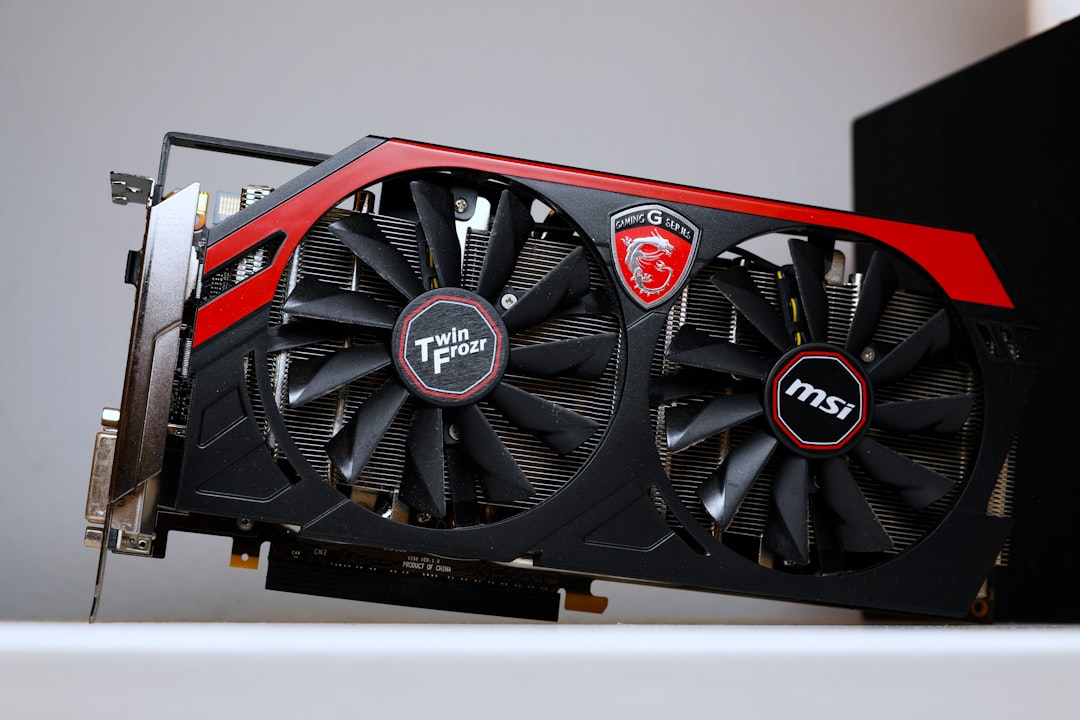
Inspect the Following:
- Graphics card: Reseat the GPU in its slot.
- RAM modules: Remove and reinsert memory sticks.
- Monitor cable: Replace HDMI or DisplayPort cables.
- Monitor: Test with another display.
Hardware failure often causes persistent white screens that occur even before Windows fully loads.
Troubleshooting Tools Comparison
| Tool | Purpose | Difficulty Level | Best Used When |
|---|---|---|---|
| Safe Mode | Loads Windows with minimal drivers | Easy | System fails to boot normally |
| Device Manager | Update or reinstall drivers | Easy to Medium | Suspected graphics driver issue |
| SFC Scan | Repairs corrupted system files | Medium | System instability or file corruption |
| DISM Tool | Repairs Windows image | Advanced | SFC fails to fix problem |
| Windows Update Rollback | Removes problematic updates | Medium | Issue began after update |
When to Consider a System Restore
If you previously created restore points, you can revert Windows to an earlier working state.
- Type Create a Restore Point in the search bar.
- Select System Restore.
- Choose a restore point created before the issue started.
This method preserves personal files but removes recent apps and settings changes.
Last Resort: Reset Windows
If all else fails, resetting Windows may be necessary.
- Go to Settings > System > Recovery.
- Select Reset this PC.
- Choose between Keep my files or Remove everything.
This option reinstalls Windows and eliminates deep system corruption. Always back up important data first.
Preventing the White Screen of Death in the Future
- Keep graphics drivers updated.
- Install Windows updates carefully and monitor stability.
- Use antivirus protection.
- Maintain proper system cooling.
- Avoid forced shutdowns during updates.
Proactive system maintenance significantly reduces the likelihood of recurring display failures.
Final Thoughts
The White Screen of Death on Windows can range from a minor driver glitch to a serious hardware malfunction. The key is to proceed calmly and diagnose the issue step by step. Start with simple solutions such as restarting and disconnecting peripherals, then move to Safe Mode diagnostics, driver repairs, and system scans.
In most cases, the problem can be resolved without professional repair. However, if hardware failure is suspected or troubleshooting becomes too technical, seeking assistance from a certified technician is recommended. Addressing the root cause carefully ensures system stability and protects your data from further risk.
A systematic, methodical approach is the most reliable way to eliminate the White Screen of Death and restore your Windows system to full functionality.