
Safari’s smart search features are designed to make browsing faster, but over time they can become cluttered with outdated searches, unwanted website suggestions, and autofill entries you would rather forget. Whether you are cleaning up for privacy, tidiness, or performance reasons, knowing how to delete suggestions on Safari can make your browsing experience smoother and more secure.
TLDR: Safari suggestions come from search history, bookmarks, autofill data, Siri suggestions, and frequently visited sites. You can remove them by clearing browsing history, deleting specific website data, managing Safari settings, and adjusting Siri suggestions. The process differs slightly between Mac, iPhone, and iPad. With a few quick steps, you can take full control of what appears in Safari’s search bar.
Why Safari Shows Suggestions in the First Place
Before learning how to remove them, it helps to understand where Safari suggestions come from. Safari pulls suggestions from multiple sources, including:
- Browsing history
- Search history
- Bookmarks and Favorites
- Frequently visited sites
- Autofill information
- Siri suggestions
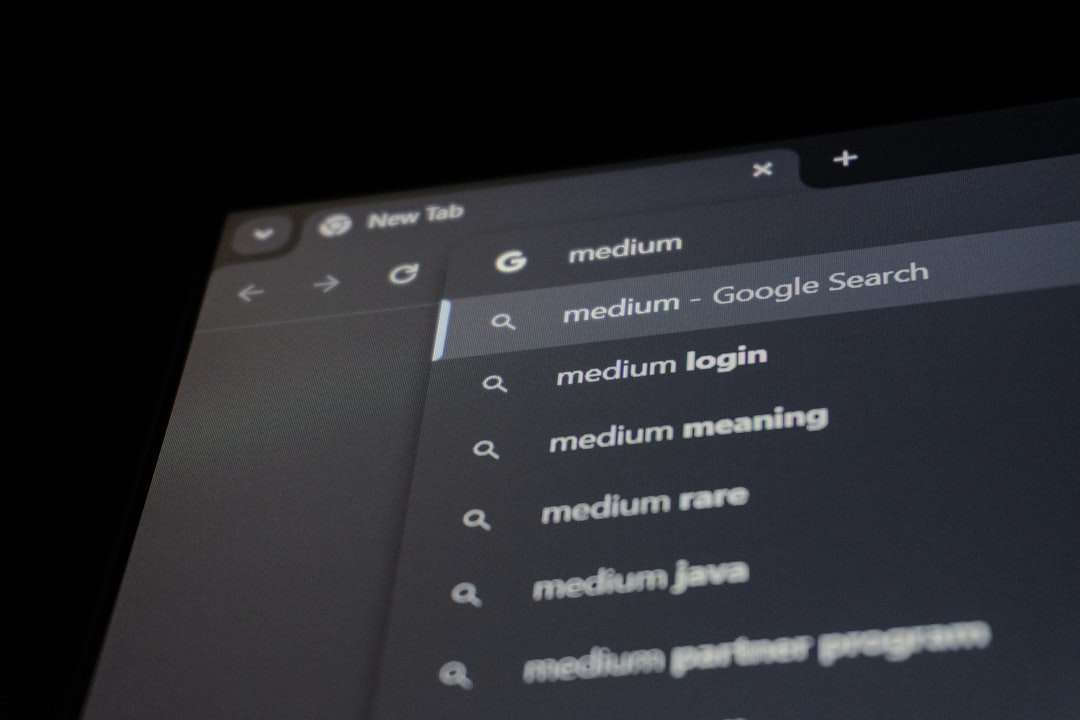
When you type into the search bar, Safari quickly scans these data sources to offer what it believes to be helpful recommendations. Over time, however, this convenience can turn into clutter.
How to Delete Safari Suggestions on Mac
1. Clear Browsing History
The simplest way to remove many suggestions at once is by clearing your browsing history.
- Open Safari.
- Click History in the top menu.
- Select Clear History.
- Choose a timeframe (last hour, today, today and yesterday, or all history).
- Click Clear History again to confirm.
Note: This will remove history across all devices signed into your iCloud account.
2. Remove Specific Suggestions Only
If you prefer not to delete everything, you can remove individual entries.
- Open Safari and click History.
- Select Show All History.
- Use the search bar to locate the entry.
- Right-click the item.
- Click Delete.
This method is ideal when you want precision instead of a complete reset.
3. Disable Safari Search Suggestions
If suggestions themselves are the problem, you can turn them off.
- Open Safari.
- Click Safari > Settings.
- Select the Search tab.
- Uncheck Include Safari Suggestions.
- Optionally uncheck Include Search Engine Suggestions.
This does not delete history, but it prevents Safari from displaying suggestions based on live search data.
4. Remove Frequently Visited Sites
Safari’s start page often shows tiles for frequently visited websites.
- Open a new Safari window.
- Locate the website tile.
- Right-click the tile.
- Select Delete.
You can also turn this feature off entirely via Safari > Settings > General by deselecting frequently visited sites from the Start Page options.
How to Delete Safari Suggestions on iPhone and iPad
The mobile version of Safari works differently from the desktop version, but the process is just as simple.
1. Clear History and Website Data
- Open the Settings app.
- Scroll down and tap Safari.
- Tap Clear History and Website Data.
- Confirm your action.
This removes browsing history, cookies, and other stored data across synced devices.
2. Delete Individual Website Data
If you prefer a targeted approach:
- Open Settings.
- Tap Safari.
- Scroll down and select Advanced.
- Tap Website Data.
- Swipe left on specific sites and tap Delete.
This method is useful if suggestions repeatedly show up for specific websites.
3. Turn Off Safari Suggestions on iOS
- Go to Settings.
- Tap Safari.
- Toggle off Safari Suggestions.
- Toggle off Search Engine Suggestions if desired.
This stops suggestions from appearing while typing in the address bar.
How to Manage Autofill Suggestions
Autofill can also generate unwanted suggestions, especially for names, emails, usernames, and passwords.
On Mac:
- Open Safari.
- Go to Safari > Settings.
- Click AutoFill.
- Select Edit next to the relevant category.
- Remove unwanted entries.
On iPhone:
- Go to Settings.
- Tap Safari.
- Select AutoFill.
- Adjust saved contact information and card details.
Keeping Autofill updated ensures that Safari does not suggest outdated or incorrect details.
Managing Siri Suggestions in Safari
Siri also plays a role in suggested websites. If you see recommendations based on your app activity, Siri may be responsible.
- Open Settings.
- Tap Siri (or Apple Intelligence and Siri depending on system version).
- Select Safari.
- Toggle off Show Suggestions.
This prevents Siri from contributing search or website suggestions.
Image not found in postmetaQuick Comparison: Mac vs iPhone Suggestion Removal
| Action | Mac | iPhone / iPad |
|---|---|---|
| Clear All History | History > Clear History | Settings > Safari > Clear History |
| Delete Specific Sites | History > Show All History | Settings > Safari > Advanced > Website Data |
| Disable Search Suggestions | Safari > Settings > Search | Settings > Safari |
| Manage Autofill | Safari > Settings > AutoFill | Settings > Safari > AutoFill |
Extra Privacy Tips for Safari Users
If privacy is your main concern, consider these additional steps:
- Enable Private Browsing Mode when necessary.
- Use Prevent Cross-Site Tracking in Safari settings.
- Clear cookies regularly.
- Sign out of shared devices.
Private browsing prevents your searches and site visits from being stored in history, meaning fewer suggestions in the future.
Common Issues and Quick Fixes
If suggestions keep returning even after clearing them:
- Check if iCloud Safari syncing is restoring data from another device.
- Ensure you cleared both history and website data.
- Disable Siri suggestions if they are contributing results.
Sometimes the persistence of suggestions is not a glitch, but rather a syncing feature doing exactly what it was designed to do.
Final Thoughts
Safari’s suggestions can either be helpful shortcuts or frustrating reminders of old searches. Fortunately, Apple gives users detailed control over what appears in the address bar. Whether you choose to delete specific entries, clear all browsing history, disable suggestions entirely, or fine-tune Autofill and Siri settings, the solution is always just a few clicks or taps away.
By regularly cleaning up Safari suggestions, you improve not only your device’s privacy but also the clarity of your browsing experience. A tidy search bar leads to faster navigation, fewer distractions, and greater control over your digital footprint. Once you know where each suggestion comes from, managing them becomes simple and empowering.