
It can be frustrating when ChatGPT freezes in the middle of an important task. Whether someone is drafting a report, writing code, brainstorming ideas, or simply asking questions, an unresponsive screen can interrupt workflow and waste time. While occasional slowdowns are normal for any web-based tool, repeated freezing usually points to specific technical issues that can be fixed with a few practical steps.
TLDR: If ChatGPT keeps freezing, the problem is usually related to browser issues, internet instability, outdated software, or high server demand. Clearing the browser cache, disabling extensions, switching browsers, or checking network speed often resolves the issue quickly. In some cases, device performance or firewall settings may be to blame. Following a structured troubleshooting process can restore smooth performance in minutes.
Why ChatGPT Freezes in the First Place
Before attempting solutions, it helps to understand why freezing happens. ChatGPT runs in a browser and depends on several factors, including internet connection quality, device performance, and server availability. Any disruption in these areas may cause the interface to stop responding.
- Unstable internet connection – Packet loss or fluctuating speeds can interrupt communication with servers.
- Browser overload – Too many tabs or extensions can consume excessive memory.
- Corrupted cache or cookies – Old stored data may conflict with updated system files.
- Outdated browser – Older versions may not properly support new web features.
- High server demand – Heavy traffic can occasionally slow responses.
- Device performance limits – Low RAM or CPU strain can cause freezing.
Identifying the root cause makes troubleshooting faster and prevents repetition of the issue later.
1. Check the Internet Connection
A weak or unstable internet connection is one of the most common reasons ChatGPT freezes.

If responses delay or the page partially loads, the connection may be dropping intermittently. To fix this:
- Restart the router and modem.
- Switch from Wi-Fi to a wired Ethernet connection if possible.
- Run a speed test to verify stable upload and download speeds.
- Move closer to the router to reduce signal interference.
Stable connectivity is essential because ChatGPT constantly sends and receives data while generating responses.
2. Refresh the Page or Restart the Session
Sometimes freezing is simply a temporary glitch. A page refresh can quickly restore functionality.
Users can:
- Press Ctrl + R (or Command + R on Mac)
- Close the browser tab and reopen ChatGPT
- Log out and log back in
If an active session gets overloaded with long responses or complex prompts, starting a new chat can significantly improve performance.
3. Clear Browser Cache and Cookies
Browsers store temporary files to speed up future interactions. However, corrupted or outdated cache files may interfere with performance.
Clearing the cache often resolves freezing issues:
- Open browser settings.
- Navigate to Privacy or History.
- Choose “Clear browsing data.”
- Select cache and cookies.
- Restart the browser.
This forces the browser to load a fresh version of ChatGPT without conflicting data.
4. Disable Browser Extensions
Extensions designed for ad-blocking, VPN services, or script modification can sometimes interfere with ChatGPT.

Extensions may block scripts or overload system memory. To troubleshoot:
- Open the browser’s extension manager.
- Disable all extensions temporarily.
- Restart the browser and test ChatGPT.
If performance improves, re-enable extensions one by one to identify the problematic one.
5. Try a Different Browser
Not all browsers perform identically. Switching browsers can quickly determine if the issue is browser-specific.
Commonly used browsers include:
- Google Chrome
- Mozilla Firefox
- Microsoft Edge
- Safari
Below is a simple comparison chart users can reference:
| Browser | Performance | Extension Compatibility | Memory Usage |
|---|---|---|---|
| Google Chrome | High speed | Very wide support | High |
| Mozilla Firefox | Stable and balanced | Wide support | Moderate |
| Microsoft Edge | Optimized for Windows | Growing support | Moderate to low |
| Safari | Optimized for Mac | Limited extensions | Low |
If ChatGPT works smoothly in one browser but not another, the original browser likely needs updating or resetting.
6. Update the Browser
An outdated browser can create compatibility problems. Modern web applications rely on updated JavaScript engines and web standards.
To ensure optimal performance:
- Open browser settings.
- Check for updates.
- Install the latest version.
- Restart the browser after updating.
Regular updates improve both security and speed.
7. Check Device Performance
Older devices or systems running too many applications may struggle to handle browser-based AI tools.
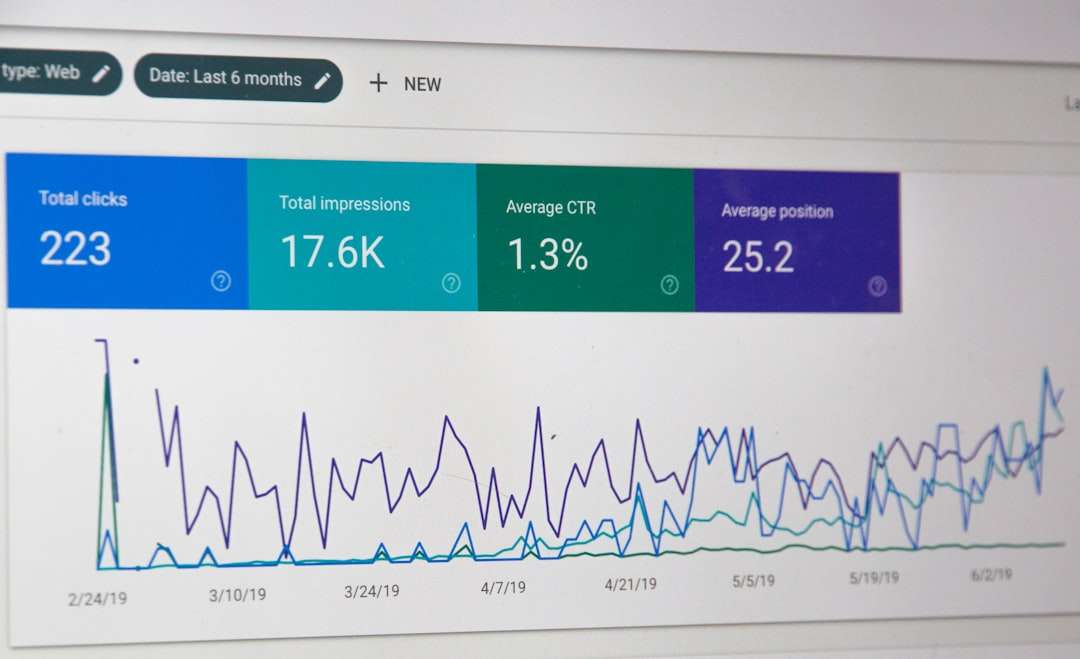
Users should:
- Close unnecessary applications and tabs.
- Open the Task Manager (or Activity Monitor on Mac).
- Check CPU and RAM usage.
- Restart the computer if performance is unusually high.
If memory usage is near capacity, freezing is more likely to occur.
8. Disable VPNs or Firewalls Temporarily
Some VPNs and strict firewall configurations can interrupt communication between the browser and ChatGPT servers.
To test this:
- Temporarily disable the VPN.
- Allow ChatGPT through firewall settings.
- Reconnect and test responsiveness.
If performance improves, adjusting network security settings permanently may be necessary.
9. Check Server Status
Occasionally, the issue is not on the user’s side. High traffic or maintenance can slow down system performance.
If multiple users report freezing at the same time, server demand may be the cause. In such cases, waiting a few minutes and refreshing often resolves the issue.
10. Break Up Long or Complex Prompts
Extremely long prompts or requests for very large outputs may strain the session temporarily. Instead of asking for an entire document in one go, users can divide requests into smaller parts.
For example:
- Request an outline first.
- Then ask for individual sections.
- Generate summaries before expanding.
This approach improves responsiveness and reduces processing delays.
Preventing Future Freezing
Once the issue is resolved, users can reduce the chances of it happening again by following best practices:
- Keep browsers and devices updated.
- Limit open tabs while using AI tools.
- Maintain a stable internet connection.
- Clear cache periodically.
- Avoid unnecessary browser extensions.
Proactive maintenance ensures consistent performance and fewer interruptions.
When to Seek Additional Support
If ChatGPT continues freezing despite trying all troubleshooting steps, there may be a deeper system conflict. In these cases, users may consider:
- Testing on a different device entirely.
- Resetting browser settings to default.
- Reinstalling the browser.
- Checking operating system updates.
If it works perfectly on another device, the original system likely requires technical attention.
FAQ
Why does ChatGPT freeze even with fast internet?
Even with fast internet speeds, freezing can occur due to browser overload, memory limitations, outdated software, or high server demand. Internet speed alone does not guarantee smooth performance.
Does clearing cache delete saved chats?
No. Clearing browser cache removes temporary website files but does not delete saved conversations stored in the account.
Is freezing related to account type?
Most freezing issues are technical rather than account-related. However, heavy traffic may affect response times differently depending on usage demand.
Can mobile devices cause more freezing?
Yes. Mobile devices typically have less memory and processing power than desktop computers, which can increase the likelihood of freezing during complex tasks.
Is it better to use ChatGPT in a desktop app or browser?
Dedicated apps may provide more stable performance because they are optimized for the system. However, browsers work reliably when properly maintained and updated.
How often should cache be cleared?
Clearing cache every few weeks or when performance issues appear is generally sufficient. Frequent clearing is not necessary unless problems persist.
By systematically identifying the cause and applying the appropriate fix, most freezing issues can be resolved quickly. With stable connectivity, updated software, and a well-maintained browser, ChatGPT should run smoothly and efficiently for everyday tasks.