
Sora AI has quickly become a powerful tool for generating immersive video content from text prompts, but many users want to take the experience further by enabling casting to larger screens. Whether presenting a creative concept to a client, sharing AI-generated videos with a team, or enjoying cinematic playback at home, casting enhances visibility and collaboration. Understanding how casting works within Sora AI and how to enable it properly ensures seamless streaming across devices.
TLDR: Casting in Sora AI allows users to display AI-generated videos on larger screens such as smart TVs, monitors, or projectors. To enable casting, users must ensure device compatibility, connect to the same network, and activate the casting feature either through the browser or supported device controls. Third-party casting protocols like Chromecast or AirPlay may also be required. Proper setup ensures smoother playback and improved presentation quality.
What Is Casting in Sora AI?
Casting refers to the ability to stream or mirror content from one device (such as a laptop, tablet, or smartphone) to another display device (like a smart TV or projector). In the context of Sora AI, casting allows users to:
- Display AI-generated videos on larger screens
- Share creative outputs during meetings or workshops
- Create a more cinematic viewing experience
- Collaborate in real-time with teams
While Sora AI primarily operates within a web-based interface or app environment, casting depends heavily on the capabilities of the user’s device and the availability of supported screen-sharing technologies.
Device and System Requirements
Before enabling casting, users should confirm compatibility across devices. Casting depends on three main elements:
- The source device (computer, phone, tablet running Sora AI)
- The receiving device (smart TV, streaming device, or display adaptor)
- A shared wireless network
Common casting technologies include:
- Google Chromecast
- Apple AirPlay
- Miracast
- Built-in Smart TV screen mirroring
Both devices must be connected to the same Wi-Fi network to ensure stable communication.
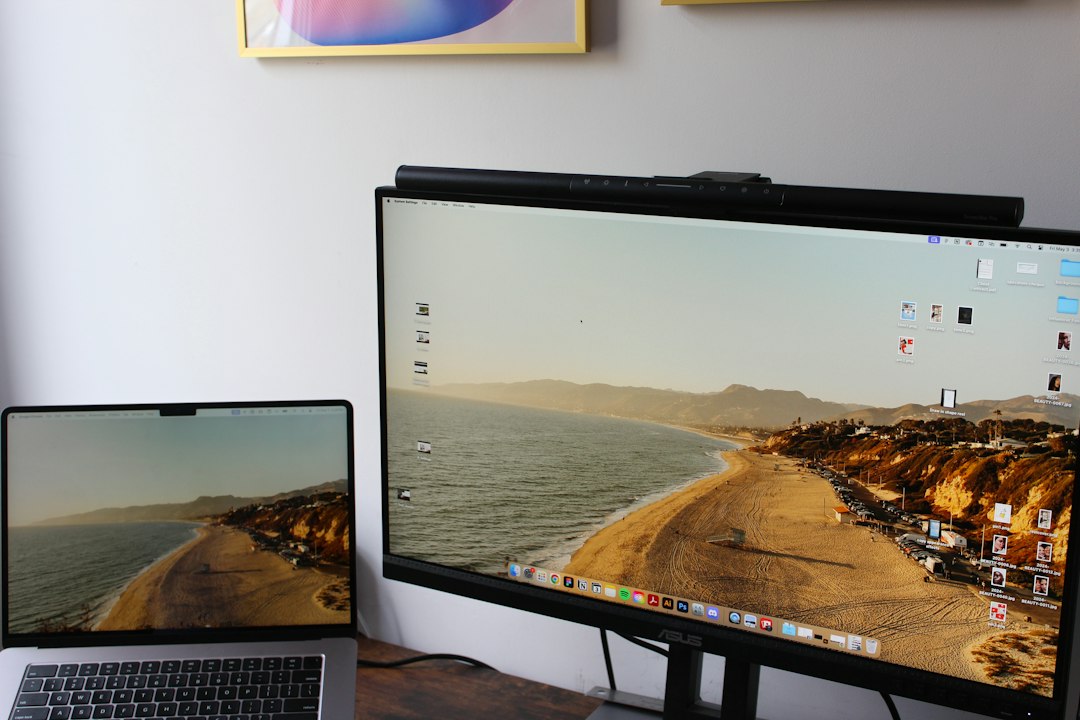
How to Enable Casting in Sora AI on a Desktop Browser
Many users access Sora AI through a web browser. Enabling casting from a desktop is usually straightforward:
Step 1: Confirm Network Connection
Ensure both the desktop computer and the target display device are on the same Wi-Fi network.
Step 2: Open Sora AI
Log in to the Sora AI platform through a supported browser such as Chrome or Edge.
Step 3: Use Browser Casting Function
If using Google Chrome:
- Click the three-dot menu in the upper right corner.
- Select Cast.
- Choose the available device from the list.
Users can choose between:
- Cast Tab (recommended for Sora AI videos)
- Cast Desktop
- Cast File
Selecting “Cast Tab” generally provides smoother playback and better audio syncing for AI-generated video content.
Step 4: Play the Video in Sora AI
Once the device connects, play the generated video. The content will appear on the selected screen.
How to Enable Casting on Mobile Devices
For users operating Sora AI via smartphones or tablets, casting may rely on the device’s built-in screen mirroring functionality.
On iPhone or iPad (AirPlay)
- Open Control Center.
- Select Screen Mirroring.
- Choose an AirPlay-compatible device.
- Open Sora AI and play the video.
On Android Devices (Chromecast or Smart View)
- Swipe down to access quick settings.
- Tap Cast or Smart View.
- Select a compatible device.
- Launch Sora AI and begin playback.
Some Android devices also allow direct casting from the Chrome browser app, similar to desktop functionality.
Optimizing Playback Quality When Casting
AI-generated videos can be high resolution and computationally complex. To ensure optimal performance:
- Close unnecessary applications to free system resources.
- Use a 5GHz Wi-Fi network for faster data transfer.
- Adjust export resolution in Sora AI if playback stutters.
- Keep devices updated with the latest software.
If lag occurs, reducing video resolution from 4K to 1080p often resolves buffering issues.
Using HDMI as an Alternative
If wireless casting is unstable, users can connect directly via HDMI. This method offers several advantages:
- More stable connection
- No network dependency
- Minimal latency
Simply connect the computer to the display using an HDMI cable, switch the display input source, and open Sora AI. This method is especially useful in professional presentation settings.
Common Casting Issues and Troubleshooting
Even with correct setup, users may encounter challenges. Below are the most frequent problems and solutions:
Device Not Showing Up
- Ensure both devices are on the same Wi-Fi network.
- Restart both source and receiving devices.
- Check firewall or security software settings.
No Audio on TV
- Check audio output settings in the browser.
- Ensure “Share Audio” is enabled when casting a tab.
- Verify TV volume levels.
Lag or Buffering
- Move devices closer to the router.
- Disconnect unused network devices.
- Lower streaming resolution.
Security Considerations When Casting
Casting involves transmitting data across a wireless network. To ensure content security:
- Use password-protected Wi-Fi networks
- Avoid public networks when presenting sensitive material
- Log out of shared devices after use
- Disable casting permissions when not in use
Creative professionals working with confidential or pre-release visual content should be especially cautious when casting in shared spaces.
When to Use Casting with Sora AI
Casting is particularly beneficial in the following use cases:
- Creative brainstorming sessions where teams analyze AI-generated scenes
- Client pitch meetings requiring high-visual impact
- Educational workshops demonstrating AI capabilities
- Home entertainment scenarios for cinematic viewing
For collaborative environments, casting transforms Sora AI from a solo creative tool into a shared visual experience platform.
Future Possibilities of Native Casting Integration
As AI video platforms continue evolving, future updates may include built-in casting buttons directly inside the Sora AI interface. Native integration could allow:
- One-click streaming
- Automatic device detection
- Enhanced resolution optimization
- Interactive second-screen controls
Until then, leveraging operating system-level casting tools remains the most reliable solution.
Frequently Asked Questions (FAQ)
1. Does Sora AI have a built-in casting button?
Currently, casting typically relies on browser or device-level casting features such as Chromecast or AirPlay rather than an integrated in-app casting button.
2. Why is my Sora AI video lagging when casting?
Lag is usually caused by weak Wi-Fi signals, high resolution settings, or network congestion. Switching to a faster network or lowering resolution often solves the issue.
3. Can Sora AI videos be cast in 4K?
Yes, if both the source device and receiving display support 4K resolution and the Wi-Fi bandwidth is sufficient.
4. Is casting Sora AI content secure?
Casting is secure on private, password-protected networks. Users should avoid public Wi-Fi when displaying sensitive or proprietary content.
5. What is the best way to cast during a business presentation?
For critical presentations, an HDMI cable connection provides the most stable and reliable performance.
6. Can multiple people cast Sora AI to the same screen?
Only one device can cast at a time to most receivers. However, users can take turns connecting their devices.
7. Do I need additional hardware to cast Sora AI?
If your TV or monitor does not have built-in casting support, you may need a streaming device such as Chromecast or an HDMI adapter.
Enabling casting in Sora AI expands the creative possibilities of AI-generated video by making content more accessible, collaborative, and visually impactful. With proper setup and optimization, users can seamlessly bridge the gap between digital creation and shared viewing experiences.