
Video compression plays a critical role in modern digital media, allowing creators, developers, and businesses to reduce file sizes without sacrificing quality. Whether preparing videos for streaming platforms, archiving large footage files, or optimizing content for mobile users, powerful encoding tools are essential. While FFmpeg remains one of the most versatile and widely used open-source solutions, many alternative applications offer user-friendly interfaces, advanced workflows, and specialized compression capabilities.
TLDR: FFmpeg is a powerful video compression tool, but it is not the only option available. Several apps provide similar encoding capabilities with graphical interfaces, faster workflows, or optimized presets. Tools like HandBrake, Shotcut, VirtualDub2, Avidemux, Freemake, and MediaCoder offer reliable alternatives for compressing and converting video files. Each application serves different user needs, from beginners to professionals.
Why Consider Alternatives to FFmpeg?
FFmpeg is known for its command-line power and flexibility. It supports virtually every video and audio format and provides extensive encoding customization. However, its command-line interface can be intimidating for beginners. Users who prefer graphical interfaces, preset profiles, or workflow integrations may benefit from exploring other tools.
Additionally, some video compression applications specialize in batch processing, codec simplification, hardware acceleration, or editing features that complement encoding. Exploring alternatives can improve efficiency and user experience without sacrificing performance.
1. HandBrake
HandBrake is one of the most popular open-source video transcoding tools available today. Designed with usability in mind, it offers a clean graphical interface alongside powerful encoding options.

Key Features:
- Wide format support including MP4, MKV, and WebM
- Preset profiles for devices such as smartphones and tablets
- Batch encoding capabilities
- Hardware acceleration support (Intel Quick Sync, NVIDIA NVENC)
HandBrake is ideal for users who want FFmpeg-level power without relying on command-line inputs. It makes adjusting bitrate, resolution, frame rate, and encoding profiles more intuitive.
2. Shotcut
Shotcut is primarily known as a free video editor, but it also provides robust export and compression features. Built on FFmpeg, it offers a graphical interface that simplifies encoding workflows.
Key Features:
- Cross-platform support (Windows, macOS, Linux)
- Custom export presets
- Advanced codec and bitrate controls
- Integrated video editing tools
For users who need light editing before compression, Shotcut provides a seamless solution. Instead of switching between applications, creators can trim, adjust, and encode videos within a single interface.
3. VirtualDub2
VirtualDub2 is an enhanced fork of the original VirtualDub project. It focuses on video processing while maintaining a lightweight footprint.
Key Features:
- High-performance AVI and MP4 processing
- Real-time preview during encoding
- Support for modern codecs like H.264 and HEVC
- Extensive plugin support
VirtualDub2 is particularly useful for users who need precise frame editing and filtering before compression. Though its interface may appear technical, it offers detailed control over video processing parameters.
4. Avidemux
Avidemux is a straightforward video editing and transcoding tool aimed at simplicity. It provides quick compression operations without overwhelming users with excessive settings.

Key Features:
- Automated tasks via scripting
- Basic cutting and filtering tools
- Support for multiple codecs and containers
- Preset output configurations
Avidemux stands out for users who need quick encoding without complex workflows. It allows fast file size reduction by adjusting bitrate and codec selection with minimal configuration.
5. Freemake Video Converter
Freemake Video Converter offers an accessible interface tailored toward beginners. While it may not match FFmpeg’s technical depth, it excels in simplicity.
Key Features:
- Conversion across 500+ formats
- Device-specific presets
- DVD and Blu ray support
- Simple compression workflow
This tool is well suited for home users who want quick conversions for uploading or sharing. Its guided interface reduces the learning curve significantly compared to command-line utilities.
6. MediaCoder
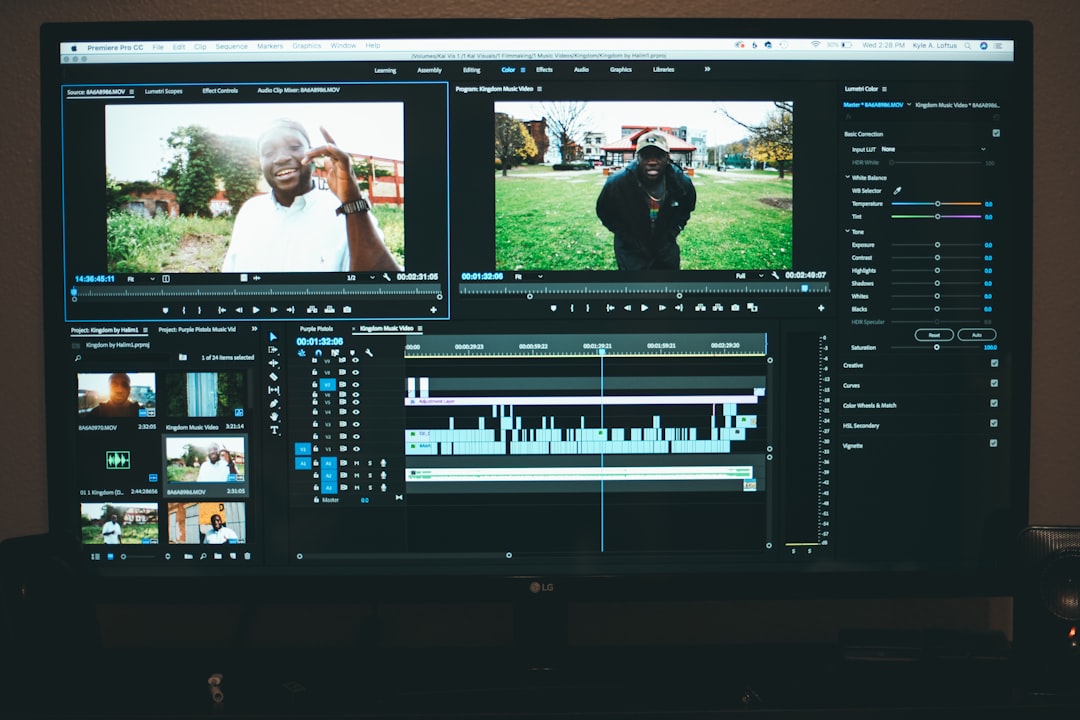
MediaCoder is a highly customizable media transcoding application that bridges the gap between simplicity and technical precision.
Key Features:
- Fine-tuned encoding parameters
- Support for GPU acceleration
- Batch processing for large file sets
- Extensive codec compatibility
MediaCoder appeals to advanced users who want granular control similar to FFmpeg but within a graphical interface. It enables experimentation with encoding variables while maintaining usability.
Important Factors When Choosing a Compression Tool
When comparing FFmpeg alternatives, several factors should be evaluated carefully:
- Ease of Use: Does the tool provide a graphical interface, or does it require scripting knowledge?
- Codec Support: Ensure compatibility with modern codecs such as H.265 (HEVC) or AV1.
- Hardware Acceleration: GPU encoding can significantly speed up compression tasks.
- Batch Processing: Essential for handling large video libraries efficiently.
- Platform Compatibility: Confirm support for the intended operating system.
Understanding specific needs—such as streaming optimization, archival storage, or social media uploads—can help narrow the selection.
Performance vs. File Size Considerations
Video compression always requires balancing quality and file size. Lower bitrates reduce file size but may introduce visible artifacts such as pixelation or banding. More advanced codecs like H.265 or AV1 provide better compression efficiency but may require more processing power.
Applications that support two pass encoding often deliver better quality at the same file size compared to single pass encoding. Additionally, GPU acceleration can shorten rendering times, though sometimes with minor quality tradeoffs compared to CPU-based encoding.
Who Should Use Each Tool?
- Beginners: Freemake Video Converter, Avidemux
- Intermediate Users: HandBrake, Shotcut
- Advanced Users: MediaCoder, VirtualDub2
- Developers and Automation Experts: FFmpeg remains unmatched
Choosing the right tool depends largely on comfort level with encoding terminology and workflow expectations.
Final Thoughts
FFmpeg continues to dominate as a command-line video encoding powerhouse. However, modern users increasingly seek solutions that balance flexibility with accessibility. Tools like HandBrake and Shotcut simplify compression tasks, while MediaCoder and VirtualDub2 maintain advanced encoding precision through graphical dashboards.
Ultimately, selecting the right video compression application depends on workflow complexity, desired output quality, and familiarity with encoding concepts. By exploring these six alternatives, users can find the balance between efficiency, quality, and usability that best suits their needs.
FAQ
1. Is FFmpeg better than graphical compression apps?
FFmpeg offers unmatched flexibility and format support. However, graphical apps are often more user-friendly and faster for routine compression tasks.
2. What is the best free alternative to FFmpeg?
HandBrake is widely considered one of the best free alternatives due to its powerful encoding engine and intuitive interface.
3. Does video compression reduce quality?
Yes, lossy compression reduces some quality to shrink file size. However, modern codecs minimize visible loss when configured properly.
4. Which codec is best for compression?
H.265 and AV1 offer superior compression efficiency compared to H.264, but they require more processing power and may have compatibility limitations.
5. Can these tools handle batch video encoding?
Yes, applications like HandBrake and MediaCoder support batch processing, making them ideal for compressing multiple files simultaneously.
6. Is hardware acceleration important for encoding?
Hardware acceleration significantly reduces encoding time, especially for high-resolution video. However, CPU encoding may provide slightly better quality control.