
Your iPad is supposed to wake up instantly, so when the screen stays completely black and nothing happens, it can feel alarming. The good news is that an iPad that “will not come on at all” is often not dead—it may simply be frozen, out of power, stuck during startup, or temporarily unable to respond to normal button presses. In many cases, a force restart can bring it back without deleting any data.
TLDR: If your iPad will not turn on, first try a force restart using the correct button combination for your model. If that does not work, charge it for at least 30 minutes using a reliable cable and adapter, then try again. If the iPad still shows a black screen, connect it to a computer and attempt Recovery Mode, or contact Apple Support if you suspect battery, charging port, or hardware damage.
Why an iPad May Not Come On at All
When an iPad screen is completely black, it is easy to assume the device has failed. However, several common issues can make an iPad appear lifeless even when the hardware is still working. The most frequent cause is a software freeze, where iPadOS becomes stuck and no longer responds to taps, button presses, or even the normal power-on command.
Another possibility is that the battery has drained so low that the iPad needs extra time before it can display the charging icon. This can happen if the device has been unused for days or weeks, left in extreme temperatures, or allowed to discharge completely. Charging accessories can also be responsible. A damaged cable, weak power adapter, dusty charging port, or faulty outlet may prevent the iPad from receiving power.
Less commonly, the issue may involve physical damage, battery aging, water exposure, or a failed internal component. Before assuming the worst, though, start with the simplest and safest fix: force restarting your iPad.
What Is a Force Restart?
A force restart is a hardware-level restart command. It tells your iPad to shut down and start again, even if the screen is frozen or the operating system is not responding. It is different from a normal restart because you do not need to use the touchscreen or see anything on the display.
Most importantly, a force restart does not erase your data. Your apps, photos, messages, files, and settings should remain intact. Think of it as the iPad equivalent of holding down a computer’s power button when the system has locked up.
However, the exact button combination depends on which iPad model you have. Newer iPads without a Home button use one method, while older iPads with a Home button use another.

How to Force Restart an iPad Without a Home Button
Use these steps if your iPad does not have a physical Home button on the front. This includes many newer iPad Pro, iPad Air, and iPad mini models.
- Press and quickly release the Volume Up button.
- Press and quickly release the Volume Down button.
- Press and hold the Top button.
- Keep holding the Top button until the Apple logo appears.
- Release the button and allow the iPad to finish starting up.
The timing matters. The Volume Up and Volume Down presses should be quick, almost like clicking a mouse. After that, hold the Top button firmly. It may take 10 to 20 seconds before anything appears on the screen, especially if the iPad was deeply frozen.
If you see the Apple logo, that is a good sign. Let the iPad boot normally. Do not keep holding the button once the Apple logo appears, unless you are intentionally trying to enter Recovery Mode later.
How to Force Restart an iPad With a Home Button
If your iPad has a physical Home button below the screen, the force restart process is different and slightly simpler.
- Press and hold the Home button and the Top button at the same time.
- Keep holding both buttons, even if the screen remains black at first.
- Release the buttons when the Apple logo appears.
- Wait for the iPad to restart.
Again, be patient. Some users let go too early because nothing happens immediately. Hold the buttons for at least 15 to 20 seconds before deciding it did not work.
If the Force Restart Does Not Work
If your iPad still will not come on after a force restart, do not panic. The next step is to confirm that it is actually getting power. A completely drained iPad can take longer than expected before it shows any signs of life.
Charge the iPad Properly
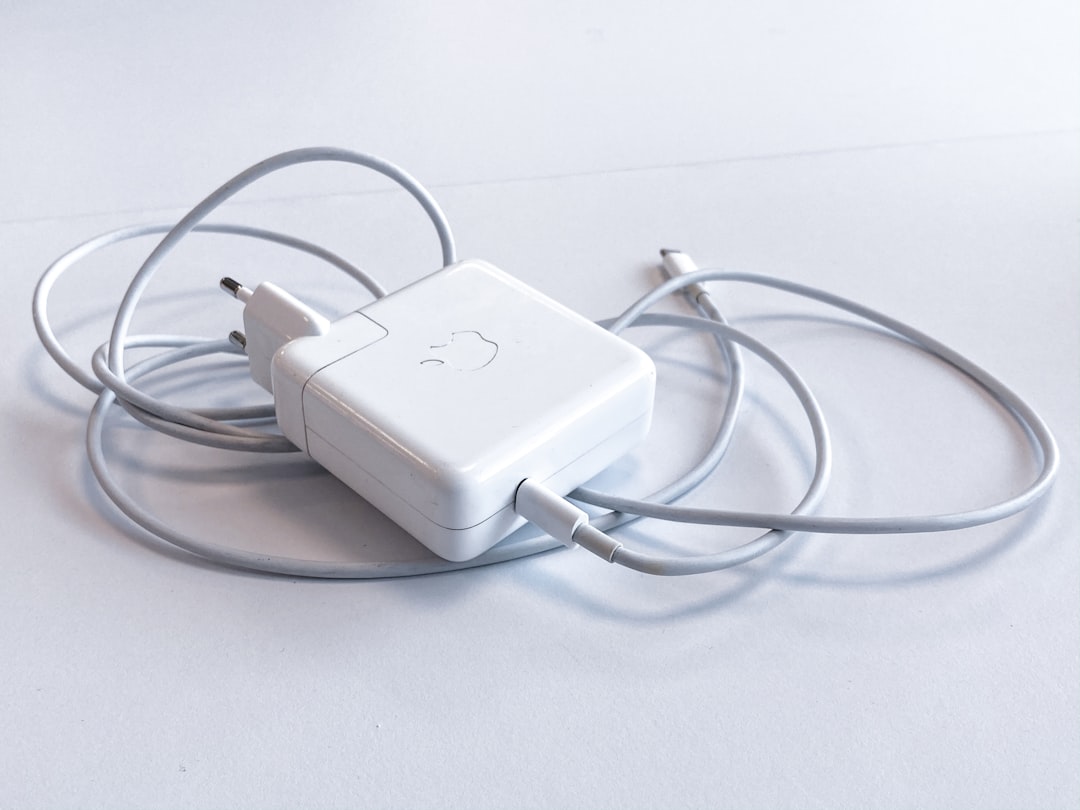
Plug your iPad into a known working wall outlet using a reliable charging cable and adapter. If possible, use the original Apple charger or a high-quality certified replacement. Avoid charging from a computer USB port at this stage, because some ports provide too little power for a deeply discharged iPad.
- Charge the iPad for at least 30 minutes.
- Check that the cable fits securely into the charging port.
- Try a different cable and adapter if nothing appears.
- Inspect the charging port for lint, dust, or debris.
- Avoid using damaged, frayed, or loose charging accessories.
If the battery was fully drained, the screen may remain black for several minutes before showing a low-battery icon. Leave it connected and resist the urge to repeatedly press buttons. After 30 minutes, try the force restart again while it is still plugged in.
Check the Screen Brightness and Display Behavior
Sometimes the iPad is technically on, but the display appears black. This can happen if the screen has failed, the brightness is extremely low, or the system is stuck between sleep and wake states.
Look for subtle signs of activity. Does the iPad make a charging sound when plugged in? Does it vibrate or play notification sounds? Does a computer recognize it when connected? If the device seems alive but the screen remains black, the problem may be display-related rather than a simple power issue.
You can also try shining a flashlight at an angle across the screen. In rare cases, a faint image may be visible, suggesting a backlight issue. If that happens, the iPad likely needs professional service.
Try Connecting the iPad to a Computer
If charging and force restarting do not help, connect the iPad to a Mac or Windows PC. On a Mac running macOS Catalina or later, open Finder. On Windows or older macOS versions, open iTunes if available.
If the computer detects the iPad, you may be able to update or restore it using Recovery Mode. This is especially useful if the device is stuck during startup or iPadOS has become corrupted.
How to Put an iPad Into Recovery Mode
Recovery Mode allows your computer to reinstall or update iPadOS. It is more advanced than a force restart, but it can fix deeper software problems. When given the choice, try Update first, because it attempts to reinstall iPadOS without erasing your data. Use Restore only if updating fails or you have a backup.
Recovery Mode for iPads Without a Home Button
- Connect the iPad to your computer with a cable.
- Press and quickly release Volume Up.
- Press and quickly release Volume Down.
- Press and hold the Top button.
- Keep holding the Top button after the Apple logo appears.
- Release it only when you see the Recovery Mode screen.
Recovery Mode for iPads With a Home Button
- Connect the iPad to your computer.
- Press and hold the Home button and Top button together.
- Keep holding both buttons after the Apple logo appears.
- Release them when the Recovery Mode screen appears.
Once your computer displays a message saying there is a problem with the iPad, choose Update. If the update takes too long and your iPad exits Recovery Mode, repeat the steps and try again.
When the Problem Might Be Hardware
If your iPad still shows no sign of life after force restarting, charging with multiple accessories, and attempting computer connection, the issue may be hardware-related. Batteries wear out over time, and an aging battery may no longer hold enough charge to start the device. Charging ports can also become damaged or clogged, especially if the cable feels loose or only works at certain angles.
Physical damage is another clue. If the iPad was dropped, bent, exposed to liquid, or overheated, an internal component may have failed. In that case, continued button pressing is unlikely to fix the problem.
Signs that you should seek service include:
- The iPad gets unusually hot while charging.
- The charging cable wiggles or will not stay connected.
- The screen is cracked, flickering, or faintly visible only under light.
- The iPad is recognized by a computer but the display stays black.
- No charger, cable, or outlet makes any difference.

What Not to Do
When an iPad refuses to turn on, frustration can lead to risky fixes. Avoid heating the device, placing it in a freezer, shaking it, or using sharp objects to clean the charging port. These tricks can cause more harm than good.
If you need to clean the port, power is already off, but still be gentle. Use a soft, dry brush or carefully remove visible lint with a nonmetal tool. Never force anything into the port. Also avoid cheap, uncertified chargers, which can create inconsistent power delivery and potentially damage the device.
How to Prevent This From Happening Again
Once your iPad turns back on, take a few preventive steps. Install the latest iPadOS update, because software bugs can cause freezing and startup issues. Keep at least some free storage available, as a nearly full device can behave unpredictably. If your battery drains unusually fast or the iPad shuts down at random percentages, check battery health through Apple Support or consider service.
It is also wise to keep regular backups. Use iCloud Backup or back up to a computer, especially before major updates. That way, if you ever need to restore the iPad, your photos, files, and settings are much safer.
Final Thoughts
An iPad that will not come on at all is unsettling, but the solution is often simple. Start with the correct force restart for your model, then give the device a proper charge and try again. If it still refuses to respond, Recovery Mode may repair the software without erasing your data.
If none of these steps work, the problem may involve the battery, charging system, display, or internal hardware. At that point, professional diagnosis is the safest route. But before you assume your iPad is gone for good, try the force restart carefully—you may be only a few button presses away from seeing that familiar Apple logo again.