
If your Xbox says “UPnP not successful”, it usually means your console is struggling to automatically open the network ports it needs for smooth online play, voice chat, matchmaking, and party features. This warning often appears alongside a Moderate or Strict NAT type, which can make multiplayer feel unreliable even when your internet speed seems fine. The good news is that this issue is usually fixable with a few router and Xbox settings changes.
TLDR: UPnP lets your Xbox automatically request the router ports it needs for Xbox Live. If UPnP is not successful, restart your router and Xbox first, then make sure UPnP is enabled in your router settings. If that fails, remove conflicting port forwarding rules, avoid double NAT, update router firmware, or manually forward Xbox Live ports. A good result is Open NAT and no UPnP warning in the Xbox network test.
What Does “UPnP Not Successful” Mean on Xbox?
UPnP stands for Universal Plug and Play. On home networks, it allows devices such as your Xbox to automatically ask your router to open specific ports for online services. These ports are like numbered doors through which gaming traffic, party chat, and multiplayer connections can pass.
When your Xbox reports “UPnP not successful,” it means the console tried to use UPnP but could not get the router to open the required ports properly. This can happen because UPnP is disabled, the router firmware is buggy, another device is already using the same ports, or your network setup includes multiple routers creating a double NAT situation.
This problem is closely tied to your NAT type. NAT, or Network Address Translation, is how your router shares one public internet connection with multiple devices in your home. Xbox consoles usually show one of three NAT types:
- Open NAT: Best for multiplayer, party chat, hosting, and joining games.
- Moderate NAT: You can play online, but connections to some players may fail.
- Strict NAT: Most restrictive; matchmaking, hosting, and voice chat may be limited.
In short, UPnP helps your Xbox get an Open NAT automatically. When UPnP fails, your NAT type may become Moderate or Strict.
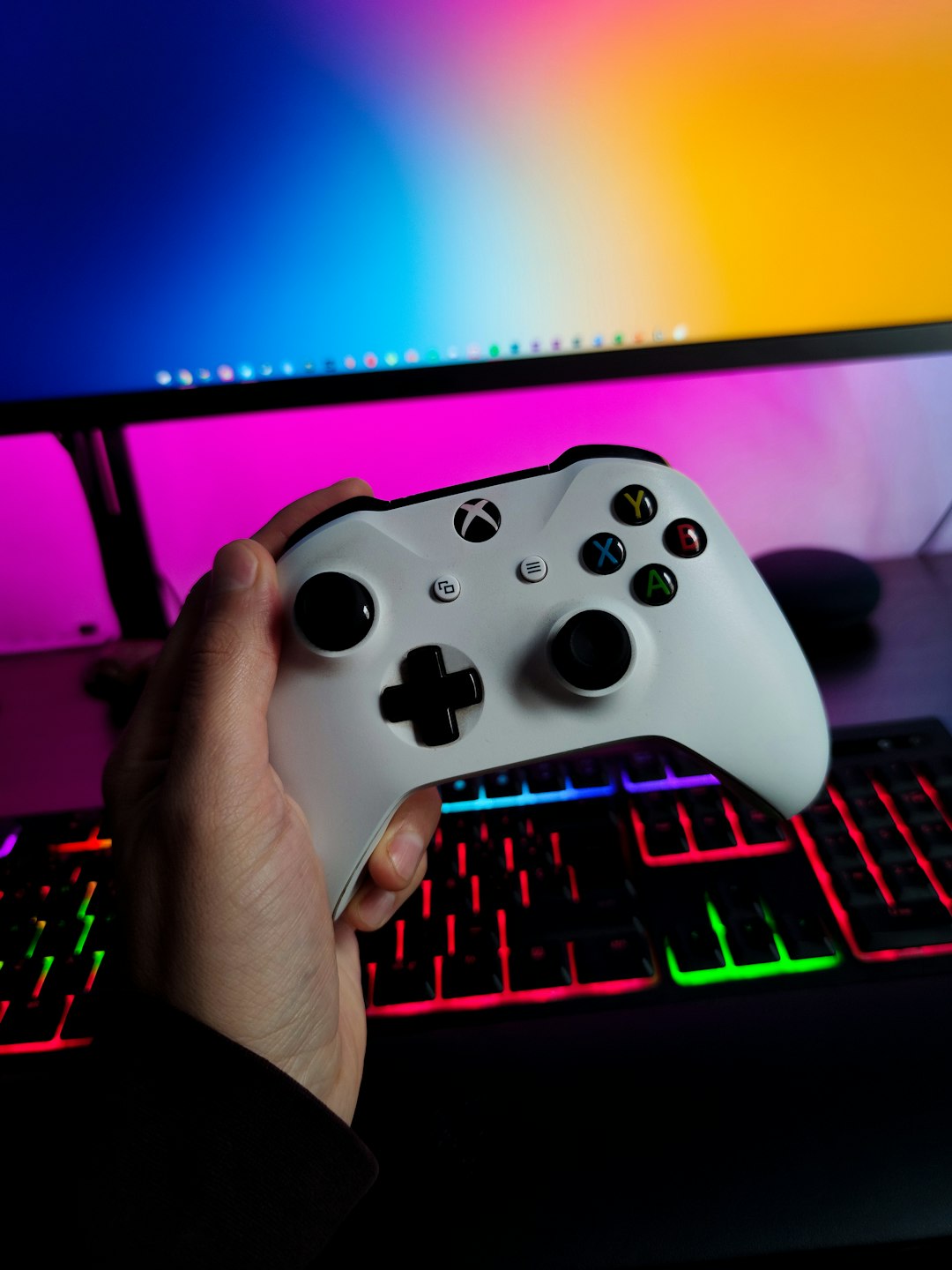
Why NAT Type Matters for Xbox Gaming
A poor NAT type does not always affect download speed, so you might still be able to download games quickly while multiplayer performs badly. That is because NAT type is less about raw speed and more about connection accessibility. Your Xbox needs to communicate directly with Xbox Live services and, in some games, with other players’ consoles.
If your NAT is Strict, you may notice symptoms such as:
- Difficulty joining friends’ parties
- Party chat cutting out or failing completely
- Long matchmaking times
- Being unable to host multiplayer sessions
- Random disconnects from online games
- Messages saying your network is behind a restricted NAT
These problems can be frustrating because your internet connection may look healthy in every other way. Streaming works, browsing is fast, and downloads complete normally. But for online gaming, ports, NAT behavior, and router configuration matter just as much as bandwidth.
Step 1: Restart Your Xbox and Router
Before changing advanced settings, start with the simple fix: restart everything. Routers can hold onto stale UPnP mappings, and consoles sometimes fail to refresh network information correctly. A clean restart often clears temporary conflicts.
- Turn off your Xbox completely.
- Unplug the power cable from your router and modem.
- Wait at least 60 seconds.
- Plug the modem back in first and wait until it fully reconnects.
- Plug the router back in and wait for Wi Fi or Ethernet to return.
- Turn on your Xbox and test the network again.
On your Xbox, go to Settings > General > Network settings. Look for your NAT type and whether the UPnP message is still present. If it now says Open NAT, you may not need to do anything else.
Step 2: Check Whether UPnP Is Enabled on Your Router
If the restart did not work, log in to your router’s admin page and confirm that UPnP is enabled. The exact steps vary by router brand, but the process is usually similar.
- Open a browser on a phone or computer connected to your home network.
- Enter your router’s gateway address, commonly 192.168.1.1 or 192.168.0.1.
- Sign in using the admin username and password.
- Look for sections such as Advanced, NAT Forwarding, WAN, LAN, or UPnP.
- Enable UPnP, save changes, and restart the router.
If you do not know your router login details, check the sticker on the router or your internet provider’s documentation. If you changed the password and forgot it, you may need to reset the router, but that should be a last resort because it can erase Wi Fi names, passwords, and custom settings.
Tip: Some routers have UPnP enabled by default, while others disable it for security reasons. If you turn it on, make sure your router firmware is up to date and your admin password is strong.
Step 3: Remove Conflicting Port Forwarding Rules
UPnP and manual port forwarding can sometimes conflict. For example, if you previously forwarded Xbox Live ports to a different console, PC, or old IP address, your current Xbox may be unable to claim those same ports through UPnP.
In your router settings, check for menu items such as Port Forwarding, Virtual Server, Applications and Gaming, or NAT Rules. If you see old Xbox-related rules, either delete them or update them carefully.
This is especially important if you have:
- More than one Xbox in the home
- Recently replaced your console
- Changed from Wi Fi to Ethernet
- Changed routers or internet providers
- Assigned static IP addresses in the past
After removing old rules, restart the router and Xbox again. Then run the Xbox network test. Sometimes, clearing a single outdated rule is enough to make UPnP successful again.
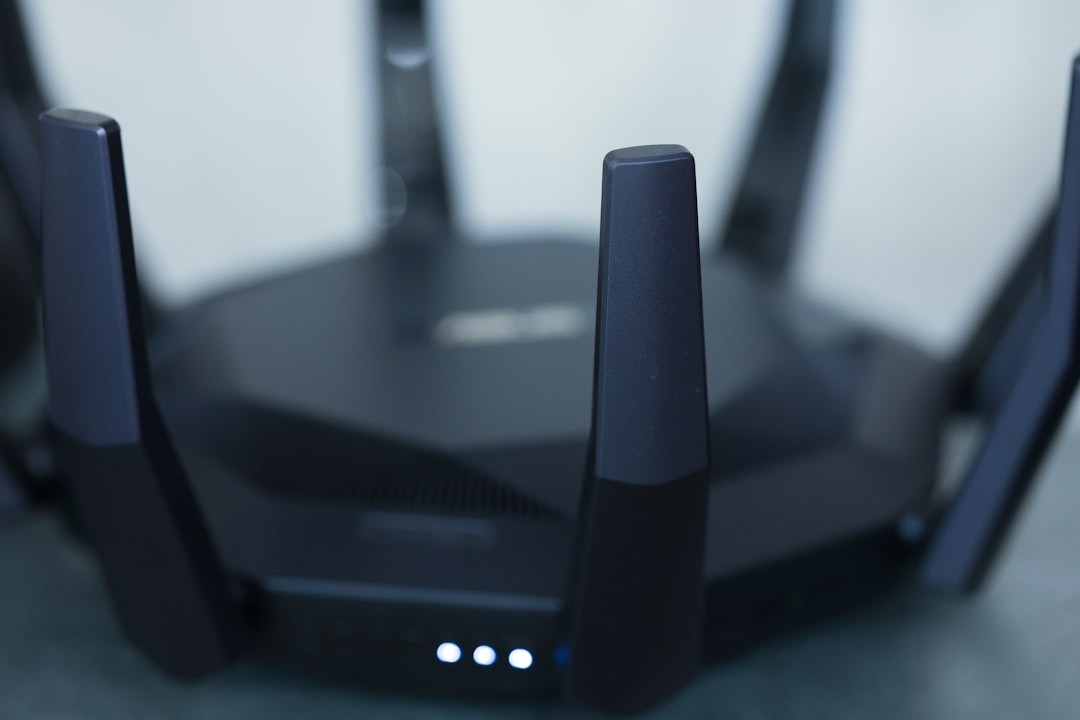
Step 4: Avoid Double NAT
Double NAT is one of the most common causes of stubborn Xbox NAT problems. It happens when your network traffic passes through two separate devices doing NAT. For example, you may have a modem router from your internet provider and then a separate gaming router connected to it. Both devices try to manage traffic, which can confuse UPnP and restrict inbound connections.
On Xbox, double NAT may appear as a separate warning in Network settings. Even if it does not, it can still contribute to UPnP failure.
Common double NAT setups include:
- An ISP modem router connected to your own router
- A mesh Wi Fi system connected behind another router
- A mobile hotspot or 5G gateway connected to a router
- Apartment or dorm internet where the building manages an upstream router
To fix double NAT, you can try one of these options:
- Put the ISP gateway into bridge mode: This makes your own router handle routing duties.
- Use access point mode: If you have a second router or mesh system, set it to access point mode so only one device handles NAT.
- Connect the Xbox to the primary router: Avoid placing it behind multiple network layers.
- Ask your ISP for help: Some gateways require provider assistance to enable bridge mode.
Double NAT can be tricky because the problem may not be inside your Xbox at all. It is often caused by how the home network is physically arranged.
Step 5: Update Router Firmware
Router firmware controls how your router handles UPnP, NAT, Wi Fi, firewall behavior, and security. If your router firmware is outdated, UPnP may behave unpredictably. Some older routers also have known Xbox compatibility issues that are fixed through updates.
Log in to your router and look for Firmware Update, Software Update, or Router Update. Many modern routers can update automatically, while others require you to download a file from the manufacturer’s website.
After updating firmware, restart both the router and Xbox. Then test NAT again. If the issue started after a firmware update, check whether the manufacturer offers a newer patch or a rollback option.
Step 6: Try a Wired Ethernet Connection
Wi Fi does not usually cause UPnP failure directly, but weak wireless connections can make network testing inconsistent. If possible, connect your Xbox to the router with an Ethernet cable. Wired connections are more stable, lower latency, and easier to troubleshoot.
Once connected by Ethernet, restart the Xbox and test the network. If UPnP succeeds on Ethernet but fails on Wi Fi, your router’s wireless isolation, guest network settings, or mesh node configuration may be interfering.
Avoid using a guest Wi Fi network for your Xbox. Guest networks often restrict device communication and may block features that UPnP or multiplayer gaming needs.
Step 7: Manually Forward Xbox Live Ports
If UPnP still does not work, you can manually forward the required Xbox Live ports. This is a more advanced option, but it can be very effective.
First, assign your Xbox a fixed IP address. You can usually do this in your router using DHCP reservation. This tells the router to always give the same local IP address to your Xbox. Then forward Xbox Live ports to that IP address.
Common Xbox Live ports include:
- TCP: 3074
- UDP: 88, 500, 3074, 3544, 4500
- TCP and UDP: 53, 80
After adding port forwarding rules, save your changes and restart the router. Then restart your Xbox and test the NAT type. If done correctly, this often results in an Open NAT.
Important: Do not use UPnP and manual port forwarding in a messy combination. If you manually forward Xbox ports, consider disabling conflicting UPnP mappings or clearing old rules. The goal is to make sure the correct ports point to the correct Xbox.
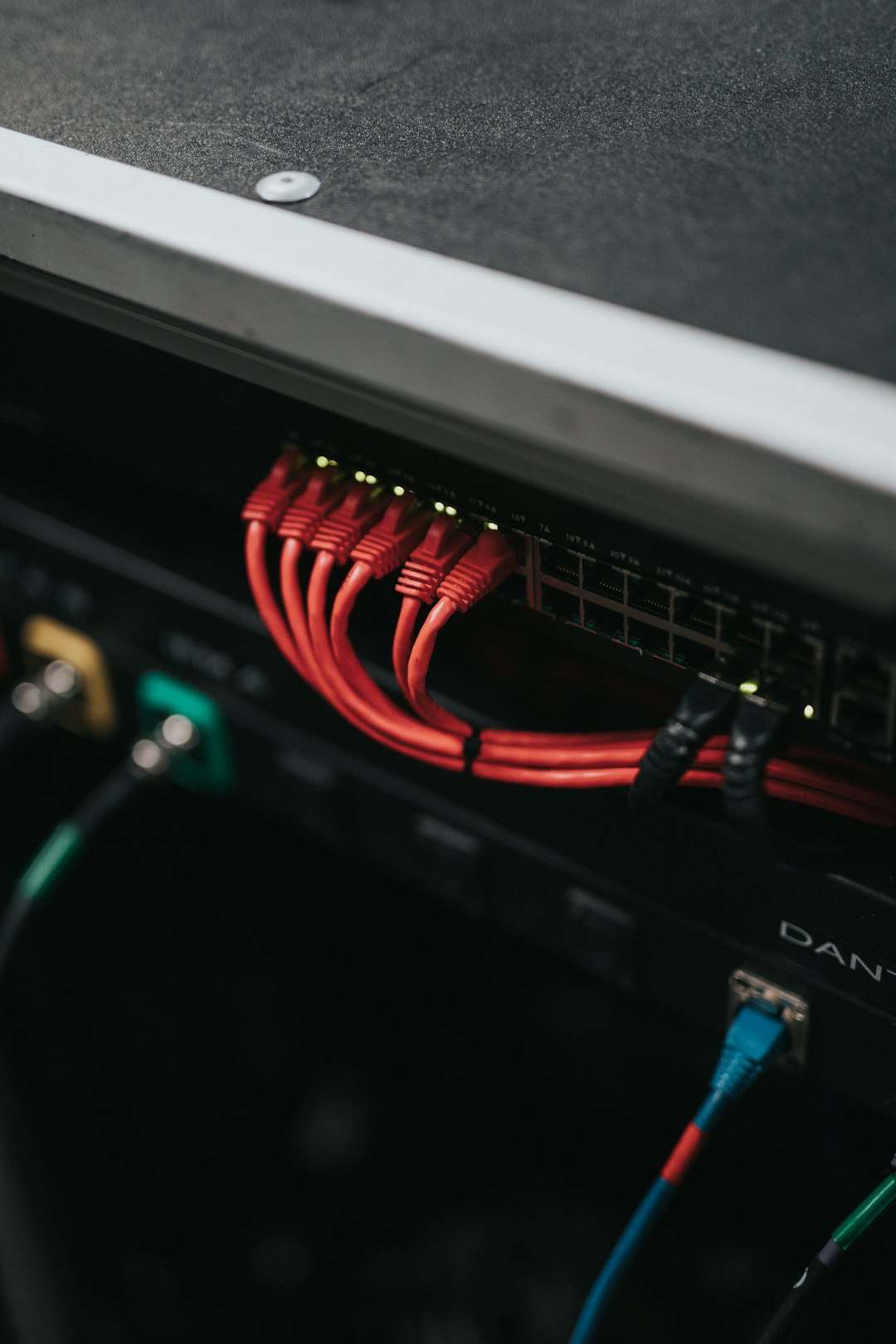
Step 8: Consider Multiple Xbox Consoles
If you have more than one Xbox on the same network, NAT problems can become more complicated. Two consoles may both want to use the same default port, especially UDP 3074. UPnP usually handles this automatically by assigning alternate ports, but not all routers manage multiple consoles well.
On Xbox, you can choose an alternate port by going to Settings > General > Network settings > Advanced settings > Alternate port selection. Try selecting Automatic first. If that fails, choose a manual alternate port and restart the console.
This feature is particularly useful in households where siblings, roommates, or family members play online at the same time. A router that works fine for one Xbox may struggle when two or three consoles are competing for the same NAT resources.
Step 9: Check ISP Limitations
Sometimes the issue is outside your home network. Certain internet providers use CGNAT, or Carrier Grade NAT, which means you do not have a normal public IP address. Instead, your connection is behind another layer of NAT controlled by the ISP. This can make Open NAT difficult or impossible without provider support.
CGNAT is common with mobile internet, fixed wireless, satellite, apartment networks, and some budget broadband plans. Signs of CGNAT include persistent Strict NAT even after correct router settings, no true public WAN IP on your router, or an IP address in private ranges such as 10.x.x.x, 172.16.x.x to 172.31.x.x, or 192.168.x.x on the router’s WAN page.
If you suspect CGNAT, contact your ISP and ask whether they can provide a public IPv4 address. Some providers offer it for free, while others charge extra or only provide it on business plans.
Should You Enable DMZ for Xbox?
Some guides suggest placing your Xbox in the router’s DMZ, which exposes the console more directly to the internet. This can sometimes fix NAT issues, but it is not the first option you should try. Manual port forwarding or proper UPnP configuration is usually cleaner and safer.
If you do use DMZ, only place the Xbox in it, not a personal computer or phone. Consoles have a more limited attack surface than general purpose devices, but DMZ still reduces router protection. Treat it as a troubleshooting step or last resort, not the default solution.
How to Confirm the Problem Is Fixed
After each change, test your Xbox network status. Go to Settings > General > Network settings and run the NAT test. You want to see:
- NAT Type: Open
- UPnP: No error message
- Double NAT: No warning
- Packet loss: Ideally 0%
Also test the features that were failing before. Join a party, invite a friend, launch a multiplayer game, and see if matchmaking behaves normally. Network tests are useful, but real gameplay is the best confirmation.
Final Thoughts
The “UPnP not successful” message on Xbox can look technical, but the core issue is simple: your console cannot automatically open the network paths it needs. Start with easy fixes like restarting your router and enabling UPnP, then move on to clearing old port rules, updating firmware, fixing double NAT, or manually forwarding ports.
For most players, the ideal setup is one router, updated firmware, UPnP enabled, no conflicting port forwarding, and an Xbox connected through a stable Ethernet or strong Wi Fi connection. Once your NAT type is Open, online gaming should feel smoother, party chat should be more reliable, and multiplayer sessions should be easier to join. A few minutes in your router settings can make the difference between constant connection headaches and a much better Xbox Live experience.