
Your screen is smiling at you one second. Then, boom. It turns black. The computer may still be running. The fans may still spin. Your music may still play. But the display is gone. It feels like your monitor decided to take a tiny vacation without asking.
TLDR: A random black screen usually comes from one of three things: GPU drivers, a bad or loose display cable, or power problems. Start with the easy checks first. Update or roll back your graphics driver, reseat your cables, and test your power settings. If the screen goes black during games or heavy work, heat or power may be the sneaky gremlin.
The black screen mystery
A computer screen can go black for many reasons. Some are small. Some are serious. Most are fixable.
The trick is to stay calm. Do not punch the monitor. It is probably innocent. The real troublemaker may be hiding inside your computer, behind your desk, or deep in your settings.
Think of your display system like a tiny stage show. The GPU is the actor. The driver is the script. The cable is the stage rope. The power supply is the snack table. If one part fails, the curtain drops.
And yes, the curtain is your black screen.

First, what kind of black screen is it?
Not all black screens are the same. Your screen’s behavior gives clues.
- The screen goes black, but the PC stays on. This often points to a GPU driver, cable, monitor, or power issue.
- The whole computer shuts down. This may be a power supply, overheating, or hardware issue.
- The screen turns black during games. Think GPU driver, GPU heat, or power draw.
- The screen flickers, then goes black. Look at the cable, refresh rate, or driver.
- The monitor says “No Signal.” The PC and monitor are not talking well.
This is like computer detective work. You are not guessing. You are collecting clues. Tiny nerd clues.
Cause 1: GPU drivers are acting weird
Your GPU, or graphics card, creates the image on your screen. It needs software called a driver. The driver tells the GPU how to talk to Windows, games, apps, and your monitor.
When the driver is broken, old, buggy, or confused, the screen may go black. It can happen after a system update. It can happen after a game update. It can happen because Mercury is in retrograde. Okay, not really. But it can feel that way.
Driver problems are common because graphics drivers are complex. They handle games, videos, multiple monitors, sleep mode, HDR, refresh rates, and more. That is a lot of juggling.
Signs of a GPU driver problem
- The screen goes black during games or videos.
- The display returns after a few seconds.
- You see a message about the display driver crashing.
- The problem started after a driver update.
- Only one app causes the black screen.
How to fix GPU driver problems
Start simple. Update the driver from the official GPU maker. That means NVIDIA, AMD, or Intel. Avoid random driver websites. Those places are the digital equivalent of a van in a dark alley.
If the problem started after a recent update, try rolling the driver back. New does not always mean better. Sometimes new means “surprise bugs with extra glitter.”
- Open Device Manager.
- Find Display adapters.
- Right click your GPU.
- Choose Properties.
- Look for Roll Back Driver.
If that option is not available, uninstall the driver and install a fresh one. Advanced users may use a clean driver removal tool. But be careful. Read instructions first. The goal is a clean driver, not chaos.
Also check your refresh rate. A monitor may go black if it is set too high. For example, if your monitor supports 144 Hz, do not force 240 Hz. That is like asking a bicycle to win a rocket race.
Cause 2: The display cable is loose, tired, or dramatic
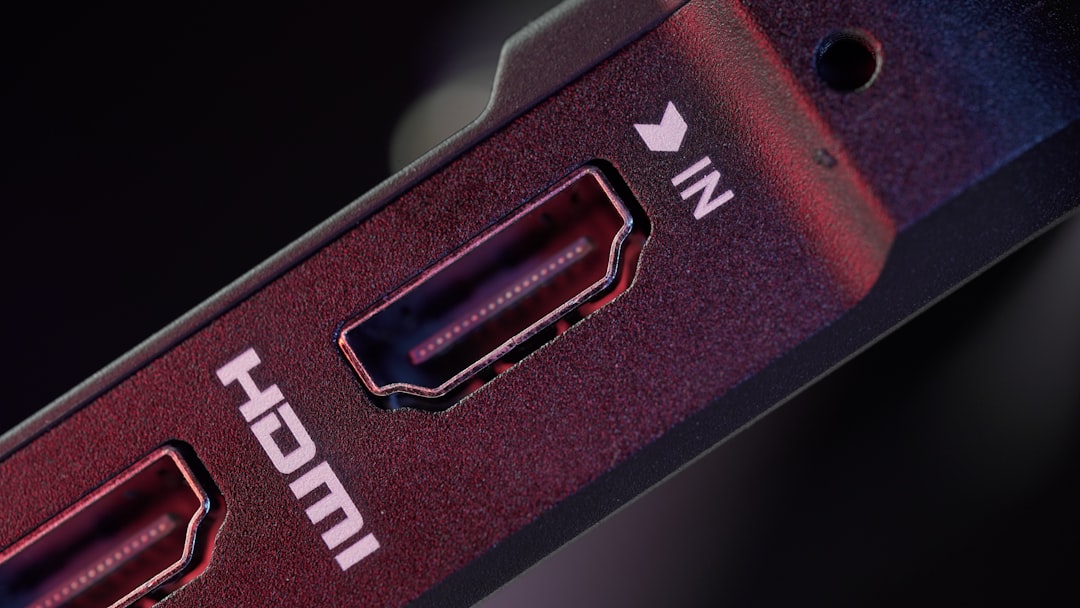
The cable is the humble hero of your setup. It carries the video signal from your PC to your monitor. It may be HDMI, DisplayPort, USB C, DVI, or even VGA if your computer is from the dinosaur lounge.
A loose or damaged cable can cause random black screens. The signal drops. The monitor panics. Then you get darkness.
This problem is very common. It is also easy to miss. Why? Because cables sit quietly behind the desk. They collect dust. They bend. They get kicked. They get pulled by chairs, cats, and mystery forces.
Signs of a cable problem
- The screen goes black when you move the desk.
- The screen flickers before going black.
- The monitor says No Signal.
- The issue happens on one monitor only.
- Changing the cable fixes it for a while.
How to check your cable
Turn off the monitor and computer. Then unplug the cable at both ends. Plug it back in firmly. Do not just wiggle it. Remove it fully. Then reseat it like you mean it.
Check for bent pins. Check for frayed parts. Check for cracked plastic. Also check if the cable feels loose in the port. A worn port or connector can cause signal drops.
If you use DisplayPort, make sure it clicks into place. Some DisplayPort cables have tiny locking tabs. Do not yank them like you are starting a lawn mower. Press the release if needed.
Try another cable. This is one of the best tests. If the problem disappears, the old cable was the villain. Give it a tiny goodbye speech and replace it.
Also use the right cable for your monitor. High resolution and high refresh rates need better cables. A cheap old HDMI cable may not handle 4K at 120 Hz. It may try. Then it may faint.
Cause 3: Power issues are stealing the show
Power problems can also make your screen go black. This could be the monitor power cable. It could be the wall outlet. It could be the power strip. It could be the computer’s power supply.
Power issues are sneaky. The computer might not shut off. The screen might just lose signal. Or the GPU may stop working for a moment because it cannot get enough power.
This is more likely if the black screen happens during heavy tasks. Games. Video editing. 3D rendering. Anything that makes your GPU work hard. When the GPU works hard, it asks for more power. If the power supply says, “Best I can do is vibes,” the screen may go black.
Signs of a power problem
- The screen goes black during games or heavy apps.
- The PC restarts by itself.
- The monitor power light turns off.
- The issue happens when other devices turn on.
- You hear clicking, buzzing, or strange fan behavior.
What to check first
Start with the simple stuff. Make sure the monitor power cable is snug. Try a different outlet. Try a different power strip. If the monitor power brick is hot or buzzing, that is not normal.
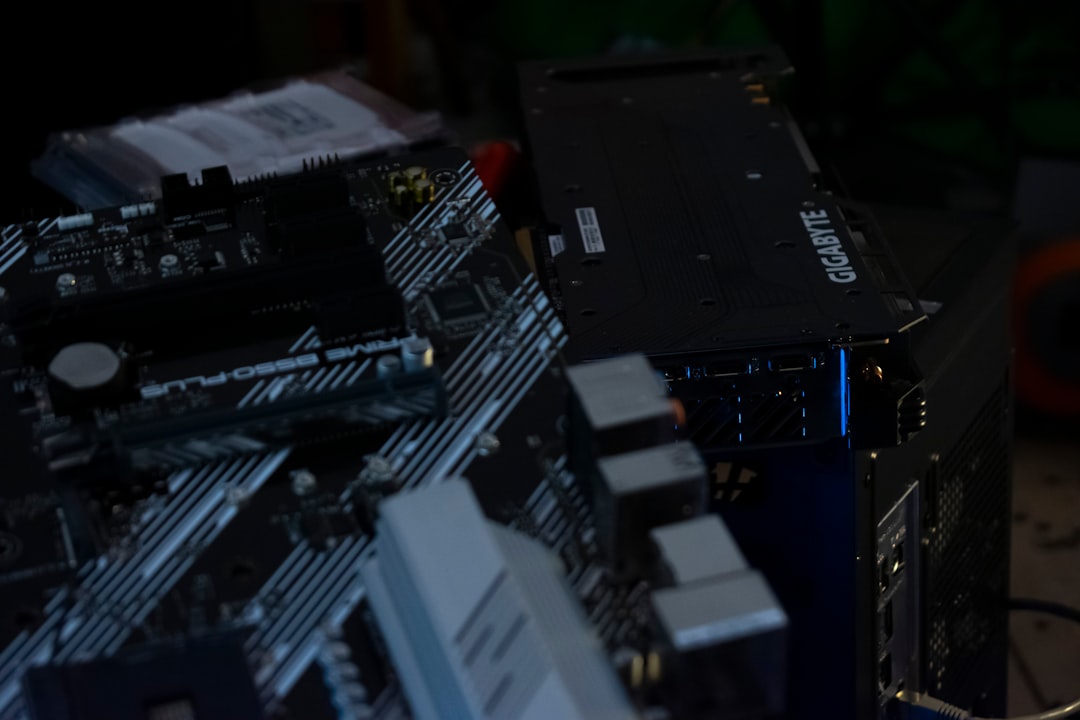
If you use a desktop PC, check the power cable going into the back of the computer. It should be seated firmly. Also check the GPU power cables inside the PC if you are comfortable opening the case.
Many graphics cards need special power connectors. These may be 6 pin, 8 pin, or newer 12VHPWR connectors. If they are loose, the GPU can lose power. Then your screen goes dark. Your GPU is not being rude. It is starving.
Do not forget overheating
Heat is not in the title, but it deserves a quick mention. Heat can make power and GPU problems worse. If your GPU gets too hot, it may shut down or crash the driver.
Dust is a big enemy. It blocks airflow. It turns your PC into a tiny toaster. A cute toaster, but still a toaster.
Check your temperatures with trusted monitoring software. If your GPU is very hot during games, clean the case. Make sure fans spin. Make sure the PC has space to breathe.
Do not place your computer inside a closed cabinet. Computers hate that. They need air. They are basically fancy metal lungs with lights.
Quick fixes to try first
Here is a simple checklist. Try these before you panic.
- Restart the computer. Yes, it is boring. Yes, it works sometimes.
- Reseat the display cable. Unplug both ends and plug them back in.
- Try another cable. This is fast and useful.
- Try another monitor port. Use a different HDMI or DisplayPort if available.
- Update the GPU driver. Get it from the official source.
- Roll back the GPU driver. Do this if the issue started after an update.
- Check power cables. Monitor, PC, and GPU cables should be tight.
- Test another outlet. A bad outlet can cause weird issues.
- Lower the refresh rate. Try 60 Hz for testing.
- Watch temperatures. Heat can trigger black screens.
What if you use a laptop?
Laptops can also have random black screens. The causes are similar, but the parts are smaller and harder to reach.
Try updating the GPU driver. Try plugging in an external monitor. If the external monitor works fine, the laptop screen or internal display cable may be the issue.
Also check power settings. A laptop may dim or turn off the display when switching between battery and charger. It may also glitch if the charger is weak or damaged.
If the screen changes when you move the lid, the internal display ribbon cable may be loose or worn. That usually needs repair. Tiny cables inside laptops are not fun. They are like noodles made of anxiety.
When should you worry?
A single black screen may not mean disaster. Computers hiccup. It happens.
But you should pay attention if it happens often. Especially if the PC restarts, smells hot, makes odd noises, or shuts off under load. Those are bigger warning signs.
If you see artifacts, such as strange colors, blocks, lines, or sparkles, the GPU may be failing. Or the cable may be bad. Test the cable first. It is cheaper. Always blame the cheap part before blaming the expensive part.
A simple testing plan
Want a smart path? Follow this order:
- Check the cable. It is easy and cheap.
- Try another monitor or TV. This tells you if the monitor is the problem.
- Update or roll back the GPU driver. Software can be moody.
- Check power connections. Loose power is a common gremlin.
- Watch heat and fan behavior. Hot parts act strange.
- Test under load. Open a game or benchmark and see if it fails.
Change one thing at a time. Do not change five things at once. If you do, you will not know what fixed it. That is not troubleshooting. That is computer soup.
Final thoughts
A random black screen is annoying. It can interrupt work, games, movies, and your heroic attempt to answer one simple email.
But the cause is often simple. A driver may need a reset. A cable may need replacing. A power connection may be loose. Your computer is not haunted. Probably.
Start with the easy checks. Be patient. Follow the clues. Soon your screen should stay bright, happy, and awake. And if it does not, you will at least know where the gremlin is hiding.