
Choosing photo editing software used to be simple: professionals bought expensive desktop tools, while everyone else made do with basic apps. Today, the landscape is far more interesting. Free editors can handle serious retouching, paid platforms offer AI-powered shortcuts, and browser-based tools compete with traditional desktop giants. Whether you are editing family photos, product shots, social media content, or professional RAW files, the best choice depends on your workflow, budget, skill level, and creative goals.
TLDR: If you want the best all-around professional editor, Adobe Photoshop remains the industry standard, while Lightroom is ideal for photographers managing large image libraries. For free alternatives, GIMP is powerful but less polished, and Photopea is surprisingly capable in the browser. If you prefer fast, beginner-friendly editing, tools like Canva, Pixlr, and Fotor are easier to learn, while Affinity Photo offers excellent paid value without a subscription.
What Makes a Photo Editor “Good”?
A good photo editor is not just about flashy filters. The best software gives you control over exposure, color, sharpness, cropping, layers, masking, retouching, file formats, and exporting. For photographers, RAW processing and color accuracy matter. For designers, layer management and text tools are essential. For casual users, speed and simplicity may matter more than advanced features.
When comparing free and paid photo editing software, it helps to think about four key questions:
- How advanced are the editing tools? Basic sliders are enough for minor fixes, but professional work needs layers, masks, curves, and non-destructive editing.
- How easy is it to learn? A powerful editor is not helpful if the interface constantly slows you down.
- What does it cost over time? Some paid tools require subscriptions, while others offer one-time purchases.
- Does it fit your workflow? Cloud storage, mobile apps, batch editing, and file compatibility can make a huge difference.
Adobe Photoshop: Best for Professional Image Manipulation
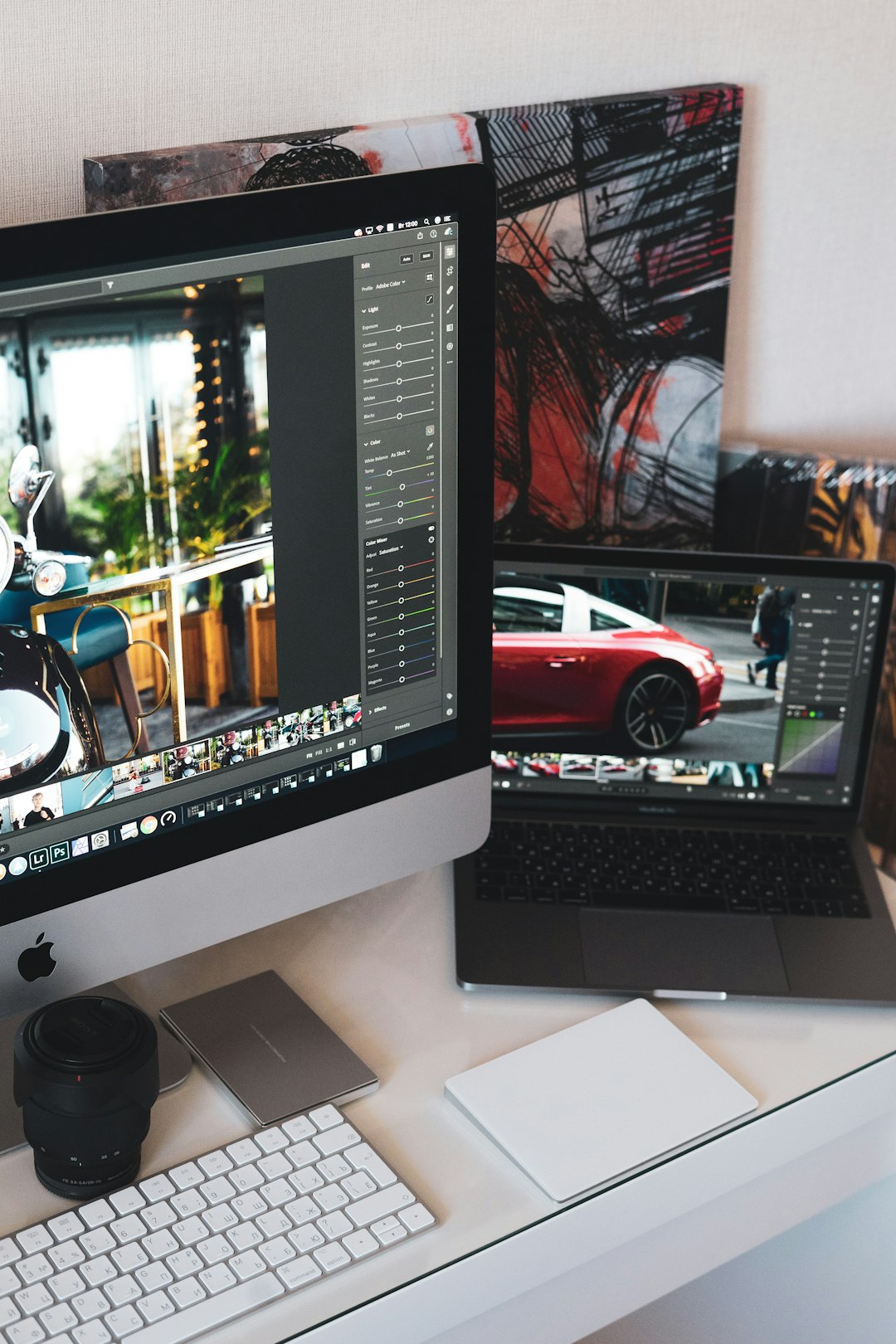
Adobe Photoshop is still the name most people think of when they hear “photo editing.” It is the industry standard for advanced image manipulation, compositing, retouching, digital art, and design. If you need to remove objects, blend multiple photos, create surreal effects, or prepare high-end commercial images, Photoshop is incredibly capable.
Its strongest features include layers, masks, adjustment layers, smart objects, healing tools, generative AI features, advanced selection tools, and extensive plugin support. Photoshop is especially strong when you need precision. Portrait retouchers, advertising designers, product photographers, and digital artists all benefit from its depth.
The downside is cost and complexity. Photoshop is subscription-based, and beginners may find the interface intimidating. While Adobe has improved onboarding and AI-assisted tools, there is still a learning curve. For casual users who mainly want to brighten photos or add filters, Photoshop can feel like using a professional film studio to take a passport photo.
Best for: professional retouching, compositing, commercial editing, designers, digital artists.
Not ideal for: users who want a simple free editor or dislike subscriptions.
Adobe Lightroom: Best for Photographers and RAW Workflows
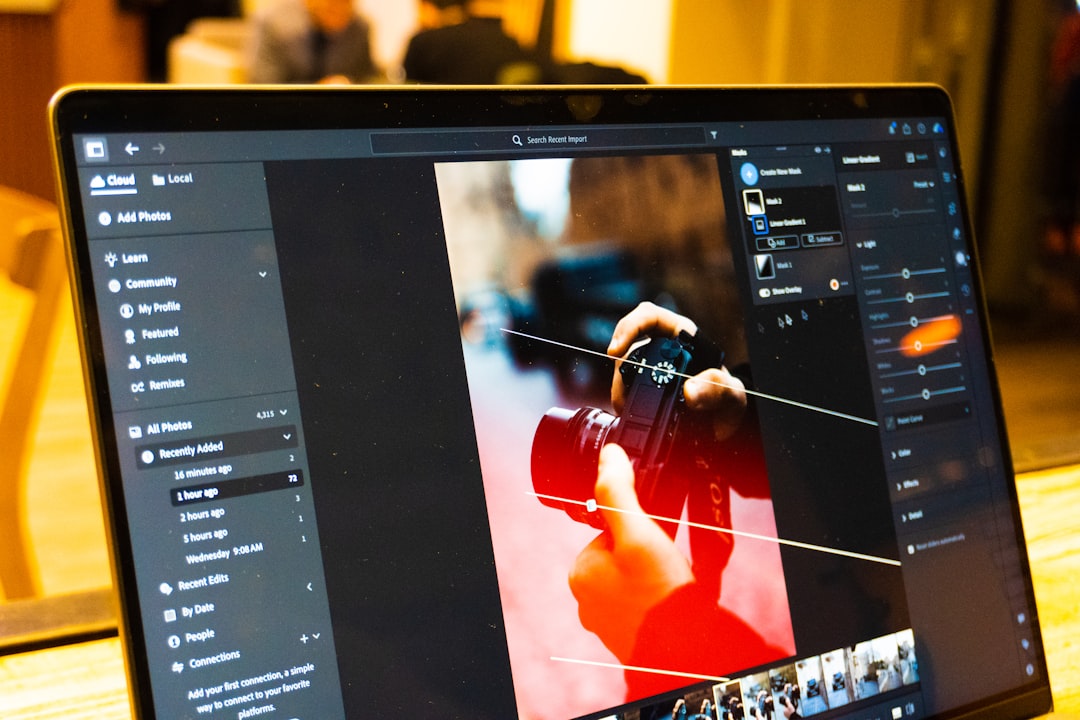
While Photoshop is built for detailed manipulation, Adobe Lightroom is designed for photographers who need to process, organize, and export large collections of images. Wedding photographers, travel photographers, and content creators often prefer Lightroom because it handles dozens or hundreds of photos efficiently.
Lightroom excels at RAW editing, exposure correction, color grading, lens correction, noise reduction, presets, batch editing, and photo organization. Its non-destructive workflow means your original files remain untouched while your edits can be adjusted at any time.
Lightroom’s interface is cleaner than Photoshop’s, but it still offers professional-level control. Its masking tools have become especially impressive, allowing users to selectively edit skies, subjects, backgrounds, and specific color ranges. The paid subscription includes cloud-based syncing, which is useful if you edit across desktop, tablet, and phone.
However, Lightroom is not meant for heavy compositing or pixel-level editing. If you need to combine images or perform advanced retouching, you will probably still need Photoshop or another layer-based editor.
Best for: photographers, RAW editing, batch workflows, image organization.
Not ideal for: complex graphic edits or users who only edit occasionally.
Affinity Photo: Best Paid Photoshop Alternative
Affinity Photo has earned a loyal following because it offers many professional features without a monthly subscription. It is a one-time purchase photo editor available for desktop and iPad, and it is especially appealing to people who want Photoshop-like power at a lower long-term cost.
Affinity Photo includes layers, masks, RAW development, frequency separation, panorama stitching, HDR merging, batch processing, and advanced retouching tools. Its performance is generally excellent, and it handles large files well. Many photographers and designers find it more than capable for serious work.
Its interface is polished, though users coming from Photoshop may need time to adjust. It also has a smaller ecosystem of tutorials, plugins, and integrations compared with Adobe. Still, for users who want professional editing without committing to a subscription, Affinity Photo is one of the strongest paid options available.
Best for: budget-conscious professionals, advanced hobbyists, Photoshop alternatives.
Not ideal for: teams deeply tied to Adobe workflows or cloud collaboration.
GIMP: Best Free Open-Source Editor
GIMP, short for GNU Image Manipulation Program, is one of the most powerful free photo editors available. It is open-source, completely free, and packed with advanced tools. For many users, GIMP is the closest free alternative to Photoshop.
It supports layers, masks, curves, filters, custom brushes, plugins, and detailed retouching. You can use it for photo correction, graphic design, image manipulation, and even digital painting. Since it is open-source, it benefits from an active community and regular improvements.
The biggest drawback is usability. GIMP’s interface has improved over the years, but it can still feel less refined than paid competitors. Some workflows require extra steps, and professional users may miss features like non-destructive adjustment layers in the same form offered by Photoshop or Affinity Photo.
Still, the value is hard to ignore. If you are willing to learn and do not mind a slightly less polished experience, GIMP gives you an impressive editing toolkit for free.
Best for: free advanced editing, open-source users, hobbyists, budget-conscious creators.
Not ideal for: beginners who want a sleek interface or professionals needing a faster workflow.
Photopea: Best Free Browser-Based Photoshop Alternative
Photopea is one of the most surprising tools in the photo editing world. It runs in your browser, yet it looks and feels much like Photoshop. It supports many professional file formats, including PSD, XD, Sketch, RAW, and standard image files, making it incredibly useful when you need quick access without installing software.
Photopea includes layers, masks, blending modes, selection tools, smart objects, text tools, and adjustment options. For a free web app, that is remarkable. It is especially handy for students, freelancers, and anyone using a shared or low-powered computer.
The free version includes ads, and performance depends on your browser and device. It is not as smooth as Photoshop for very large files, and advanced professionals may eventually hit limitations. Still, for quick edits, PSD adjustments, and lightweight design work, Photopea is one of the best free choices available.
Best for: browser editing, PSD support, quick professional-style edits.
Not ideal for: massive files, offline work, or heavy daily production.
Canva: Best for Social Media and Simple Creative Edits
Canva is not a traditional photo editor in the same sense as Photoshop or Lightroom. Instead, it combines image editing with graphic design templates, making it ideal for social media posts, presentations, flyers, thumbnails, and marketing graphics.
Its photo editing tools are simple but effective. You can adjust brightness, contrast, saturation, blur, crop images, remove backgrounds, apply filters, and use AI-assisted features. What makes Canva appealing is how quickly users can turn a photo into a finished design. Beginners can start with templates rather than a blank canvas.
Canva offers both free and paid plans. The free version is generous for casual users, while the paid version unlocks more templates, stock assets, brand kits, background removal, and advanced export features.
Best for: social media creators, small businesses, marketing graphics, beginners.
Not ideal for: professional retouching, RAW editing, or detailed layer-based manipulation.
Pixlr: Best Lightweight Online Editor
Pixlr is another strong browser-based editor that balances simplicity and capability. It comes in different versions, including a more advanced editor and a faster, beginner-friendly option. This makes it useful for people who want quick edits without downloading a desktop program.
Pixlr includes filters, overlays, retouching tools, cutout tools, text, layers, and AI-powered features. It is particularly good for social media images, blog graphics, and casual photo enhancements. Its interface is more approachable than GIMP or Photoshop, though less powerful overall.
The free version works well for basic tasks, but paid plans remove limits and unlock more assets and tools. Pixlr is a good middle ground for users who want something more flexible than a basic mobile editor but less demanding than professional software.
Best for: quick online editing, casual creators, lightweight design tasks.
Not ideal for: advanced RAW workflows or high-end professional image editing.
Fotor: Best for Quick AI Enhancements
Fotor focuses on speed and accessibility. It is designed for users who want attractive results quickly, with tools for one-click enhancement, portrait retouching, background removal, collage creation, and AI image features.
Fotor is especially useful for people who edit photos for ecommerce, profile pictures, social posts, or personal projects. You do not need much technical knowledge to improve an image. The platform handles many common adjustments automatically, which can be a major advantage for beginners.
However, Fotor is not as flexible as Photoshop, Affinity Photo, or GIMP. If you need precise control over layers, advanced masks, or professional color grading, it may feel limited. Its value lies in convenience rather than maximum creative control.
Best for: quick edits, portraits, AI enhancements, beginners.
Not ideal for: detailed professional editing or complex composites.
Free vs Paid: Which Should You Choose?
The choice between free and paid photo editing software depends less on price alone and more on how often you edit and what level of quality you need. Free tools are excellent for learning, occasional edits, and budget-friendly workflows. Paid tools are usually better when you need speed, consistency, technical support, and professional features.
Choose a free photo editor if:
- You edit photos only occasionally.
- You are learning the basics of photo editing.
- You do not need advanced RAW management or high-end retouching.
- You are comfortable experimenting with interfaces that may be less polished.
Choose a paid photo editor if:
- You edit images for clients, business, or professional projects.
- You need reliable RAW processing and color accuracy.
- You want faster workflows, better performance, and regular updates.
- You value integrated cloud storage, presets, plugins, or support.
Quick Comparison
- Best overall professional editor: Adobe Photoshop
- Best for photographers: Adobe Lightroom
- Best paid value: Affinity Photo
- Best free advanced editor: GIMP
- Best free browser editor: Photopea
- Best for social media graphics: Canva
- Best lightweight online editor: Pixlr
- Best for fast AI improvements: Fotor
Final Verdict
There is no single best photo editing program for everyone. Photoshop is the most powerful all-purpose option, but it is not the simplest or cheapest. Lightroom is the smarter choice for photographers who need organization and RAW editing. Affinity Photo is arguably the best paid alternative for users who want professional tools without a subscription.
On the free side, GIMP offers the deepest feature set, while Photopea is unbeatable for browser-based convenience. Canva, Pixlr, and Fotor are better suited to fast, attractive edits and social media content than complex professional work.
The best approach is to match the software to your actual needs. If you are learning, start free. If your editing becomes more demanding, invest in a tool that saves time and improves consistency. In the end, great photo editing is not only about the software; it is about knowing what you want the image to say and choosing the tool that helps you say it clearly.