
AI editing apps have moved far beyond novelty filters. Today, the best tools can remove distractions, upscale blurry footage, rewrite audio, generate backgrounds, clean up portraits, color grade video, and speed up professional workflows that used to take hours. When people search for AI editing apps without restrictions, they usually want tools that are flexible, powerful, and not constantly blocked by watermarks, tiny export limits, locked formats, or overly narrow creative controls.
TLDR: The best AI editing apps “without restrictions” are not lawless or unsafe tools, but platforms that offer creative freedom, high quality exports, broad format support, and practical usage rights. For video, consider DaVinci Resolve, CapCut, Runway, or Descript. For images, Adobe Photoshop, Topaz Photo AI, Luminar Neo, and Krita with AI plugins are strong choices. Always check licensing, privacy, and commercial use terms before relying on any AI editor for client or business work.
What “Without Restrictions” Really Means
No serious AI editing app is completely free of rules. Most reputable platforms restrict illegal content, impersonation, explicit deepfakes, copyright abuse, and harmful manipulation. That is a good thing. In practical terms, however, an app can still feel “unrestricted” if it gives you freedom to edit, export, customize, and use your work without unnecessary friction.
When evaluating AI editors, look for these qualities:
- No forced watermark on exports, or at least a paid plan that removes it cleanly.
- High resolution output, such as 4K video or large image exports.
- Broad file compatibility, including common formats like MP4, MOV, PNG, JPG, TIFF, WAV, and PSD.
- Commercial usage clarity for creators, agencies, marketers, and small businesses.
- Flexible creative controls instead of one-click results you cannot adjust.
- Privacy options, especially for local editing or sensitive client projects.
1. DaVinci Resolve: Best for Professional Video Editing Freedom
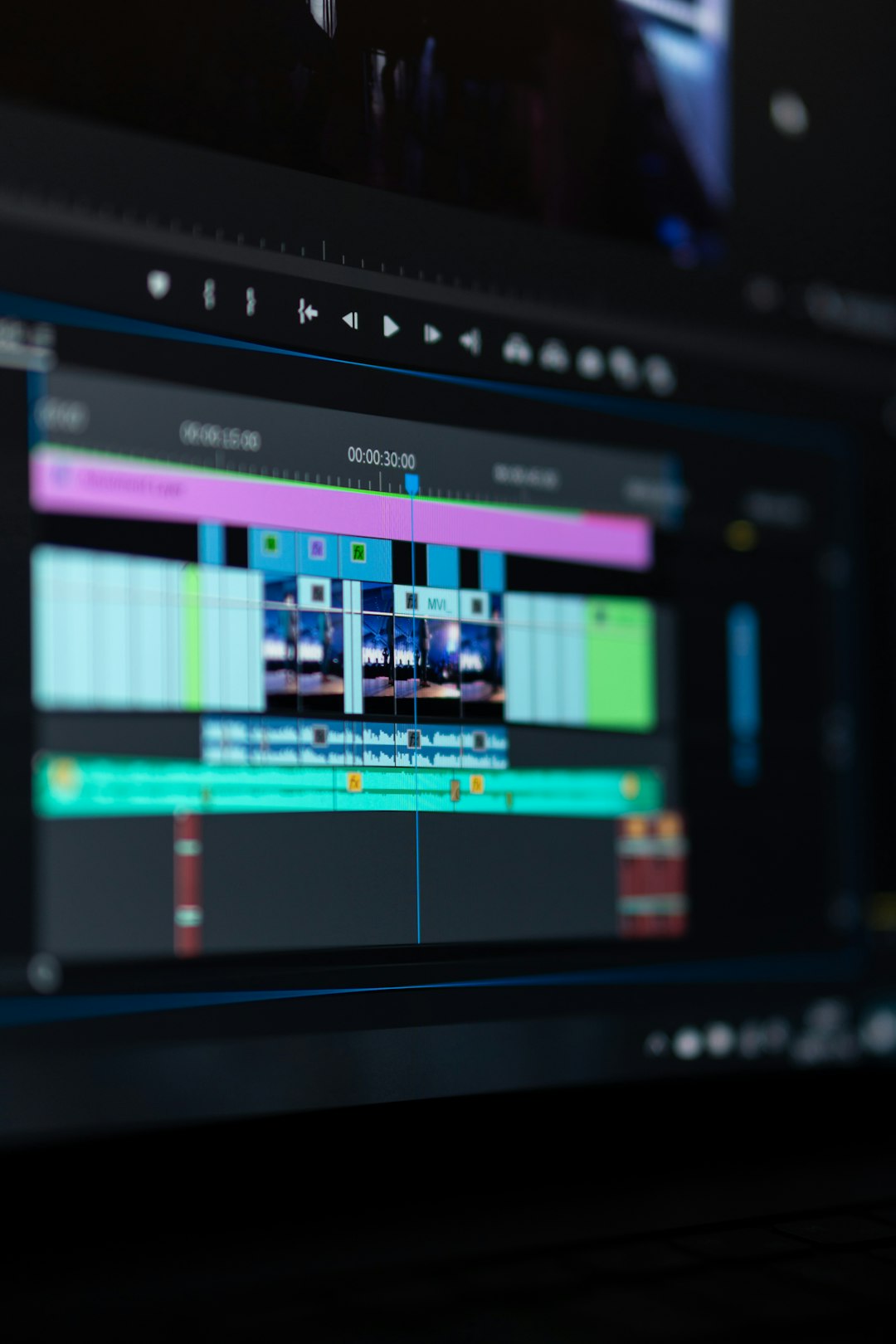
DaVinci Resolve is one of the most capable editing platforms available, and its free version is surprisingly generous. It combines video editing, color correction, visual effects, audio post-production, and delivery tools in one application. The Studio version adds more AI-powered features through the DaVinci Neural Engine, including facial recognition, smart reframing, object masking, voice isolation, and advanced upscaling.
What makes DaVinci Resolve feel less restrictive is its professional structure. You are not trapped inside a simplified mobile interface or limited to preset templates. You can build complex edits, grade footage precisely, export in many formats, and work on serious productions. It is ideal for YouTubers, filmmakers, educators, documentary editors, and commercial video teams.
Best for: advanced video editing, color grading, audio cleanup, cinematic projects.
Potential limitation: the learning curve is steeper than beginner apps, and some AI features require the paid Studio version.
2. CapCut: Best for Fast Social Video Editing
CapCut has become one of the most popular AI editing apps because it makes video creation fast and approachable. It includes auto captions, background removal, text to speech, beat syncing, smart templates, beauty adjustments, and mobile-friendly editing tools. For creators making TikToks, Reels, Shorts, ads, and quick promotional clips, CapCut is extremely efficient.
The key attraction is speed. You can cut, caption, resize, and publish social videos without needing a professional editing background. Many features are available across mobile, desktop, and web versions, which makes it flexible for creators who work on multiple devices.
Best for: short form video, social media clips, captions, creator content.
Potential limitation: some premium features require a subscription, and usage terms can vary by region or feature. Always review export and licensing details if using it commercially.
3. Adobe Photoshop: Best for AI Image Editing With Control
Adobe Photoshop remains one of the strongest AI-powered image editors for professionals. Its generative fill, generative expand, remove tool, selection tools, neural filters, and masking features can transform an editing workflow. You can extend backgrounds, remove unwanted objects, clean up product photos, adjust portraits, and create composited scenes with a high degree of control.
Photoshop is not “unrestricted” in the sense of allowing anything; Adobe uses safety policies around generative AI. However, for legitimate editing, it offers a broad and polished toolset. Unlike many quick AI apps, Photoshop lets you refine layers, masks, blending modes, selections, color correction, and typography after the AI makes its first suggestion.
Best for: professional photo editing, product images, composites, marketing visuals.
Potential limitation: it requires a subscription, and generative features may have usage rules and credit systems depending on the plan.
4. Topaz Photo AI: Best for Upscaling and Image Restoration
Topaz Photo AI is designed for photographers and visual professionals who care about image quality. Its strongest features include noise reduction, sharpening, face recovery, and upscaling. If you have old photos, low light shots, wildlife images, cropped sports photos, or slightly soft portraits, Topaz can often recover impressive detail.
This app feels less restrictive because it focuses on enhancement rather than template-based editing. You are not locked into a social media style or a narrow set of presets. Instead, you can improve an existing image while preserving a natural look. It also supports batch processing, which is valuable for photographers handling large galleries.
Best for: upscaling, denoising, sharpening, restoring detail.
Potential limitation: it is not a full graphic design or compositing app. It works best alongside Lightroom, Photoshop, Capture One, or another main editor.
5. Runway: Best for Experimental AI Video Creation
Runway is one of the most interesting AI editing platforms for video creators who want to experiment. It offers tools for text to video, image to video, background removal, inpainting, motion control, green screen effects, and stylized generation. For music videos, concept films, advertising mockups, and visual experimentation, Runway can be very powerful.
Its strength is creative possibility. You can generate scenes, alter footage, remove elements, and create visuals that would normally require a production team. It is especially useful during ideation, storyboarding, or when building surreal and artistic sequences.
Best for: AI video generation, creative tests, visual effects, concept content.
Potential limitation: plans may include generation limits, and output consistency can vary. It also has content and safety policies, so it is better described as flexible rather than restriction-free.
6. Descript: Best for Editing Audio and Video Like Text
Descript changes the editing process by turning spoken audio into editable text. Delete a sentence from the transcript, and the matching audio or video disappears. This makes it especially useful for podcasters, interviewers, course creators, and YouTubers who work with dialogue-heavy content.
Its AI features include transcription, filler word removal, studio sound enhancement, voice tools, captions, screen recording, and multitrack editing. Instead of scrubbing endlessly through a timeline, you can edit conversations almost like editing a document.
Best for: podcasts, interviews, educational videos, talking head content.
Potential limitation: transcription accuracy depends on audio quality and accents, and some advanced voice features require careful ethical use and consent.
7. Luminar Neo: Best for Creative Photo Editing
Luminar Neo is a popular AI photo editor built for fast, attractive transformations. It includes sky replacement, portrait enhancement, background removal, relighting, structure adjustments, atmosphere effects, and object removal. It is easier to learn than Photoshop and often produces polished results quickly.
Luminar Neo is especially appealing to photographers who want creative control without a complicated interface. It works well for landscapes, portraits, travel images, and social content. You can use presets as a starting point, then fine tune the result so the image does not look overly automated.
Best for: portrait retouching, landscape enhancement, quick creative edits.
Potential limitation: it is less powerful than Photoshop for detailed compositing and precision layer work.
8. Krita With AI Plugins: Best Open Creative Workflow
Krita is a free, open source digital painting and illustration app. On its own, it is not primarily an AI editor, but it can become part of a more open AI-assisted workflow through community plugins and local generation tools. Artists who want more control over their setup, models, brushes, and painting process may prefer this type of environment.
The biggest advantage is flexibility. Open source tools often let advanced users customize workflows in ways that commercial apps do not. This can include local processing, custom models, and integration with illustration pipelines. For artists who care about ownership and experimentation, Krita is worth exploring.
Best for: illustrators, concept artists, local workflows, open source creativity.
Potential limitation: setup can be technical, and plugin quality varies. Users must also be responsible about model licenses and training data concerns.
How to Choose the Right AI Editing App
The “best” app depends on what you edit most often. A wedding filmmaker needs different tools from a podcast host, and a product photographer needs different features from a meme page manager. Before subscribing, ask yourself what restrictions actually matter to your workflow.
- If you need professional video control: choose DaVinci Resolve.
- If you need quick social media output: choose CapCut.
- If you need advanced image manipulation: choose Photoshop.
- If you need restoration and upscaling: choose Topaz Photo AI.
- If you need experimental video generation: choose Runway.
- If you edit podcasts or interviews: choose Descript.
- If you want simple creative photo effects: choose Luminar Neo.
- If you want open source flexibility: try Krita with AI plugins.
Important Notes on Privacy, Licensing, and Ethics
Before using any AI editing tool, especially for business, check the fine print. Some apps may use uploaded content for service improvement, while others provide opt out settings or local processing. If you work with client files, unreleased products, confidential footage, or personal images, privacy should be a top priority.
Licensing is equally important. Make sure you understand whether AI-generated or AI-assisted outputs can be used commercially. Rules may differ between free and paid plans. If your project includes brand campaigns, merchandise, stock assets, or paid advertising, do not assume every output is automatically safe to use.
Finally, use AI editing responsibly. Avoid deceptive edits, unauthorized impersonation, nonconsensual face swaps, and misleading media. The most sustainable creative workflows combine AI efficiency with human judgment.
Final Recommendation
If you want the broadest “no unnecessary restrictions” experience, start with DaVinci Resolve for video and Photoshop or Topaz Photo AI for images. If your work is social-first, CapCut is hard to beat for speed. If you want cutting-edge AI generation, Runway is exciting, while Descript is one of the smartest choices for audio and spoken video.
The best AI editing app is not simply the one with the most features. It is the one that lets you create at the quality you need, export in the format you want, protect your rights, and keep enough control to make the final result feel intentional. In that sense, the best AI editors without restrictions are really the tools that remove technical barriers while leaving creative decisions in your hands.