
Editing a video should feel smooth. Zoom in. Trim a clip. Add a transition. Done. But sometimes, when you zoom in inside Clipchamp, the app suddenly restarts. Your screen flashes. The project reloads. And your mood? Completely ruined.
If Clipchamp relaunches when zooming, you are not alone. It is a common display bug. The good news? It is usually easy to fix. Let’s break it down in plain English and fix this thing for good.
TLDR: If Clipchamp restarts when you zoom in, the issue is usually caused by graphics acceleration, browser glitches, outdated drivers, corrupted cache, or project overload. Turn off hardware acceleration, clear your cache, update your browser and GPU drivers, and test the project in a lighter state. These five fixes solve most zoom-related crashes fast. No tech degree required.
Why Does Clipchamp Relaunch When Zooming?
Zooming in the timeline increases the load on your system. Clipchamp must render more detail. More frames. More layers. More preview quality.
If your system, browser, or graphics settings cannot handle that sudden load, the app may crash and relaunch.
Common causes include:
- Hardware acceleration conflicts
- Outdated graphics drivers
- Browser cache corruption
- Too many active effects or layers
- Insufficient RAM or GPU memory
Now let’s fix them one by one.
Fix #1: Turn Off Hardware Acceleration
This is the most common culprit.
Hardware acceleration allows your browser to use your GPU to improve performance. Sounds great. But sometimes it creates instability instead of speed.
When you zoom in, hardware acceleration can misfire. The screen freezes. Clipchamp reloads. Game over.
Here is how to turn it off in Chrome or Edge:
- Open your browser settings.
- Search for “hardware acceleration.”
- Toggle it off.
- Restart the browser.
Now reopen Clipchamp and test zooming again.
Why this works: Turning off hardware acceleration forces the browser to rely less on GPU rendering. That reduces instability spikes when zooming.
Many users report this alone fixes the relaunch issue.
Fix #2: Clear Browser Cache and Cookies
Cache is helpful. Until it is not.
Your browser stores temporary files to load sites faster. But if those files become corrupted, Clipchamp may behave strangely.
Zooming triggers heavy rendering. Corrupted cache files can cause sudden reloads.
To clear cache:
- Open browser settings.
- Go to Privacy or History.
- Select “Clear browsing data.”
- Choose cached images and files.
- Confirm.
Restart the browser and reload your project.
Bonus tip: After clearing cache, log back into Clipchamp and open only one project at a time.
Fresh start. Cleaner performance.
Fix #3: Update Your Graphics Drivers
This one gets overlooked.
If your GPU drivers are outdated, zooming can trigger rendering crashes. Especially with high-resolution footage like 4K.
Clipchamp relies heavily on graphics performance inside the browser.
On Windows:
- Right-click Start.
- Open Device Manager.
- Expand Display Adapters.
- Right-click your graphics card.
- Select Update Driver.
Or download drivers directly from:
- NVIDIA
- AMD
- Intel
Why this matters: Updated drivers improve GPU stability. They fix bugs that cause apps to reload under heavy visual strain.
If you have not updated them in over six months, do it now.
Fix #4: Simplify Your Project Timeline
Sometimes the problem is not technical. It is creative overload.
If your timeline looks like a rainbow explosion of stacked clips, transitions, titles, and effects, zooming becomes computationally expensive.
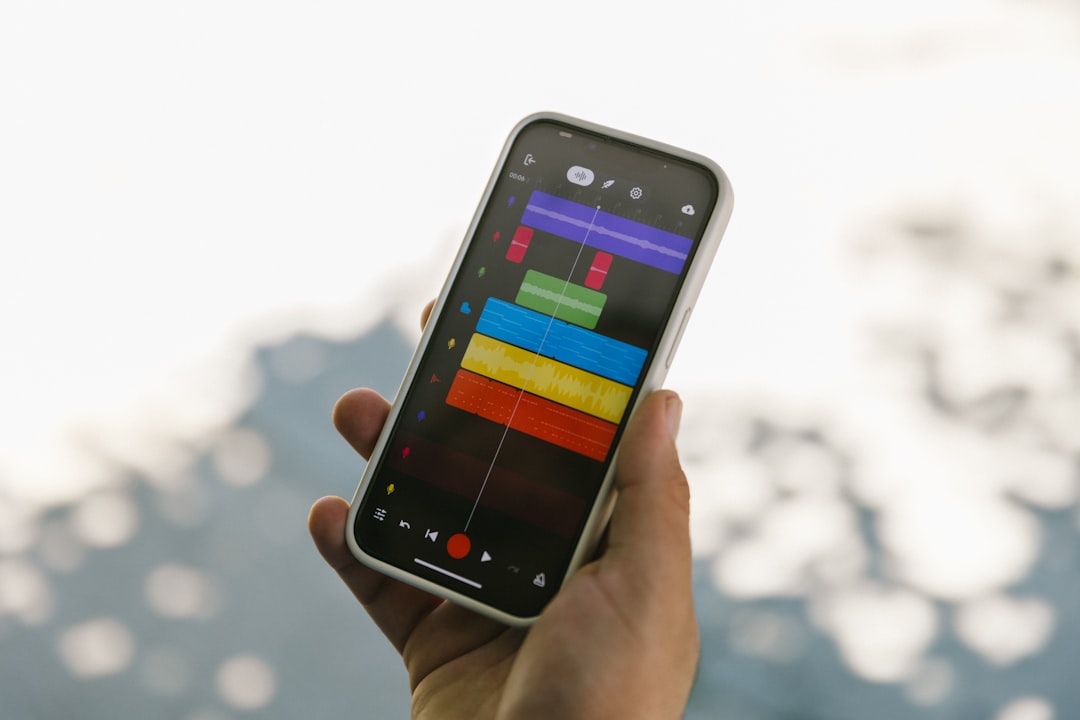
When you zoom, Clipchamp must redraw each track in detail. If there are too many layers, it may exceed available memory.
Try this:
- Delete unused clips.
- Remove unnecessary overlays.
- Split large projects into smaller parts.
- Temporarily disable effects.
Power move: Create multiple smaller projects. Export them separately. Then combine final exports into one master project.
This reduces strain dramatically.
Especially on laptops with 8GB RAM.
Fix #5: Adjust Zoom Behavior and Preview Quality
Zooming aggressively can spike preview processing. Especially at maximum quality.
Clipchamp may be trying to render high-resolution previews while also scaling the timeline.
Lower the preview resolution if possible. Keep zoom adjustments gradual.
What to check:
- Preview playback quality settings
- Background apps consuming RAM
- Browser zoom level (reset to 100%)
Yes. Even your browser zoom level matters.
If your browser is set to 125% or 150%, Zoom inside Clipchamp becomes heavier to process.
Reset to 100% for best stability.
Bonus Fixes If It Still Reloads
If the core five fixes did not solve it, try these advanced tricks.
1. Use a Different Browser
Clipchamp works best on Chromium-based browsers. Try switching between Edge and Chrome.
Do not keep 30 tabs open. Close everything else.
2. Check for System Updates
Windows updates often include graphics stability improvements.
Go to Settings → Windows Update → Check for updates.
3. Increase Virtual Memory
If your RAM is limited, increasing page file size can reduce crashes.
This gives your system more working space during zoom spikes.
4. Disable Browser Extensions
Ad blockers and performance extensions can interfere.
Open Clipchamp in Incognito mode to test.
How to Tell If It Is a System Limitation
Sometimes the issue is simple. Your system is at its limit.
Common signs:
- Fans get loud during editing
- Other apps lag too
- System memory usage above 85%
- Frequent browser crashes outside Clipchamp
Open Task Manager while zooming. Watch CPU, Memory, and GPU usage.
If everything spikes to red, your hardware may be underpowered.
In that case, reducing project size is your best short-term solution.
Prevent the Problem in the Future
Once fixed, keep it that way.
Follow these habits:
- Update graphics drivers every few months
- Clear browser cache monthly
- Keep projects organized and lightweight
- Close unused tabs while editing
- Restart your browser before heavy editing sessions
Small maintenance. Big difference.
Quick Troubleshooting Checklist
If Clipchamp relaunches again, run through this rapid checklist:
- Is hardware acceleration turned off?
- Is the browser at 100% zoom?
- Are drivers updated?
- Is the timeline overloaded?
- Are background apps closed?
Five checks. Two minutes. Problem usually gone.
When to Reinstall Clipchamp
If you are using the desktop app version and nothing works, try reinstalling it.
Uninstall. Restart your PC. Install the latest version fresh.
This clears deeper config bugs that basic cache clearing cannot fix.
But in most cases, you will not need this step.
Final Thoughts
Clipchamp relaunching when zooming is annoying. But it is rarely catastrophic.
It is usually a display bug. Or a rendering overload.
Turn off hardware acceleration. Update drivers. Clean your cache. Simplify your timeline.
Simple changes. Real results.
Editing should feel creative. Not stressful. Now you know how to keep it that way.
Zoom in with confidence.
And let your videos shine.