
Binding Private Internet Access (PIA) to qBittorrent is one of the most reliable ways to make sure your torrent client only transfers data through the VPN tunnel. A normal VPN connection helps protect your traffic, but if the VPN disconnects or your system briefly switches networks, qBittorrent may continue using your regular internet connection unless it is specifically restricted. Binding qBittorrent to PIA reduces that risk by forcing the client to use only the VPN network interface.
TLDR: To bind PIA to qBittorrent, connect to PIA first, identify the active VPN network interface, then select that interface inside qBittorrent under Tools > Options > Advanced > Network Interface. After applying the setting, restart qBittorrent and verify that torrents stop working when PIA is disconnected. For stronger protection, also enable PIA’s kill switch and use reputable leak-testing tools before downloading anything.
Why Binding PIA to qBittorrent Matters
Many users assume that turning on a VPN is enough to protect torrent traffic. In many cases, it is helpful, but it is not the same as binding. A VPN client routes traffic through an encrypted tunnel, while binding tells qBittorrent to use a specific network adapter only. If that adapter disappears because the VPN disconnects, qBittorrent should lose connectivity instead of falling back to your normal connection.
This matters because torrent clients maintain many simultaneous connections. Even a short VPN interruption can expose your real IP address to peers in a torrent swarm. Binding is a practical safeguard because it works at the application level. In other words, qBittorrent itself is instructed not to use your ordinary Wi-Fi, Ethernet, or mobile data adapter.
Important: This guide is intended for privacy-conscious users who use torrents for lawful purposes, such as downloading open-source software, public domain media, game updates, or files they are authorized to share. It should not be used to infringe copyright or violate the laws of your jurisdiction.
Before You Start
Before changing qBittorrent settings, make sure you have the required software installed and updated. You should use a current version of both the PIA desktop app and qBittorrent. Older versions can have different interface names, missing options, or bugs that affect routing behavior.
- Install Private Internet Access: Download the official PIA app from the provider’s website and sign in.
- Install qBittorrent: Use the official qBittorrent website or a trusted package manager.
- Connect to PIA: Choose a VPN server and wait until the connection is fully established.
- Close active torrents: Pause transfers while you configure and test the binding.
- Know your operating system: Interface names differ between Windows, macOS, and Linux.
Step 1: Connect to PIA First
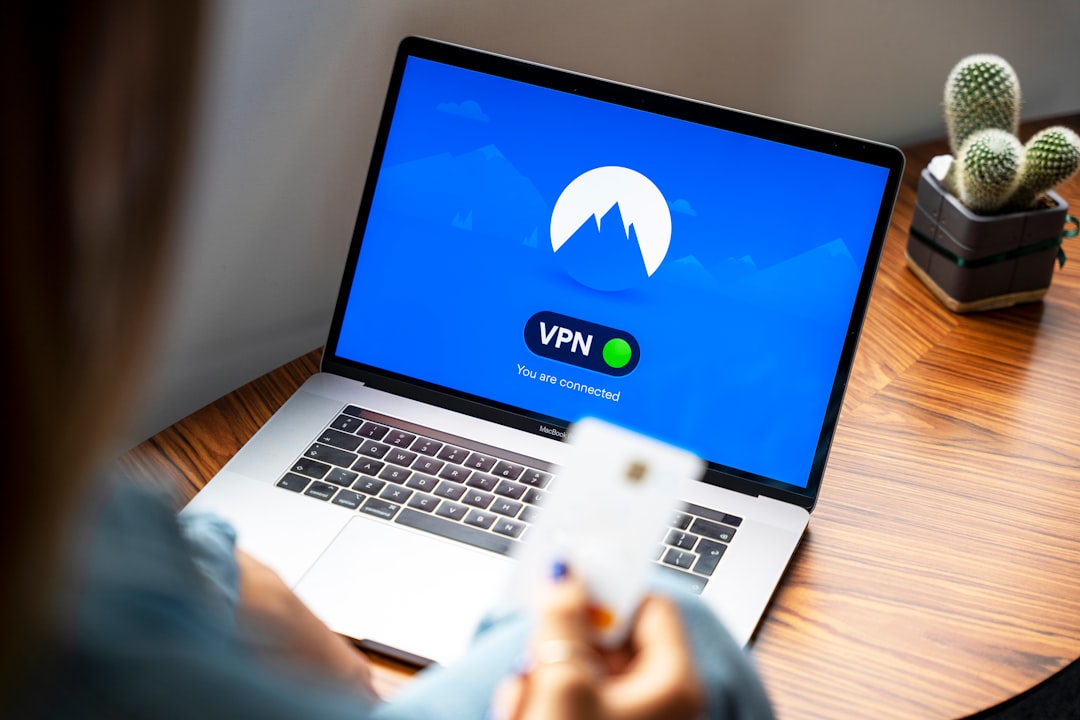
Open the PIA app and connect to a VPN server. For the cleanest setup, do this before opening qBittorrent. When the VPN is connected, your operating system creates or activates a VPN network interface. qBittorrent needs to see that interface in order to bind to it.
PIA may use different interface names depending on your system and protocol. On Windows, you may see names such as wgpia0, PIA WireGuard, or a TAP adapter if using OpenVPN. On macOS or Linux, interfaces may appear with names related to utun, wg, or similar VPN identifiers.
If PIA allows you to choose a protocol, WireGuard is often preferred for speed and modern performance, while OpenVPN may be useful for compatibility. Either can work for binding, but the interface name may change when you switch protocols. If you change the protocol later, revisit qBittorrent’s binding setting.
Step 2: Identify the PIA Network Interface
The most important part of the process is selecting the correct interface. If you choose the wrong one, qBittorrent may not connect, or worse, it may use your regular internet adapter.
On Windows, you can identify the VPN interface by opening Control Panel > Network and Internet > Network Connections, or by going to Settings > Network & Internet > Advanced network settings. Look for an adapter associated with PIA, WireGuard, or TAP. You can also run ipconfig in Command Prompt while connected to PIA and compare the listed adapters.
On macOS, open System Settings > Network and look for an active VPN-related service. Advanced users can also use Terminal commands such as ifconfig to inspect active interfaces. PIA WireGuard connections often appear as virtual interfaces rather than ordinary Wi-Fi or Ethernet connections.
On Linux, use commands such as ip addr or ifconfig. Look for an interface that becomes active only when PIA is connected. WireGuard-based interfaces are commonly easier to identify, but naming depends on the distribution and the PIA app version.

Step 3: Bind qBittorrent to the PIA Interface
Once PIA is connected and you have a likely interface name, open qBittorrent and apply the binding setting.
- Open qBittorrent.
- Go to Tools, then select Options.
- Click Advanced in the left-hand menu.
- Find the setting called Network Interface.
- Open the dropdown list and select the PIA VPN interface.
- Optionally, set Optional IP address to bind to if you know the VPN IP address and want an extra restriction.
- Click Apply, then OK.
- Restart qBittorrent to ensure the setting is fully applied.
In many setups, selecting only the Network Interface is sufficient. Binding to a specific IP address can add another layer of restriction, but it may require more maintenance because VPN IP addresses can change when you reconnect or switch servers. If the IP changes, qBittorrent may stop working until you update the setting.
Step 4: Enable PIA’s Kill Switch
Binding qBittorrent to the VPN interface is strong protection, but it should not be your only safeguard. PIA includes kill switch features designed to block traffic if the VPN drops. Using both binding and a kill switch creates a more defensive setup.
Open the PIA app settings and look for the Privacy or Kill Switch section. Enable the standard kill switch at minimum. If PIA offers an advanced kill switch option that blocks internet access unless the VPN is connected, consider using it if it fits your workflow.
The kill switch protects more than just qBittorrent. It can help prevent browsers, messaging apps, cloud storage tools, and other applications from briefly reconnecting outside the VPN. However, because kill switches can occasionally fail due to system updates, firewall conflicts, or misconfiguration, qBittorrent binding remains valuable.
Step 5: Test the Binding Carefully
Testing is essential. Do not assume the setup is correct just because qBittorrent still works while PIA is connected. A proper test confirms that qBittorrent fails safely when PIA is disconnected.
- Connect to PIA.
- Open qBittorrent and start a legal test torrent, such as a Linux distribution ISO.
- Confirm that the torrent begins downloading or seeding.
- Disconnect PIA while qBittorrent remains open.
- Watch qBittorrent. Transfers should stop rather than continue through your normal connection.
- Reconnect PIA and confirm that transfers resume.
You can also use a torrent IP checking service to verify the IP address seen by peers. These services provide a small magnet link that reports the IP address used by your torrent client. The reported IP should match your VPN IP, not your home or office IP address.

Recommended qBittorrent Privacy Settings
Binding is the core step, but several additional qBittorrent settings can improve privacy and reliability. These settings are not a substitute for a VPN, but they can reduce unnecessary exposure.
- Disable UPnP and NAT-PMP: Go to Options > Connection and consider disabling automatic port mapping if you do not need it.
- Use anonymous mode: Under Options > BitTorrent, enable Anonymous mode if appropriate. This can reduce some client-identifying information.
- Require encryption cautiously: Protocol encryption may slightly reduce visibility to some network observers, but it is not a replacement for VPN encryption.
- Limit startup behavior: Avoid launching qBittorrent automatically before PIA connects, unless you are confident binding and the kill switch are working.
- Keep software updated: Updates often include security fixes and network behavior improvements.
Using PIA Port Forwarding with qBittorrent
PIA offers port forwarding on selected regions. Port forwarding can improve incoming connections and may help with seeding performance. It is not required for binding, but it can make qBittorrent work better if you regularly seed legal torrents.
To use it, connect to a PIA location that supports port forwarding and enable the feature in the PIA app. PIA should provide a forwarded port number. In qBittorrent, go to Options > Connection and enter that port as the listening port.
Do not confuse port forwarding with binding. Binding controls which network interface qBittorrent may use. Port forwarding controls whether peers can initiate incoming connections to your torrent client. They solve different problems and can be used together.
Troubleshooting Common Problems
If qBittorrent stops working after binding, the most likely cause is that the wrong interface was selected or the VPN interface name changed. Reconnect PIA, return to Options > Advanced, and inspect the Network Interface dropdown again.
If the correct interface does not appear, restart qBittorrent after connecting to PIA. If it still does not appear, reboot your computer, reconnect PIA, and try again. On some systems, switching PIA from WireGuard to OpenVPN, or from OpenVPN to WireGuard, changes how the VPN adapter is exposed to applications.
If torrents continue after disconnecting PIA, stop immediately and review your configuration. Confirm that qBittorrent is bound to the VPN interface, not to Any interface, Wi-Fi, Ethernet, or a generic adapter unrelated to PIA. Also confirm that no proxy, split tunneling, or firewall rule is bypassing your intended route.
Final Security Checklist
- PIA is connected before qBittorrent starts.
- qBittorrent is bound to the PIA VPN interface.
- Transfers stop when PIA disconnects.
- PIA kill switch is enabled.
- A torrent IP test shows only the VPN IP address.
- qBittorrent and PIA are kept up to date.
Binding PIA to qBittorrent is a sensible precaution for anyone who wants stronger control over torrent traffic. It is simple, but it must be done carefully: connect to PIA, identify the correct VPN interface, select it in qBittorrent, then test the result. When combined with PIA’s kill switch, responsible torrenting practices, and regular leak checks, binding provides a serious and dependable privacy layer.