
Ever noticed your iPhone lighting up with big, beautiful widgets while it’s charging sideways? Or maybe you’re wondering how to stop that from happening? That’s called StandBy Mode! It’s a cool new feature in iOS, especially handy if your phone doubles as a mini bedside display. Let’s dive into how to turn it on or off — the fun way!
TLDR:
StandBy Mode is an iPhone feature that kicks in when your phone is charging in landscape (sideways) mode. It shows widgets, clocks, photos, and even Siri. You can easily enable or disable it from the Settings app. If it’s bugging you or just not your style, you can turn it off with a few taps.
What is StandBy Mode?
StandBy Mode is a smart display feature. When your iPhone is locked, charging, and placed in landscape orientation (horizontal), it transforms your screen into something way more exciting.
It can show things like:
- Large clocks in various styles
- Your favorite photos
- Interactive widgets
- Live Activities and Siri results
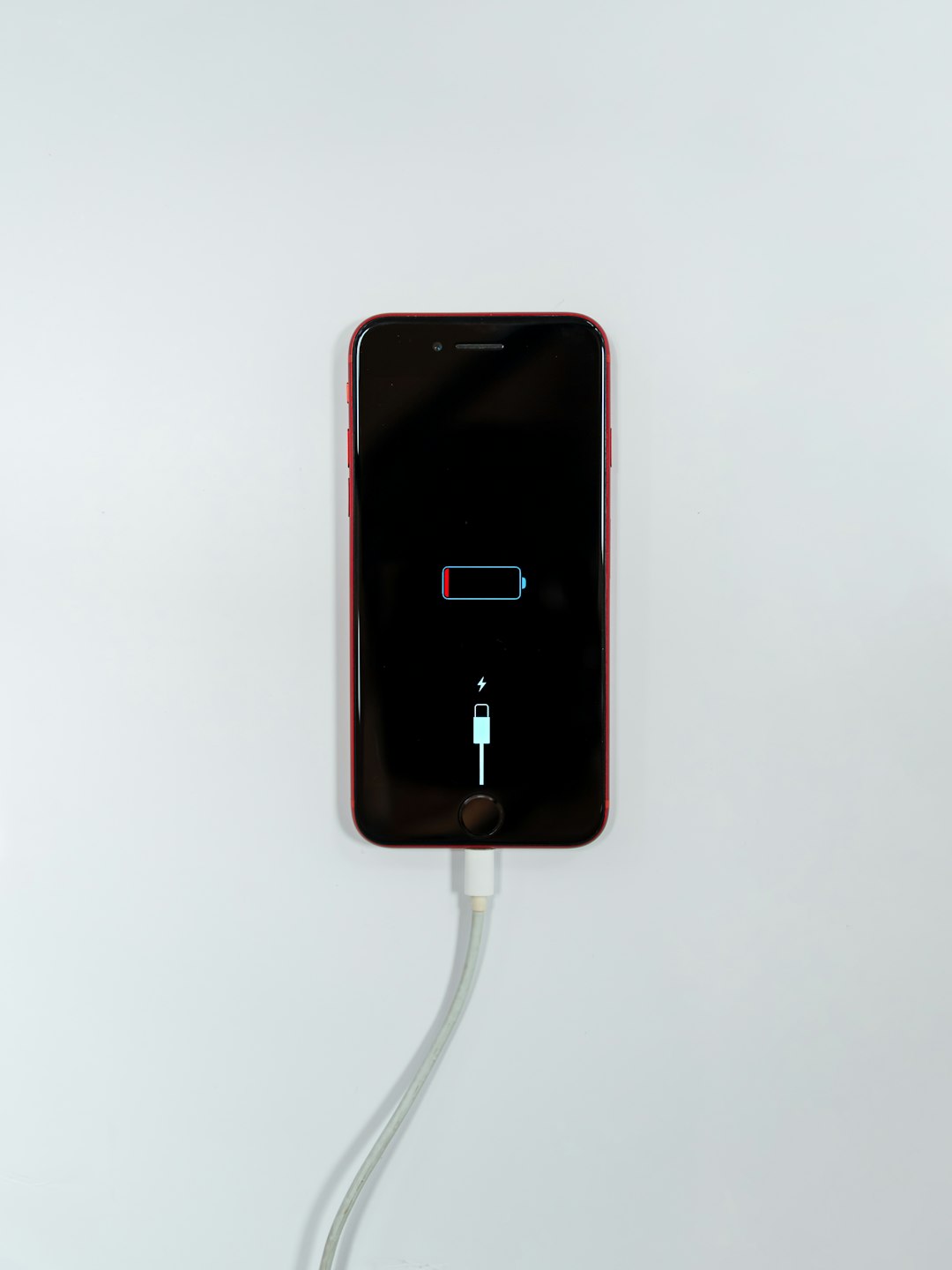
It turns your phone into a mini-smart display — like a mini version of a smart speaker with a screen. Super handy at your desk or nightstand!
How to Enable StandBy Mode
First things first — make sure your iPhone is running iOS 17 or newer. StandBy Mode only exists starting from iOS 17. Older iPhones, sorry!
Now let’s get it turned on:
- Open your Settings app.
- Scroll down and tap on StandBy. (Yep, it has its own special menu!)
- Toggle the StandBy switch to the ON position.
Ta-da! That’s it! 🍾
Now just place your iPhone on charge in landscape mode, and magic happens. 🙌
Useful Tip:
Make sure you’re using a MagSafe stand or charging dock for best results. It helps keep the phone steady and properly angled.
How to Disable StandBy Mode
Not a fan? No shame in that.
Maybe the light is too bright at night, or maybe it’s just not your thing. You can turn it off easily.
- Open the Settings app.
- Scroll down and tap StandBy.
- Switch the toggle to OFF.
Done! Your phone will now act like a normal iPhone when charging. Nothing fancy, just the usual black screen.
Extra Privacy Options
Even if you want to keep StandBy Mode on, you might want to limit what it shows. For example, you can disable personal photos or prevent notifications from showing up.
In the same StandBy settings screen, you’ll find more options:
- Always On: Keep the screen active all the time (only works on iPhones with Always-On display)
- Show Notifications: Toggle this to hide message and app alerts in StandBy
- Night Mode: This dims the screen automatically in dark environments
Play around with these! You can make StandBy work just right for your lifestyle.
Is My iPhone Compatible?
StandBy Mode only works with iPhones running iOS 17 or higher. Also, to get the Always-On screen (so it stays visible all night), you’ll need one of the following models:
- iPhone 14 Pro
- iPhone 14 Pro Max
- iPhone 15 Pro
- iPhone 15 Pro Max
If you have any other iPhone, you’ll still get StandBy but the screen will turn off after a while.
Customize Your StandBy View
This is where it gets fun!
You can swipe through different views:
- Clock – Choose from digital, analog, solar, or stylish neon clocks
- Photos – Let your favorite snapshots rotate automatically
- Widgets – Add calendars, weather, to-do lists, and more!
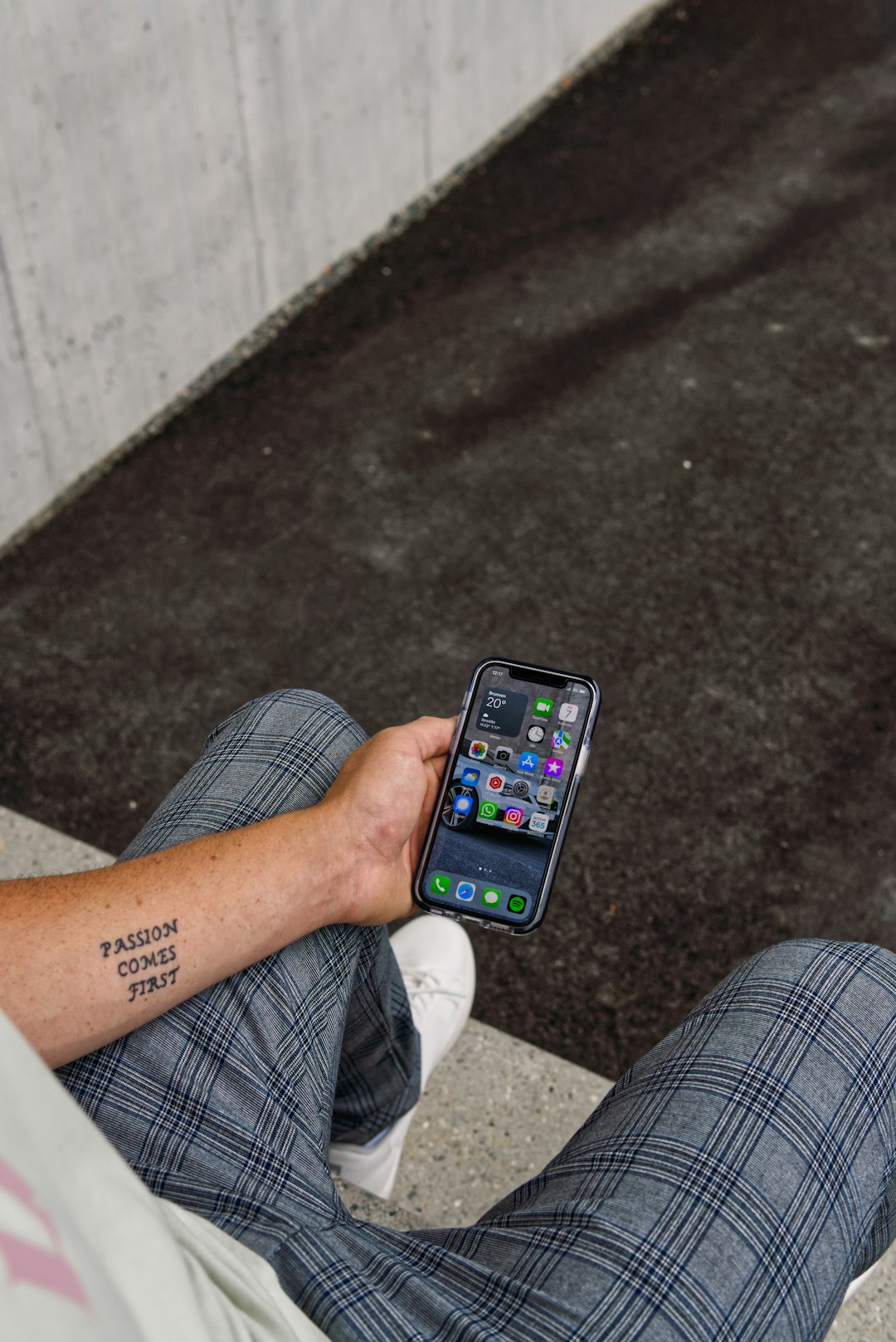
Just swipe left or right when StandBy is active to change views. Hold down on a widget or item to customize it — just like you do on your Home Screen.
Want Even More Control?
Use the Smart Stacks feature in widgets to have multiple widgets rotate throughout the day. Or, use Focus Modes to decide when StandBy shows up, and when it keeps quiet.
Troubleshooting: Why StandBy Isn’t Working
If you’ve turned it on but nothing’s showing up, don’t panic. Try these quick fixes:
- Make sure your phone is charging
- Place it in landscape orientation
- Keep your iPhone locked
- Use a stable dock or stand (MagSafe is best)
- Double-check if StandBy is enabled in Settings
Sometimes rebooting the phone helps too. Classic tech fix, right?
When to Use StandBy Mode
Here are some great times to let StandBy shine:
- While working at your desk: Use it as a clock and task manager
- Next to your bed: It’s a perfect low-light nightstand display
- Cooking in the kitchen: Check timers and recipe widgets hands-free
Basically, whenever your phone is idle but charging — StandBy can make it more useful!
Wrap-Up
StandBy Mode is one of those features you didn’t know you needed — until you try it. Whether you want a stylish bedside clock or interactive widgets while working, it delivers a sleek, hands-free experience.
But hey, if fancy screens aren’t your thing, turning it off is just as easy. It’s your iPhone — make it work for you!
Now go experiment, decorate your little StandBy screen, or enjoy the peace of a dark charging phone. Your call!