
Esports demands speed, precision, and zero compromise. While gaming laptops offer impressive power in portable form, they rarely arrive perfectly tuned for competitive play. If you want smoother frames, lower latency, and maximum responsiveness, optimizing your gaming laptop is essential. With the right adjustments, you can turn a solid machine into a tournament-ready weapon.
TLDR: Optimizing your gaming laptop for esports involves improving performance, lowering latency, and maintaining stable temperatures. Update drivers, adjust in-game graphics settings for high FPS, disable background processes, and fine-tune power and network settings. Cooling, storage optimization, and display customization also significantly impact competitive performance. Small tweaks can unlock major gains in responsiveness and consistency.
1. Update Everything First
Before diving into performance tweaks, start with the fundamentals. Outdated software can create bottlenecks and instability, especially in competitive games that receive frequent patches.
- GPU Drivers: Install the latest drivers from NVIDIA, AMD, or Intel directly.
- Windows Updates: Ensure your operating system is fully updated.
- BIOS and Firmware: Check your manufacturer’s site for laptop-specific updates.
- Game Updates: Keep esports titles like Valorant, CS2, Fortnite, or Apex Legends current.
Fresh drivers often include performance optimizations specifically tailored to popular esports titles.
2. Optimize In-Game Graphics Settings for Maximum FPS
In esports, higher frames per second (FPS) matter more than ultra-realistic graphics. Your goal is stability and responsiveness, not cinematic visuals.
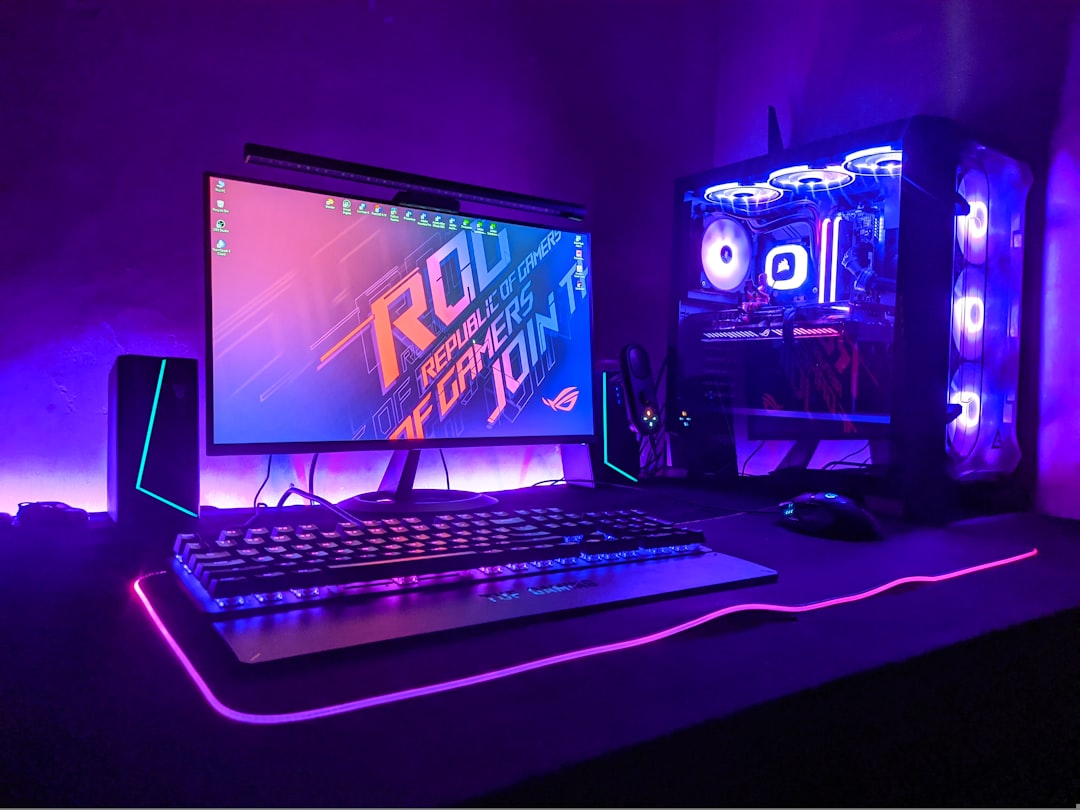
Focus on these adjustments:
- Lower resolution slightly if needed (e.g., 1080p to 1600×900).
- Disable V-Sync to reduce input lag.
- Turn shadows, motion blur, and anti-aliasing to low or off.
- Set texture quality to medium if VRAM allows.
- Enable performance mode if the game provides one.
Competitive players often prefer consistent 144+ FPS rather than fluctuating high-quality visuals. Always test changes in practice mode before heading into ranked matches.
3. Adjust Windows for Performance
Windows includes visual effects and background features that can quietly drain performance. Streamlining your system gives your game priority access to resources.
Steps to optimize Windows:
- Set Power Mode to High Performance or Ultimate Performance.
- Disable startup programs you don’t need.
- Turn off Xbox Game Bar if unused.
- Disable unnecessary background apps in Settings.
- Set Visual Effects to “Adjust for best performance.”
You can also use Game Mode in Windows, which prioritizes system resources for active games.
4. Control Thermals and Prevent Throttling
Gaming laptops are compact, which makes efficient cooling critical. When temperatures spike, your CPU and GPU may throttle, reducing performance mid-match.
To maintain stable temperatures:
- Use a cooling pad for better airflow.
- Elevate the back of the laptop slightly.
- Clean dust from vents regularly.
- Consider undervolting (advanced users).
- Use manufacturer fan-control software if available.
Monitoring tools like MSI Afterburner or HWMonitor can help track CPU and GPU temperatures. Ideally, keep them under 85°C during extended sessions.
5. Upgrade Hardware Where Possible
While laptops have limited upgrade potential, certain upgrades can dramatically improve esports performance.
- RAM: Upgrade to at least 16GB for modern titles.
- SSD: Install games on an NVMe SSD for faster load times.
- Dual-Channel Memory: Ensure RAM is configured properly for better bandwidth.
Many esports titles are CPU-intensive, so faster RAM in dual-channel mode can produce noticeable frame improvements.
6. Reduce Input Lag
In competitive gaming, even a few milliseconds can matter. Optimizing input responsiveness is just as important as maximizing FPS.
Ways to minimize input lag:
- Disable V-Sync.
- Use your display’s highest refresh rate.
- Enable NVIDIA Reflex or AMD Anti-Lag if available.
- Use wired peripherals instead of wireless when possible.
- Keep USB ports free of bandwidth-heavy devices.
Additionally, check that your display is set correctly: go to Display Settings → Advanced Display → select the maximum refresh rate (120Hz, 144Hz, 240Hz, etc.).
7. Optimize Network Settings for Stability
Low ping and stable connections are critical for esports. Even powerful hardware means little if your network stutters.
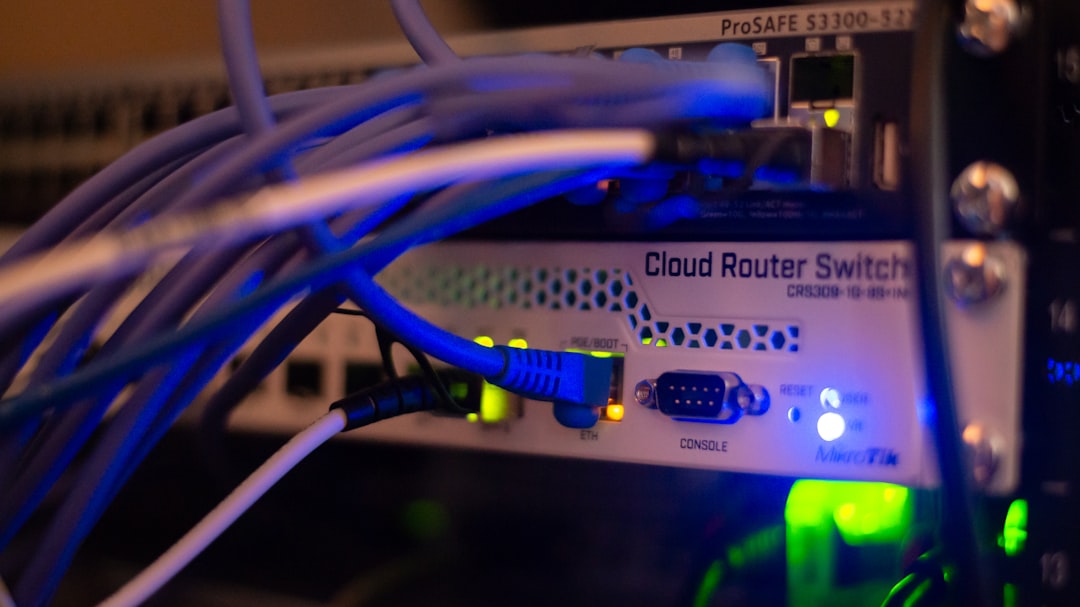
Improve your connection by:
- Using a wired Ethernet connection whenever possible.
- Pausing downloads and streaming.
- Updating network adapter drivers.
- Selecting the closest in-game server region.
- Restarting your router occasionally.
If Wi-Fi is your only option, sit closer to the router and use the 5GHz band for lower latency.
8. Fine-Tune GPU Settings
Both NVIDIA and AMD offer control panels that allow deeper optimization.
NVIDIA users:
- Set Power Management Mode to “Prefer Maximum Performance.”
- Enable Low Latency Mode (Ultra for esports).
- Adjust Threaded Optimization on.
AMD users:
- Enable Radeon Anti-Lag.
- Turn on Radeon Boost for dynamic resolution scaling.
- Use the Gaming profile for optimization.
These global settings can significantly enhance responsiveness in competitive titles.
9. Calibrate Your Display for Competitive Clarity
Visual clarity can improve reaction time. Many gaming laptops include high-refresh-rate panels, but proper calibration is key.
- Increase brightness for clearer enemy visibility.
- Adjust contrast for sharper outlines.
- Use color profiles that enhance vibrancy.
- Disable unnecessary post-processing effects.
Some competitive players slightly increase digital vibrance in GPU settings to make enemies stand out against the environment.
10. Manage Storage Efficiently
A cluttered drive can slow down performance and cause unnecessary background maintenance activity.
- Keep at least 20% free space on your SSD.
- Uninstall unused applications.
- Disable background syncing services while gaming.
- Run disk cleanup periodically.
Fast load times won’t improve aim, but they reduce wait times and system strain.
11. Use Performance Monitoring Tools
You can’t optimize what you don’t measure. Monitoring tools help identify bottlenecks.
Recommended metrics to track:
- FPS and frame time consistency.
- CPU and GPU usage percentages.
- Temperatures.
- RAM usage.
Frame time stability is often more important than raw FPS. Sudden spikes can disrupt aim and tracking in fast-paced games.
12. Create a Pre-Match Optimization Routine
Professional players often follow a consistency routine before matches. You can do the same:
- Restart your laptop before ranked sessions.
- Close all unnecessary apps.
- Check temperatures.
- Verify refresh rate settings.
- Test audio and microphone levels.
This ritual ensures nothing unexpected interferes with gameplay.
Balancing Portability and Performance
Gaming laptops naturally run hotter than desktops, and battery mode typically limits performance. When competing seriously:
- Keep the laptop plugged in.
- Use Performance mode via manufacturer software.
- Avoid gaming on battery unless absolutely necessary.
Battery-saving features often cap CPU and GPU performance, which can dramatically reduce FPS.
Final Thoughts
Optimizing your gaming laptop for esports isn’t about one dramatic change—it’s about stacking small improvements. Each tweak, from disabling V-Sync to managing thermals and upgrading RAM, contributes to smoother gameplay and faster response times.
In competitive environments, consistency wins matches. A stable 165 FPS with low input lag and steady temperatures is far more valuable than flashy graphics settings. By refining your hardware, software, and network configuration, you create an environment where skill—not technical limitations—determines the outcome.
With the right optimizations, your gaming laptop can be more than portable—it can be a powerful, precision-tuned esports machine ready for competition.