
Voice assistants are designed to wait for a wake word—but what if you don’t want to say it? Whether you’re in a quiet room, on a crowded commute, or simply tired of repeating the same phrase, many users are looking for ways to access Meta AI without saying “Hey Meta.” The good news is that you can interact with Meta AI across apps, devices, and platforms without ever using the wake phrase. You just need to know where to look and which features to enable.
TL;DR: You don’t need to say “Hey Meta” to use Meta AI. You can access it through text-based prompts in Messenger, Instagram, and WhatsApp, use device shortcuts, tap-to-activate features on smart glasses, or launch it manually inside supported apps. The key is understanding where Meta AI lives and how to trigger it without voice activation. With the right setup, you can interact with it silently and efficiently.
Meta AI is integrated across multiple Meta-owned platforms and devices. While voice activation is heavily marketed, it’s only one of several ways to use the assistant. In fact, text commands, built-in search bars, and customizable shortcuts often provide a faster and more discreet way to get results.
Why Skip the Wake Word?
Before diving into the how, let’s explore the why. Users often choose not to say “Hey Meta” for several reasons:
- Privacy concerns: Some prefer not to use always-listening voice features.
- Shared environments: Speaking aloud isn’t always appropriate in offices, classrooms, or public places.
- Accessibility: Typing may be easier than speaking for some users.
- Speed: Tapping a shortcut can be faster than waiting for a voice assistant to respond.
Fortunately, Meta AI has evolved beyond voice-only interaction.
1. Use Meta AI in Messenger Without Voice Commands
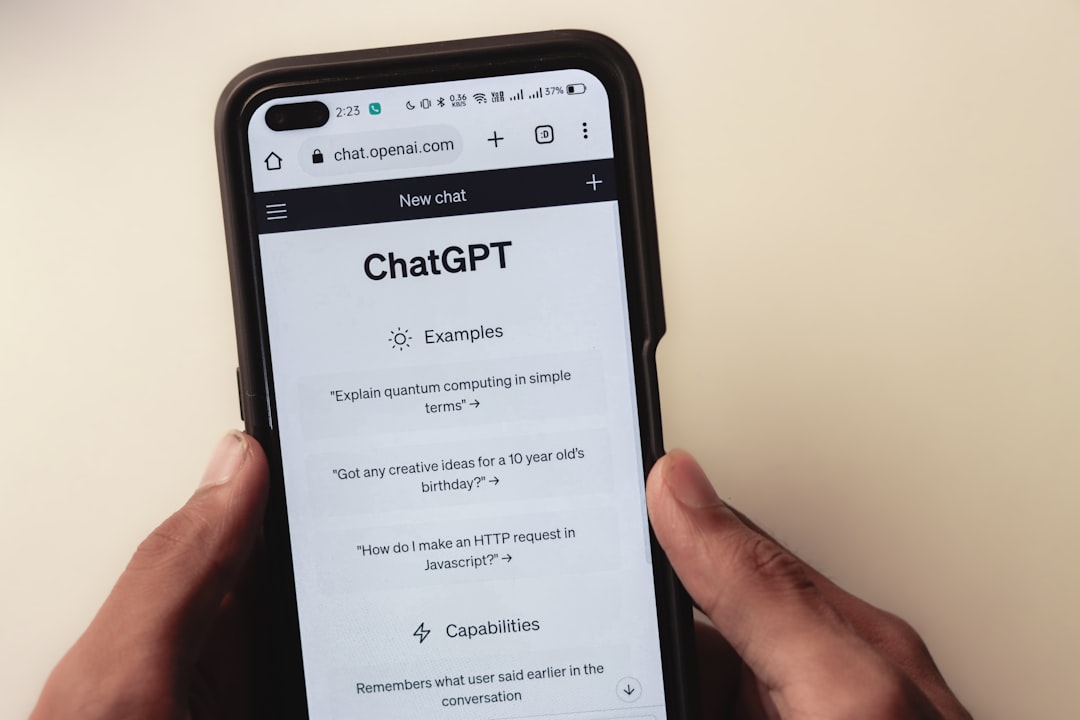
One of the easiest ways to access Meta AI without saying anything aloud is through Messenger. Meta has integrated AI directly into the search bar and chat interface.
How to use it:
- Open the Messenger app.
- Tap the search bar at the top.
- Type your question directly into the search field.
- Select the Meta AI prompt suggestion if it appears.
You can also access Meta AI as a chat contact. Simply start a conversation with the assistant and type naturally, just as you would with a human contact. No wake phrase required.
Pro Tip: Pin the Meta AI conversation to the top of your chats for instant access.
2. Access Meta AI in Instagram DMs
Meta AI is also embedded in Instagram’s messaging platform. If you’re already browsing Instagram, there’s no need to switch apps or use voice activation.
Steps:
- Go to your Instagram Direct Messages.
- Tap the compose message icon.
- Search for Meta AI in the contacts list.
- Start typing your question.
You can ask for recommendations, captions, summaries, or planning help—all via text. This makes Instagram one of the most seamless, quiet ways to use Meta AI.
3. Use Meta AI in WhatsApp
WhatsApp users can also interact with Meta AI without voice triggers. Similar to Messenger, the assistant is available as a chat contact in supported regions.
To activate:
- Open WhatsApp.
- Tap the new chat button.
- Select Meta AI from the contact suggestions.
- Type your request.
This is particularly useful for quick information lookups, drafting messages, or brainstorming ideas while already in conversation threads.
4. Use Smart Glasses Without Saying “Hey Meta”

If you’re using Ray-Ban Meta smart glasses, you might think voice commands are mandatory. They’re not.
Most models include a touch-sensitive control panel on the frame. Instead of saying the wake phrase, you can:
- Tap and hold the side panel to activate listening mode.
- Use the companion smartphone app to send text-based commands.
- Trigger specific actions using hardware buttons.
This method is ideal when you’re in a quiet setting or don’t want to draw attention. The tap-to-activate method gives you greater control over when the device listens.
5. Disable Voice Activation Entirely
If your goal is to avoid saying “Hey Meta” altogether, you can turn off wake word detection in your device settings.
General steps (may vary by device):
- Open your device’s companion app.
- Navigate to Voice or Assistant Settings.
- Locate Wake Word or Voice Activation.
- Toggle it off.
Once disabled, you’ll need to use manual triggers—like tapping icons or typing—but the assistant will no longer be passively listening for the activation phrase.
6. Use the Meta AI Web Interface (Where Available)
In some regions, Meta AI can be accessed via a browser interface. This removes voice entirely from the equation and functions much like a traditional chatbot.
Benefits of browser access:
- No microphone required
- Larger typing area
- Easier copy-and-paste functionality
- Better suited for long-form queries
This option works especially well for research tasks or detailed content creation.
Quick Comparison: Ways to Use Meta AI Without “Hey Meta”
| Platform | Voice Required? | Manual Activation | Best For | Privacy Level |
|---|---|---|---|---|
| Messenger | No | Search bar or AI chat | Quick questions, drafting | High |
| No | Direct Message AI contact | Captions, creative ideas | High | |
| No | AI chat contact | Message help, fast info | High | |
| Smart Glasses | Optional | Tap and hold touch panel | Photos, quick tasks | Moderate to High |
| Web Interface | No | Direct text input | Long queries, research | Very High |
7. Create App Shortcuts for Faster Access
If your phone supports shortcuts or widgets, you can make access even easier:
- Add a Messenger or WhatsApp widget directly to your home screen.
- Create a shortcut that opens the Meta AI conversation immediately.
- Use your phone’s accessibility options for one-tap actions.
This turns Meta AI into a single-tap experience—often faster than speaking.
8. Use Search Bars Creatively

Many Meta platforms now blend search and AI functionality. Instead of navigating to a separate chat window, simply type directly into the search bar. In supported regions, the AI suggestion appears automatically.
This transforms Meta AI into a hybrid between a search engine and a virtual assistant—entirely text-driven.
Tips for Seamless Silent Interaction
To make your experience smoother, keep these best practices in mind:
- Keep apps updated. Meta frequently improves AI integration.
- Pin AI chats for instant access.
- Use concise prompts for faster responses.
- Adjust notification settings if AI responses interrupt workflow.
- Check regional availability as features may vary.
By optimizing these small details, you’ll rarely miss voice activation.
Is Text Better Than Voice?
Voice assistants feel futuristic, but text-based AI often provides greater clarity and precision. When you type, you can:
- Edit before sending
- Copy and save responses easily
- Avoid background noise interference
- Maintain discretion
Voice interaction may feel natural, but text interaction can be more strategic and controlled—especially in professional contexts.
The Bigger Picture: AI Beyond Wake Words
The reliance on wake phrases is fading. As AI becomes more embedded into apps, it shifts from a “call-and-response” assistant into an always-available tool within your digital environment.
Instead of summoning Meta AI, you simply open it like any other feature. This subtle shift changes the experience from conversational to integrated. You’re no longer asking a device for permission to help—you’re accessing built-in intelligence when you need it.
Final Thoughts
Using Meta AI without saying “Hey Meta” isn’t a workaround—it’s a smarter way to engage with the technology. Whether through Messenger, Instagram, WhatsApp, smart glasses touch controls, or browser access, the assistant is fully functional without voice activation.
For many users, silent interaction is faster, more private, and more practical. Once you pin the right chats, enable shortcuts, and understand where AI lives inside each app, you may find that you never miss the wake word at all.
Ultimately, the best AI experience isn’t just hands-free—it’s friction-free. And sometimes, that means saying nothing at all.