
The PlayStation 4 is known for its durability and performance, but even this legendary console can run into issues. One of the most alarming problems is the dreaded White Light of Death (WLOD). Unlike the more famous “Blue Light of Death,” the PS4 white light issue can be confusing and frustrating — especially when your console powers on but nothing appears on the screen.
TL;DR: If your PS4 shows a solid white light and no display, it’s usually a connection or hardware issue. Start by checking your HDMI cable, TV input, and power cycling the console. If that doesn’t work, try safe mode or inspect the HDMI port for damage. In most cases, the problem is fixable without replacing your console.
What Is the PS4 White Light of Death?
When you power on your PS4, the indicator light typically turns blue before becoming solid white. A solid white light normally means your console is on and functioning properly. However, if you see a white light and no signal on your TV, that’s when the issue becomes the so-called White Light of Death.
Common symptoms include:
- Solid white light on the console
- No video or audio output
- TV displays “No Signal”
- Console appears responsive but nothing shows on screen
The good news? In many cases, it’s not truly “dead.” The issue is often related to HDMI connectivity, resolution settings, or minor hardware faults.
Why Does the PS4 White Light of Death Happen?
There are several possible causes behind this issue. Understanding them can help you pinpoint the right fix.
1. Faulty HDMI Cable
Your HDMI cable may be damaged, loose, or incompatible. Even a slightly bent connector can prevent proper signal transmission.
2. Damaged HDMI Port
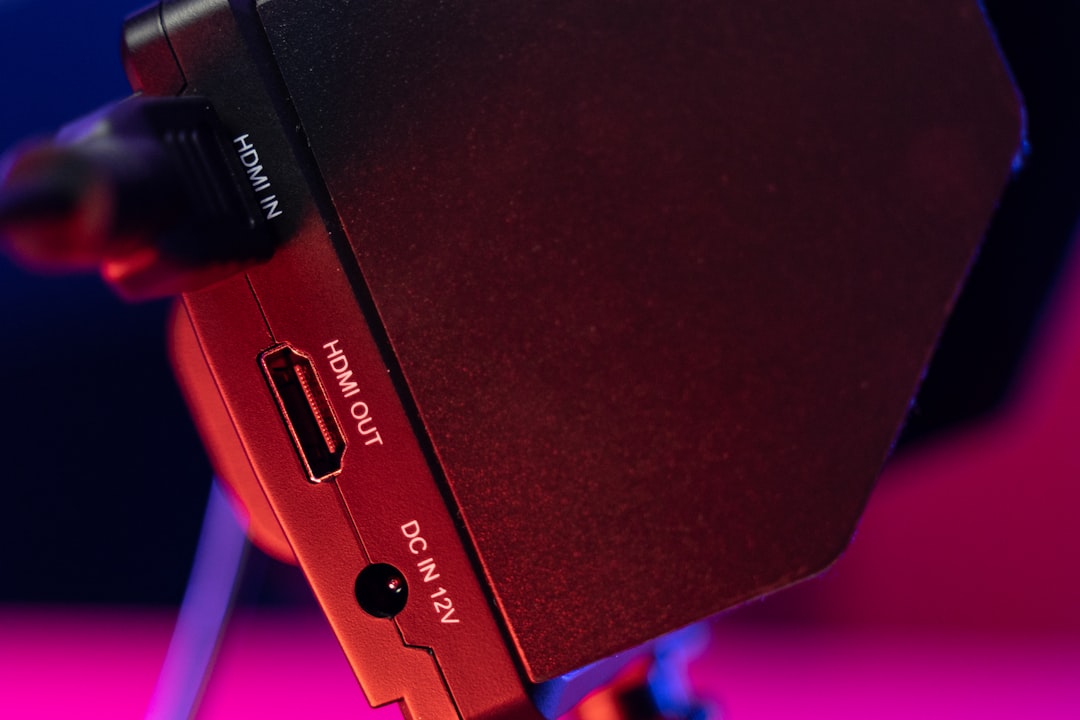
The HDMI port on the PS4 can become bent or damaged from repeatedly plugging and unplugging cables.
3. TV Input or Resolution Problem
If your TV is set to the wrong input or the PS4 resolution is incompatible with your display, you might see a white light but no picture.
4. Power Supply Glitch
A minor power interruption or corrupted system software can also cause startup display issues.
5. Hardware Failure
In rare cases, the problem may stem from GPU or motherboard damage.
Step-by-Step Fixes for PS4 White Light of Death
Before assuming the worst, try these practical solutions.
1. Perform a Complete Power Cycle
- Turn off your PS4 completely.
- Unplug the power cable from the console.
- Wait 5–10 minutes.
- Reconnect everything and power it back on.
This simple reset often clears minor software glitches.
2. Check Your HDMI Cable
Inspect your HDMI cable carefully:
- Look for bent connectors
- Test with a different HDMI cable
- Try another HDMI port on your TV
Using a high-quality HDMI cable can make a surprising difference.
3. Try a Different TV or Monitor
Sometimes the problem isn’t your PS4 at all. Connect your console to another screen to rule out TV-related issues.
4. Boot Into Safe Mode
Safe Mode allows you to adjust system settings even if your display settings are incorrect.
To enter Safe Mode:
- Turn off your PS4 completely.
- Press and hold the power button.
- Release after the second beep (about 7 seconds).
- Connect your controller via USB and select options like:
- Change Resolution
- Rebuild Database
- Restart PS4
5. Inspect the HDMI Port
Look inside the HDMI port using a flashlight. You’re checking for:
- Bent pins
- Dust buildup
- Loose internal connection
If the pins are bent, the port may require professional repair.
6. Rebuild the Database
This Safe Mode option scans and reorganizes your system data. It does not delete games or saves but can resolve software corruption.
Tools You Might Need
If you plan to inspect or repair minor hardware issues, here are tools that may help.
| Tool | Purpose | Difficulty Level | Recommended For |
|---|---|---|---|
| High quality HDMI cable | Replace faulty connection | Very Easy | All users |
| Flashlight | Inspect HDMI port pins | Easy | All users |
| Compressed air | Remove dust from port | Easy | Basic maintenance |
| Precision screwdriver set | Open console for deeper inspection | Advanced | Experienced users |
Note: Opening your PS4 may void your warranty. Only attempt internal repairs if you are confident in your technical skills.
When to Seek Professional Repair
You should consider professional service if:
- The HDMI port is visibly damaged
- The console shuts off randomly
- You hear unusual sounds during startup
- Safe Mode does not resolve the issue
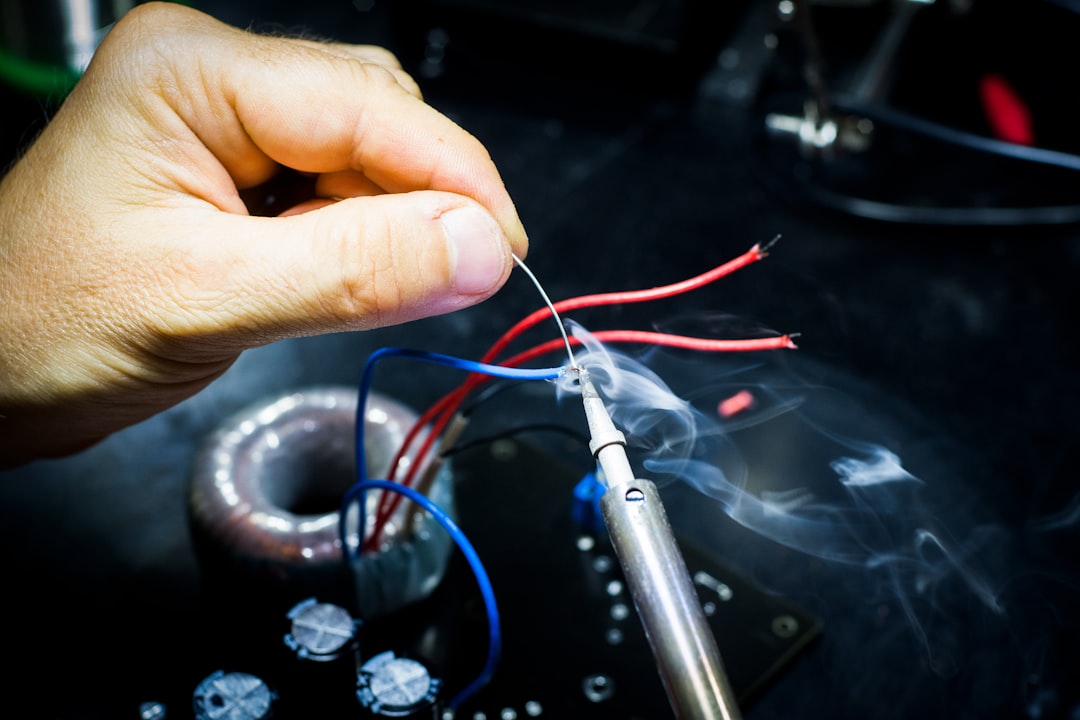
HDMI port replacement is one of the most common PS4 repairs and is often affordable compared to replacing the entire console.
How to Prevent the White Light of Death
Prevention is always better than repair. Here’s how to protect your PS4:
1. Avoid Forcing the HDMI Cable
Gently plug and unplug cables. Forcing connections can bend internal pins.
2. Use Surge Protection
A surge protector protects against electrical spikes that can damage internal components.
3. Keep Your Console Ventilated
Overheating can contribute to hardware degradation. Make sure your PS4:
- Has space around it
- Is not enclosed in tight cabinets
- Is regularly cleaned of dust
4. Update System Software
Keep your firmware updated to prevent software-related glitches.
Is the PS4 White Light of Death Permanent?
In most cases, no. The name sounds dramatic, but many white light issues are easily fixable through cable replacement, Safe Mode adjustments, or basic maintenance.
True hardware failure is less common. And even then, HDMI port replacement or motherboard repair is often possible at a reasonable cost.
PS4 White Light vs Blue Light of Death
It’s important not to confuse the two:
- White Light (solid): Console is on, usually display-related issue.
- Blue Light (blinking): Console fails to boot properly.
The Blue Light of Death is generally more serious. The White Light issue is often a signal transmission problem rather than a catastrophic hardware failure.
Final Thoughts
The PS4 White Light of Death might seem terrifying at first — especially when your screen stays stubbornly black — but it’s usually a manageable issue. In many cases, the problem boils down to a faulty HDMI cable, incorrect resolution settings, or a minor software hiccup.
Start with simple fixes before assuming the worst. Power cycle the console, switch HDMI cables, test another display, and use Safe Mode if needed. Only move to hardware inspection or professional repair if basic troubleshooting doesn’t solve the problem.
Your PS4 has likely survived years of intense gaming sessions. With the right approach, it can continue running smoothly for years to come — white light or not.