
Computers often run numerous background processes that are essential for ensuring smooth operation and regular system maintenance. While most of these go unnoticed, some processes might catch your attention—usually when they start consuming excessive CPU or disk resources. One such process is TiWorker.exe, also known as the Windows Modules Installer Worker. If you’ve noticed this process in your Task Manager and are curious—or concerned—about what it does, this article will provide a thorough explanation.
TL;DR (Too Long; Didn’t Read)
TiWorker.exe is a legitimate Windows background process responsible for installing and managing system updates. It often increases CPU and disk usage, especially after updates, but this is usually temporary. Unless it’s behaving abnormally or showing signs of being a virus (like running from the wrong system directory), there’s generally no need for concern. However, persistent performance issues may warrant further investigation or troubleshooting steps.
What Is TiWorker.exe?
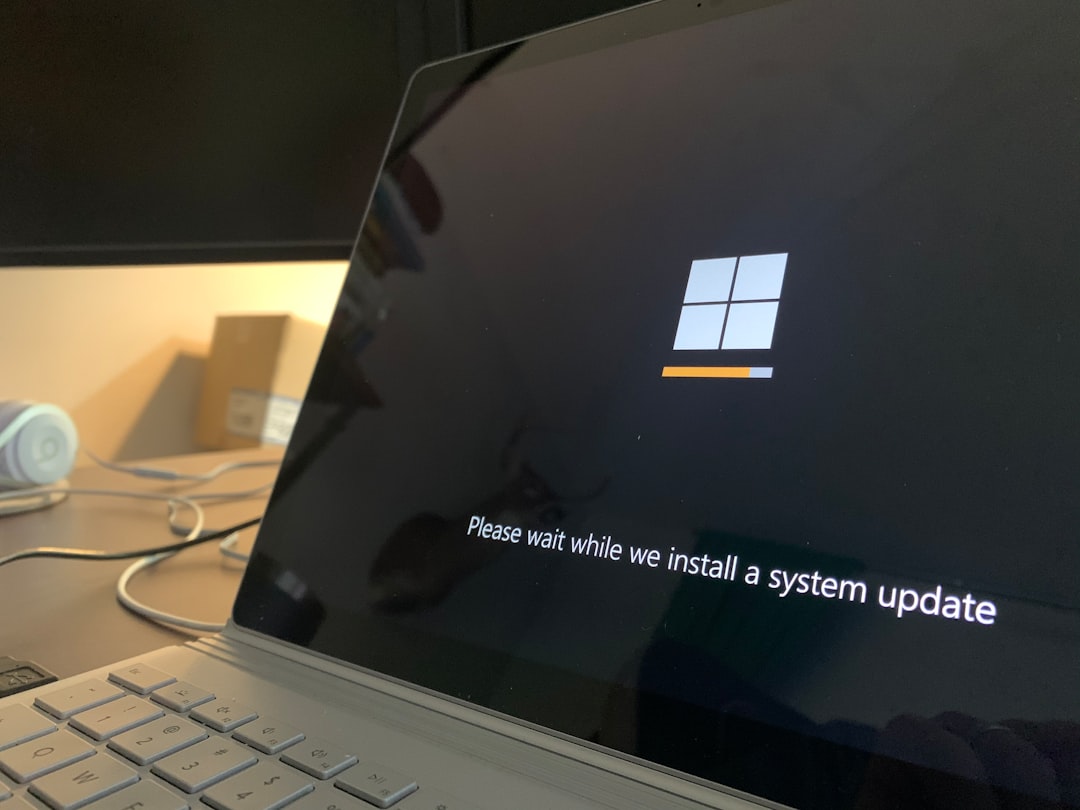
TiWorker.exe stands for Trusted Installer Worker and is part of the Windows Modules Installer service. It plays a crucial role in the installation, modification, and removal of Windows system updates and optional components. Essentially, every time Windows downloads and applies updates, this process is involved in finalizing and applying those patches.
Normally, you might see TiWorker.exe pop up in your Task Manager and consume significant system resources, especially after:
- Installing Windows updates
- Booting up your PC after an update
- Manually checking for updates
In most cases, this behavior is expected and temporary. Once the tasks are completed, the usage should drop back to normal levels.
Where Is TiWorker.exe Located?
The legitimate TiWorker.exe file should always be located in the following path:
C:\Windows\WinSxS\
More specifically, it usually resides within a subfolder like:
C:\Windows\WinSxS\amd64_microsoft-windows-servicingstack...
If you find a TiWorker.exe file running from a different location, it could indicate malware impersonating the legitimate system process.
Is TiWorker.exe Safe?
In its authentic form, TiWorker.exe is completely safe. It’s a crucial component of maintaining a secure and up-to-date Windows operating system. However, because of its name and typical high-resource usage, some malware programs have been known to disguise themselves as TiWorker.exe to avoid detection.
Here are a few tips to determine if your TiWorker.exe is safe:
- Check the File Location: Use Task Manager to right-click on TiWorker.exe and choose “Open file location.” If it leads to C:\Windows\WinSxS, it’s most likely legitimate.
- Scan for Malware: Run a full antivirus or anti-malware scan to ensure your system hasn’t been compromised.
- Observe Its Behavior: If the process is active when no updates are being installed, or is consuming a disproportionate amount of resources for extended periods, further investigation might be warranted.

Why is TiWorker.exe Using So Much CPU or Disk?
High CPU or disk usage tied to TiWorker.exe is typically temporary and linked to the Windows update process. When updates are being installed or configured, the system may require more resources to complete these tasks efficiently. CPU usage can spike to 50-100% and disk usage may rise to similarly high levels during this time.
Common reasons for TiWorker.exe resource spikes include:
- Pending Windows updates
- Background installation of new features or modules
- Corrupt or incomplete update files
- Incompatibility issues with recent updates
Usually, once the updates are processed and installed, resource usage drops back to normal. However, if usage remains high for hours or happens daily, it could be a sign of deeper system issues.
How to Fix TiWorker.exe High Resource Usage
If TiWorker.exe is regularly causing significant performance issues, consider trying the following troubleshooting steps:
1. Run the Windows Update Troubleshooter
Microsoft includes a built-in troubleshooter for diagnosing and fixing update-related issues. To use it:
- Go to Settings → Update & Security → Troubleshoot
- Click Additional troubleshooters → Windows Update
- Run the troubleshooter and apply recommended fixes
2. Clear Windows Update Cache
Corrupted update cache files can interfere with TiWorker.exe. You can clear the cache manually:
- Stop the Windows Update Service by running services.msc and stopping Windows Update
- Navigate to
C:\Windows\SoftwareDistribution\and delete all contents (don’t delete the folder itself) - Restart the Windows Update service
3. Check for Malware
It’s possible that malware is disguising itself as TiWorker.exe. Running a comprehensive scan with trusted antivirus software can help rule out infections.
4. Update Device Drivers
Some driver incompatibilities might trigger irregular behavior from TiWorker.exe. Make sure all your hardware drivers are up to date, particularly chipset, storage controller, and networking drivers.
5. Perform a System File Check
This process identifies and repairs corrupted system files:
- Open Command Prompt as Administrator
- Run:
sfc /scannow - Wait for the scan to complete and apply any fixes it finds
Can You Disable TiWorker.exe?
Technically, you can disable the Windows Modules Installer service, which would prevent TiWorker.exe from running. However, this is highly discouraged. Disabling this process will prevent Windows from updating properly, exposing your system to security vulnerabilities and performance issues over time.
If the process is creating ongoing performance problems, it’s better to investigate and fix the underlying cause rather than disabling it entirely.
Best Practices for Managing TiWorker.exe
Here are a few best practices you can follow to ensure TiWorker.exe doesn’t become a headache:
- Install Updates Timely: Regular updates help reduce the workload on TiWorker.exe over time.
- Keep Drivers Updated: Hardware drivers often interact with the update mechanism, and outdated drivers can cause conflicts.
- Scan Your System Regularly: Use antivirus tools to catch potential threats disguised as legitimate processes.
- Monitor Resource Usage: Use Task Manager periodically to ensure no process is monopolizing resources beyond what is normal.
When to Seek Professional Help
If all else fails and TiWorker.exe is still creating noticeable issues like system slowdowns or crashes, you may want to consult with a professional technician. In some cases, there may be more complex system corruption or hardware interaction problem that cannot be resolved without advanced diagnostics.
Conclusion
TiWorker.exe is an essential Windows process that helps keep your system updated and secure. While high resource usage might be alarming, it’s usually temporary and part of normal system maintenance. Ensuring your system is updated, free from malware, and operating efficiently will minimize issues with TiWorker.exe.
Always remain vigilant and confirm that the process is running from its correct system location. If performance issues persist, following the outlined troubleshooting steps can usually resolve the problem without causing further harm to your operating system.